
What Is Switchy? A Developer’s Guide and Honest Review
The developer explains how the Switchy text keyboard works, how to organize Contexts and Snippets, and what is included in Free and Pro.
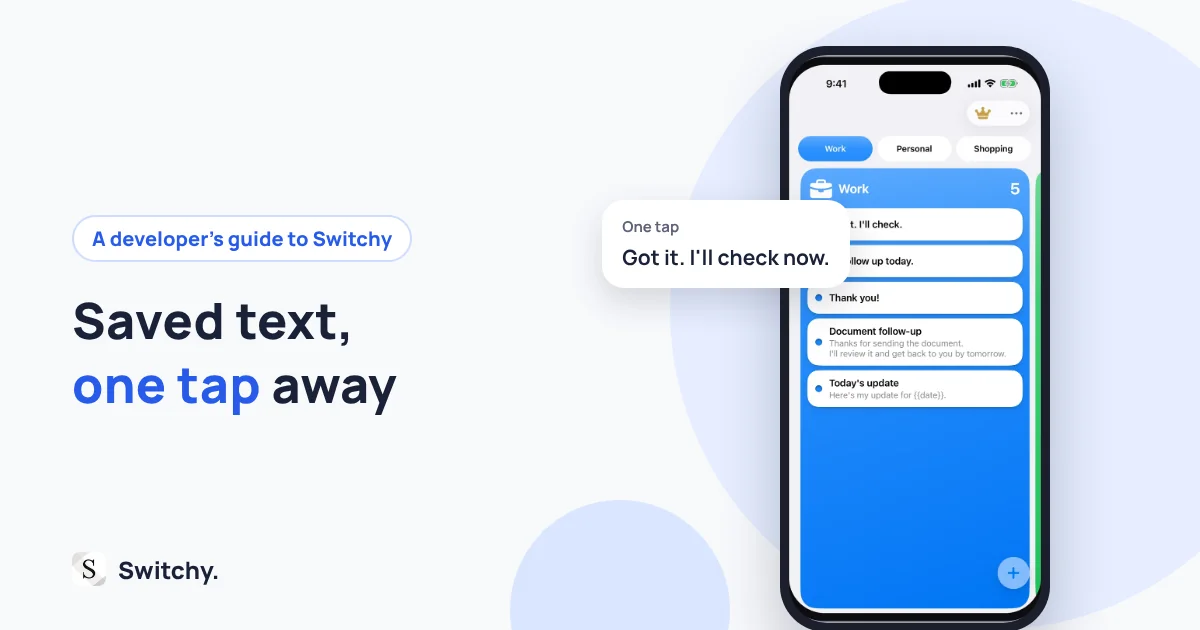
“Wait, did I type that email address correctly?”
Have you ever stopped mid-sentence because you were unsure?
If you type everything accurately and this never bothers you, this article probably isn’t for you.
But if any of these sound familiar, read on:
- You’re tired of typing an email address by hand and checking it every time.
- You keep switching between apps to copy text from a note.
- It’s hard to find the saved reply you need in your text replacements.
That frustration is real. Written communication is part of everyday life, and the small annoyances around typing can add up.
Switchy is a keyboard app designed to reduce the hesitation that happens before you type. I’ll share the problem I wanted to solve, how Switchy helps, and what it feels like to use the app I built.
My short version: Switchy isn’t an app for saving as much as possible. It’s an app for making it easier to choose. Pick a Context for the situation and see only the Snippets you need. That can cut down the small work of remembering, searching, and checking.
Switchy isn’t packed with flashy features. It focuses on one thing: making the flow of typing feel more organized. By the end, you should have a good sense of whether it fits the way you write.
Try Switchy (Free to use · iOS)
The hesitation before typing: “Which one was it?”
Are you struggling because you type slowly?
Probably not. You can type quickly, and the act of entering text isn’t the problem. The hesitation comes before you start:
- Which signature should I use for this email?
- Did I spell that email address correctly?
- Where did I save the reply template for Client A?
Remembering, searching, and checking take more attention than they seem to. Each pause may last only a few seconds, but repeating it throughout the day can be tiring.
Putting everything in text replacement can solve one problem and create another: the more entries you have, the more candidates you have to search through. Copying from a notes app works too, but switching apps adds a step.
I built Switchy to quietly remove that hesitation before typing.
What can Switchy do?
Switch between situations with Contexts
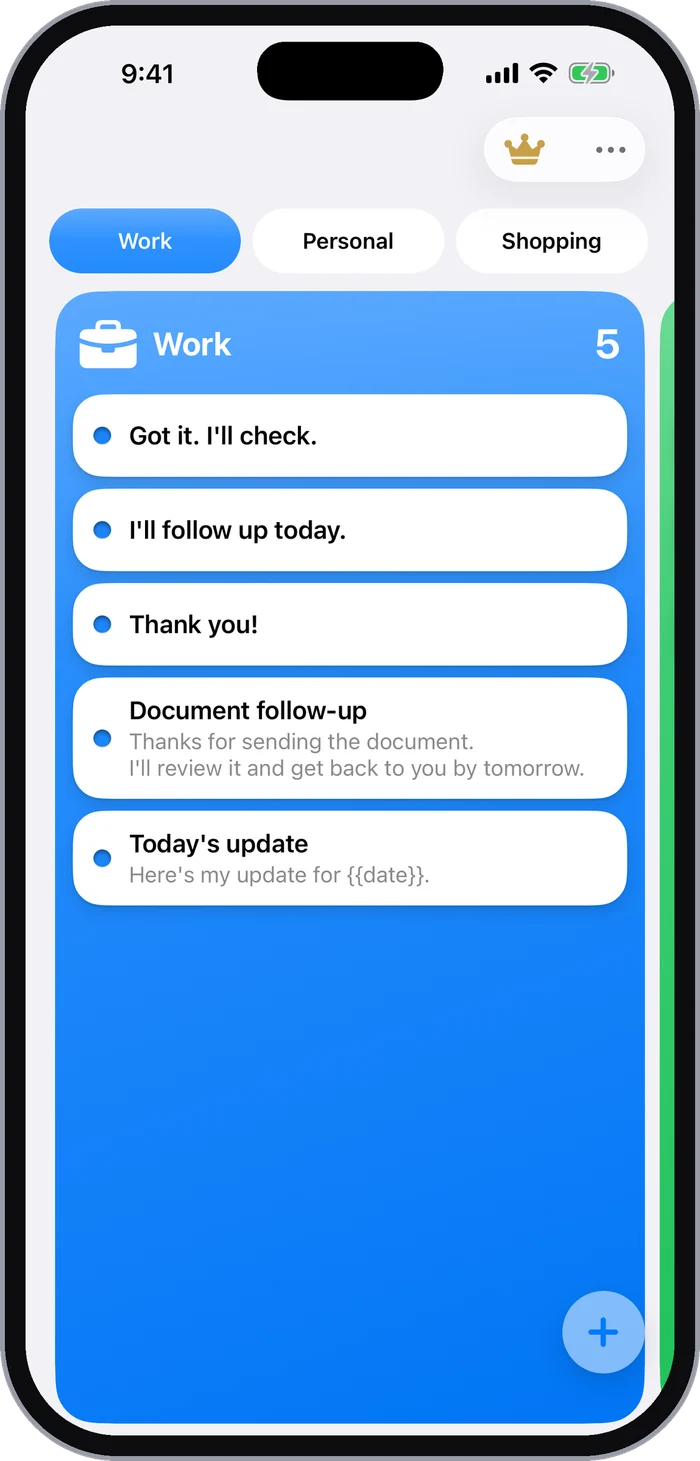
Switchy is simple. Create Contexts for situations such as “Work,” “Personal,” or “Applications,” then add the Snippets you want to use in each one.
When you need a saved phrase, select a Context. Choose “Work” to see your work signature and replies, or switch to “Personal” to find your personal email address. Because the choices are grouped by situation, you don’t have to scan one long list.
In v3, you can distinguish groups by color and give Snippets display names. Press and hold a Snippet on the keyboard to preview its full text before inserting it. Date and time variables can also insert the current date or time when you use a Snippet.
Insert a Snippet with one tap from the keyboard
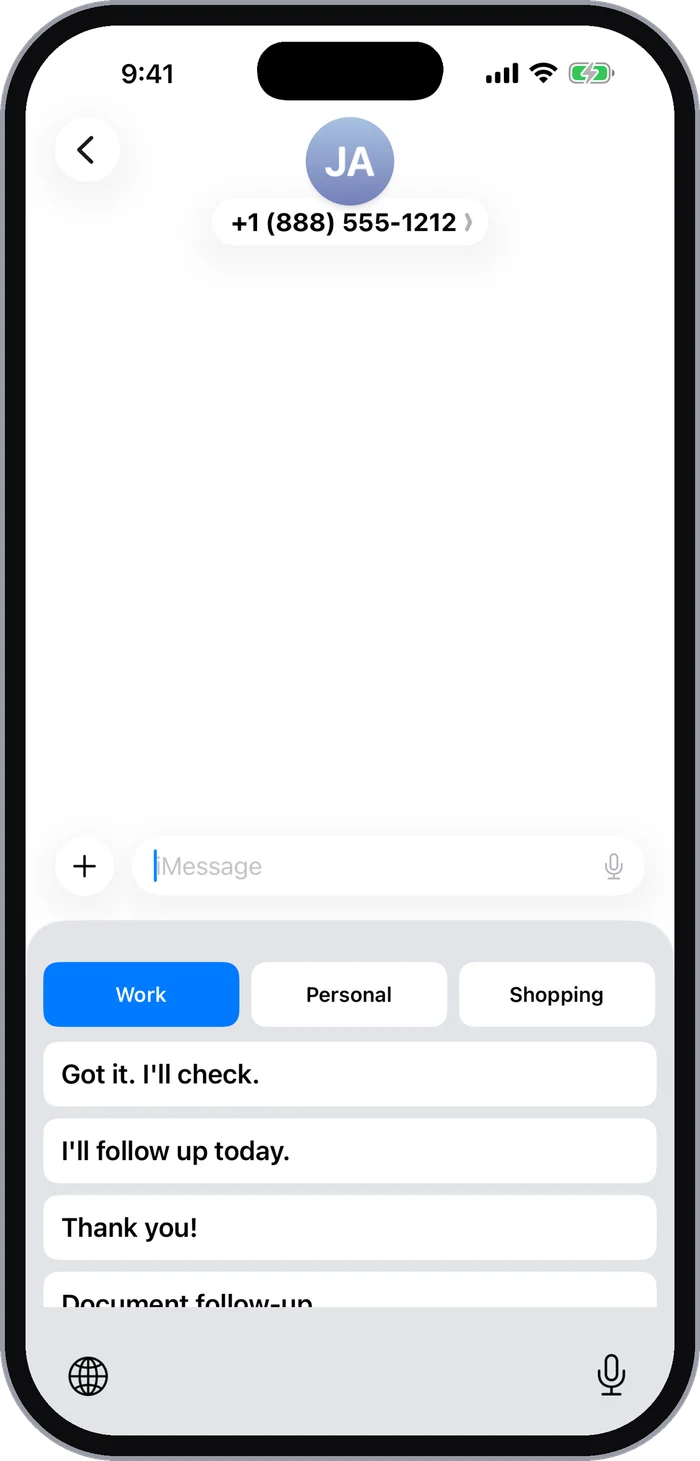
Switchy works as a keyboard extension. While you’re typing, switch to the Switchy keyboard and tap the Snippet you want. It is inserted into the text field you are using. There is no need to open a notes app, copy the text, return to the original app, and paste it.
Full Access is not required. Saved Snippets are stored on your device and are not sent to the developer’s or analytics services’ servers. Keyboard input and clipboard contents are not included in usage analytics or diagnostics. To improve quality, the host app does send some usage, diagnostic, and performance information to Google Firebase and Sentry. This information does not include what you type or your Snippet text. See the Privacy Policy for details.
What I learned from using it
I stopped having to remember
As the person who built the app, I still use it every day. The biggest change for me is that I spend less time trying to remember which text to use.
I used to pause before sending an email to ask myself, “Which signature should I use for this client?” Even with text replacement set up, I had to compare the suggestions. Now I tap the “Work” Context and the signature I need is there.
I feel like it saves me a few dozen seconds per reply. But the bigger benefit is not having to think through the choice. It feels good to have my typing setup in order. Sometimes I catch myself thinking, “I’ve got this organized.”
A small number of Snippets was enough
Switchy has limits. Pro supports up to 5 Contexts, with up to 7 Snippets in each (35 total).
“Isn’t that a little low?” I thought so at first. But in practice, I started choosing the text I actually use again and again. With fewer choices on screen, I can tap the right one without searching. The limit itself is part of how Switchy helps reduce hesitation.
How much can you do for free?
The free plan supports up to 3 Contexts, with up to 5 Snippets in each (15 total). You can use them for situations such as work, personal messages, and applications, with signatures, email addresses, and replies organized by context.
Exporting and importing your data is also free. You can save a backup file and import it on another device.
Pro supports up to 5 Contexts and 7 Snippets per Context (35 total). In the Japan App Store, Pro is ¥2,980 per year. Prices may vary by storefront; check the App Store listing before subscribing.
Ways to use Switchy
Keep work and personal signatures separate
I save a company signature in “Work” and a shorter personal signature in “Personal.” When I reply to an email, I choose the Context for the situation and call up the signature I need. That saves me from copying it from an old message.
Enter an email address in a form with one tap
Save the email addresses you use for sign-ups and contact forms in their respective Contexts. Choose “Work” for your work address or “Personal” for your personal one. You no longer have to check the spelling every time you type it.
Keep reply templates for different clients organized
If you work with several clients, create a Context for each one and save replies that match each client’s tone. Switching on the keyboard helps reduce the chance of using a template for the wrong client.
An app that organizes the flow of typing
Switchy helps let go of a moment’s hesitation
Switchy isn’t an app that makes you type faster. It isn’t a replacement for text replacement, a clipboard manager, or a notes app.
Its job is to organize the moment before you type by Context, so you can spend less time wondering what to use. It works quietly in the keyboard, without push notifications or an in-app usage dashboard urging you along.
When you need a phrase, choose a situation, tap, and get back to typing. Once your Snippets are set up, you don’t need to open the main app every time you use one.
“I don’t have to remember, search, or check.” Switchy is about the reassurance of not having to think through that choice, and the small confidence of having your setup in order.
Give Switchy a try
Switchy is free to download. Start with up to 3 Contexts and 15 Snippets. If it isn’t for you, you can simply uninstall it. No account is required.
If you’d like to get rid of the “Which one was it?” moment before typing, give Switchy a try.
Try Switchy (Free to use · iOS)