
Copy and Paste Not Working on iPhone? Try These Fixes
iPhone copy and paste not working, Paste missing from the menu, or a “Paste from” prompt every time? Here are the causes in the order to check them, including Universal Clipboard and app paste permissions, from a keyboard developer.
You tap Copy, go to paste, and the Paste option is not there. Or it pastes something old. Or every app asks for permission before it will paste anything. Copy and paste is so basic that when it breaks, it is surprisingly hard to work out why.
The quick answer: most copy and paste problems on iPhone come from the app you are copying from, the paste permission settings, or Universal Clipboard pulling in something from another device. A restart fixes the rest more often than you would expect.
I build Switchy, a keyboard app for iPhone, and the clipboard is one of the parts of iOS I have had to understand well. This guide goes through the causes in the order I would check them.
If what you really want is to get back something you copied earlier, iPhone keeps only one item. I explain your options in iPhone clipboard history.
First, the quick test
Copy a word in Notes or Reminders, then paste it in the same app. Touch and hold in an empty text field, and choose Paste.
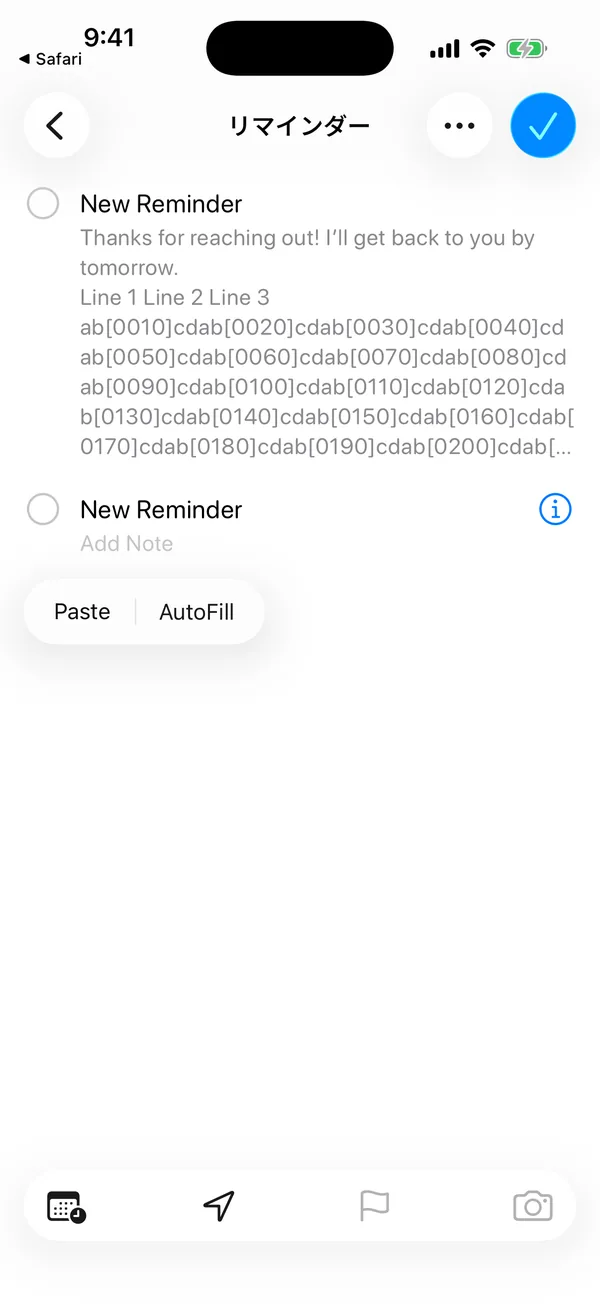
- It works there: the problem is with a specific app. Start at cause 1.
- It does not work anywhere: jump to cause 4.
Causes, from most to least common
1. The app does not let you copy
Some apps block copying on purpose, such as banking apps, some streaming apps, and certain chat apps for privacy reasons. Others show text that looks like text but is really an image. If Copy never appears in the menu, the app is probably the cause. There is no setting to override it.
2. A “Paste from” prompt keeps asking
When an app reads the clipboard, iOS can ask whether to allow pasting from another app. If you tapped Don’t Allow, nothing is pasted.
To stop the prompt, open Settings, find the app, and look for Paste from Other Apps. Set it to Allow for apps you trust. Not every app shows this option, but most that read the clipboard do.
3. Universal Clipboard pasted something from your Mac
If you have a Mac or iPad on the same Apple Account with Handoff on, iOS can paste what you copied on that device instead. It looks like your iPhone pasted the wrong thing.
If this keeps catching you, turn off Handoff under Settings > General > AirPlay & Continuity. That also turns off Universal Clipboard. If Universal Clipboard is what is not working, make sure Handoff, Wi-Fi, and Bluetooth are on for both devices.
4. Something is stuck
When copy and paste does not work in any app, iOS itself is usually stuck. Restart your iPhone. If you have not updated in a while, update iOS too.
5. A gesture undid your paste
Shake to Undo can undo a paste if you shake your phone right after. On a small keyboard it is easy to trigger by accident. You can turn it off in Settings > Accessibility > Touch > Shake to Undo.
6. A third-party keyboard is getting in the way
Pasting is done by iOS, not by the keyboard, so this is rare. But if one keyboard shows its own paste button that does not work, switch to Apple’s keyboard with the globe key and paste from the menu instead. Keyboards that offer their own clipboard features often need Full Access to read the clipboard.
When it pastes with the wrong formatting
If text pastes with the original font, size, or links, that is a different problem. I cover it in how to paste without formatting on iPhone.
My take: stop copying the same text
When people tell me copy and paste “keeps breaking,” it is often because they are copying the same things over and over: an email address from Notes, a reply from an old message, a tracking link template. Every trip through the clipboard is one more place for something to go wrong.
If that sounds like you, take the five things you copy most and save them where you can insert them directly. For short ones, Text Replacement is free and built in. For longer ones, I compare the options in iPhone clipboard history.