
Third-Party Keyboard Not Working on iPhone? Fixes
Third-party keyboard not showing up, disappearing, or switching back to Apple’s keyboard on iPhone? Here is what is iOS by design and what you can fix, in the order to check, from the developer of an iPhone keyboard.
Your keyboard app was working yesterday. Today it is gone from the globe menu, or it shows up as a blank gray box, or it keeps flipping back to Apple’s keyboard every time you open a certain app.
Before you reinstall anything, know this: a lot of what looks like a broken keyboard is iOS doing exactly what it is designed to do. Password fields, phone number pads, and apps that refuse third-party keyboards all switch you back to Apple’s keyboard. The rest is usually fixed by re-adding the keyboard or restarting.
I build Switchy, a keyboard app for iPhone, and I get these reports from users myself. This guide separates “by design” from “actually broken,” then goes through the fixes in order.
If you are adding a keyboard for the first time, see third-party keyboards on iPhone.
First: is it by design?
iOS always uses Apple’s keyboard in these places, and no keyboard developer can change it:
- Password and secure fields, including many sign-in forms.
- Phone number pads, when an app asks for a number with the dial-style pad.
- Apps that opt out of third-party keyboards. An app can refuse them. Banking and payment apps often do.
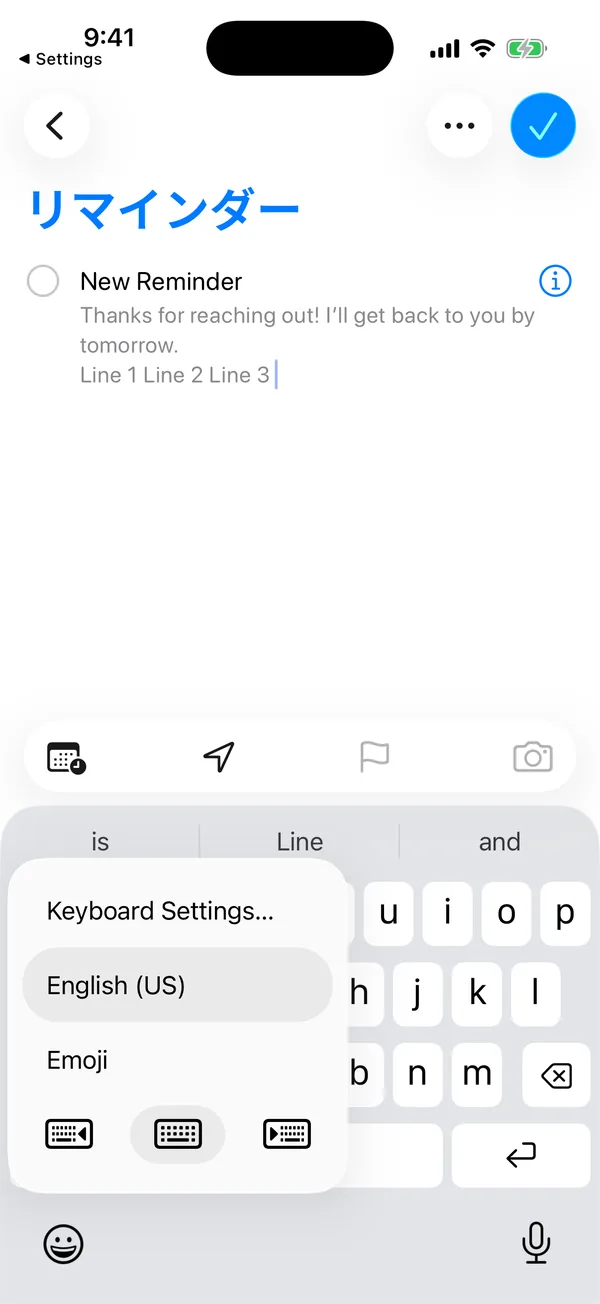
If your keyboard disappears only in one of these places, nothing is broken. Tap the globe key when you leave the field to get it back.
When the keyboard is missing from the globe menu
1. It is not added in Settings
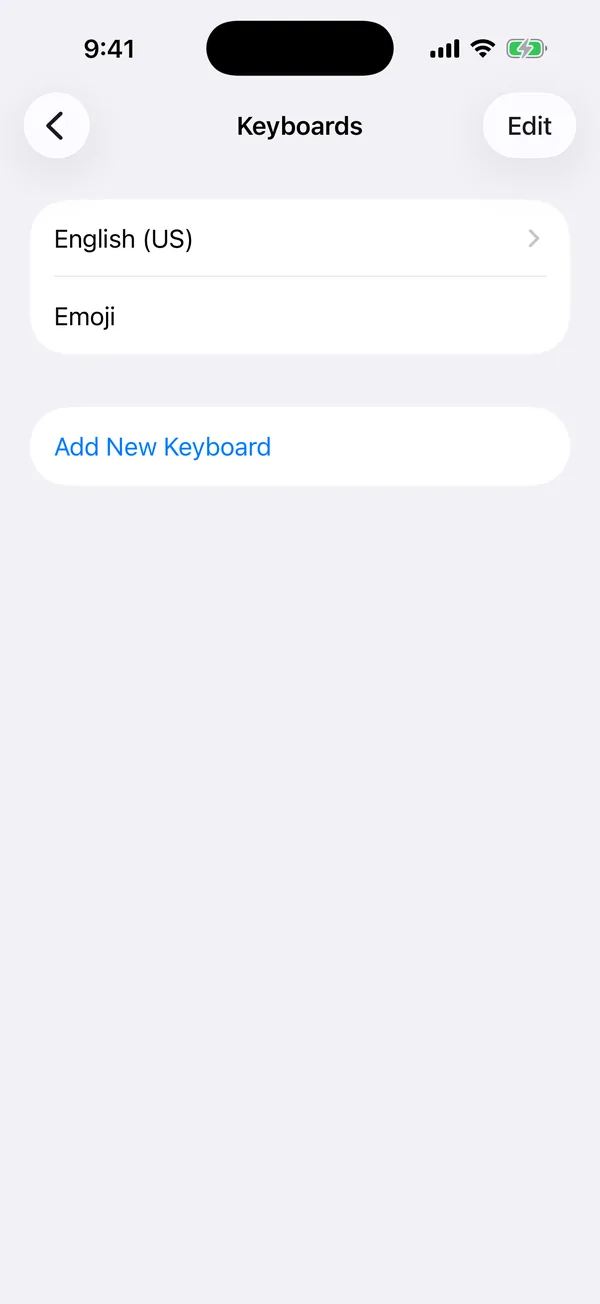
Installing the app is not enough. Go to Settings > General > Keyboard > Keyboards > Add New Keyboard and add it. If it is already there, remove it and add it again. This fixes more problems than anything else on this list.
2. The app was updated or offloaded
If iOS offloaded the app to save space, its keyboard goes with it. Tap the app’s icon on the Home Screen to download it again. After an update, opening the keyboard’s own app once can also help it show up again.
When the keyboard is blank, frozen, or slow
3. The keyboard ran out of memory
iOS gives keyboards a tight memory budget. If a keyboard goes over it, iOS stops it, and you see a blank area or get switched back to Apple’s keyboard. Close the app you are typing in and open it again. If it keeps happening, restart your iPhone.
From the developer side, this limit is real and strict. It is one of the reasons I keep Switchy’s keyboard deliberately simple.
4. A feature needs Full Access
Some keyboard features, like syncing, clipboard tools, or anything online, only work with Full Access on. Without it, those parts of the keyboard may look broken. Check the app’s instructions, and decide whether you want to allow it. My Full Access explainer covers what that permission opens up.
When it keeps switching back to Apple’s keyboard
5. You left a secure field
After a password field, iOS sometimes stays on Apple’s keyboard in the next field too. Tap the globe key.
6. The keyboard order
The globe key cycles through your keyboards in order. If your main keyboard is not first, one tap can land you somewhere else. Reorder them in Settings > General > Keyboard > Keyboards > Edit.
When nothing helps
- Restart your iPhone.
- Remove the keyboard in Settings, delete the app, reinstall it, and add the keyboard again.
- Update iOS and the app.
- Contact the developer. Tell them the app and field where it fails. As a developer, that detail is what lets me fix things.
The bottom line
Expect Apple’s keyboard in password fields, phone pads, and apps that block other keyboards. Outside those, re-adding the keyboard and restarting fix most problems.
Choosing a keyboard that works without Full Access and keeps its features simple avoids a lot of this in the first place. I explain how I approached that in iPhone keyboard Full Access, explained.