
How to Use Text Replacement on iPhone: Setup Guide
Set up Text Replacement on iPhone in under a minute: where the setting lives, how to choose shortcuts that never fire by accident, how it syncs, and what it cannot do. Written by the developer of an iPhone keyboard.
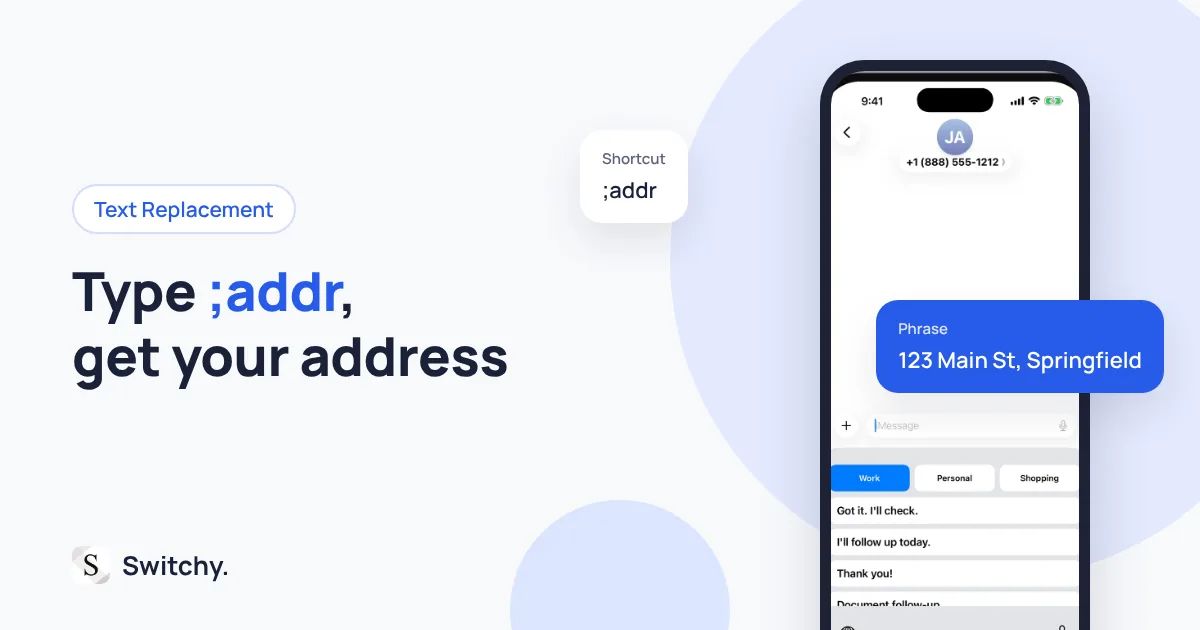
You type your email address into a form for the fifth time this week. Somewhere in the back of your mind you know the iPhone can do this for you, but the setting is buried and the first shortcut you tried kept firing in the middle of normal sentences.
Here is the short version: Text Replacement lives in Settings > General > Keyboard > Text Replacement, and it works best for short phrases with shortcuts you would never type by accident. For long or multi-line text, it is the wrong tool.
I build Switchy, a saved-text keyboard for iPhone, and I have spent more time inside the Text Replacement screen than I would like to admit. This guide covers setup, the shortcut rules I use myself, and the limits I measured in the iOS Simulator. By the end, you will have a handful of shortcuts that save you typing every day without getting in your way.
If you already have it set up and it is not expanding, jump to Text Replacement not working.
Set up your first shortcut
- Open Settings.
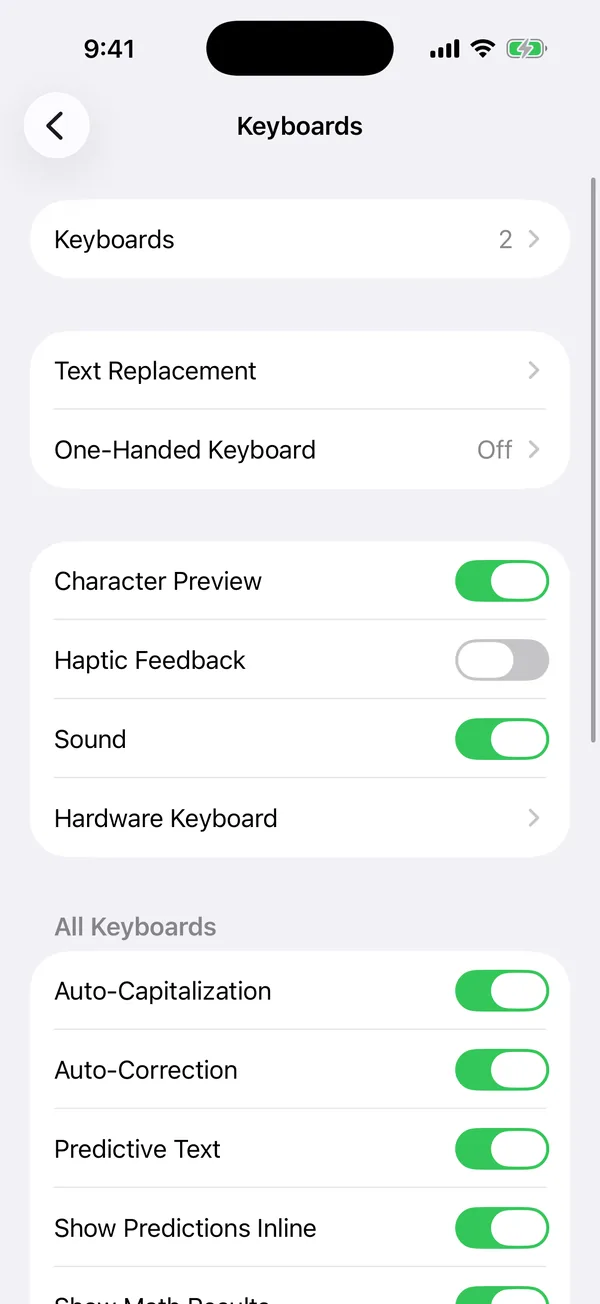
- Tap General, then Keyboard.
- Tap Text Replacement.
- Tap + in the top-right corner.
- Type the full text in Phrase, for example
jordan.lee@example.com. - Type a short code in Shortcut, for example
@@. - Tap Save.
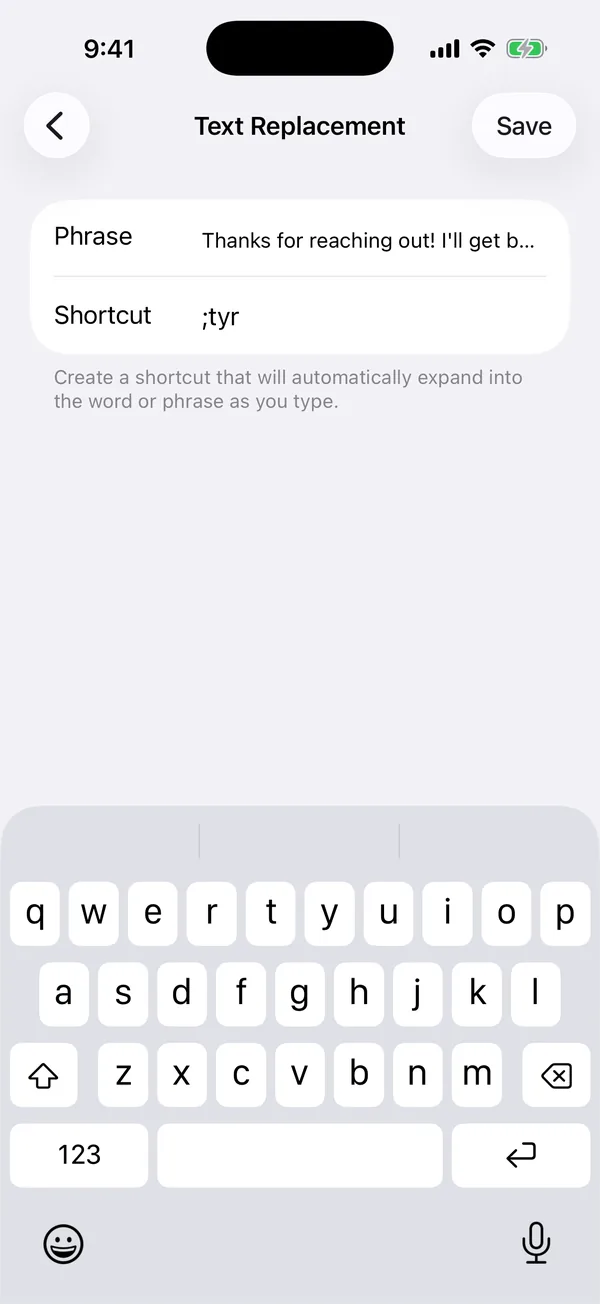
Now type @@ in any text field. The phrase appears in the suggestion bar above the keys, and pressing the space bar inserts it.
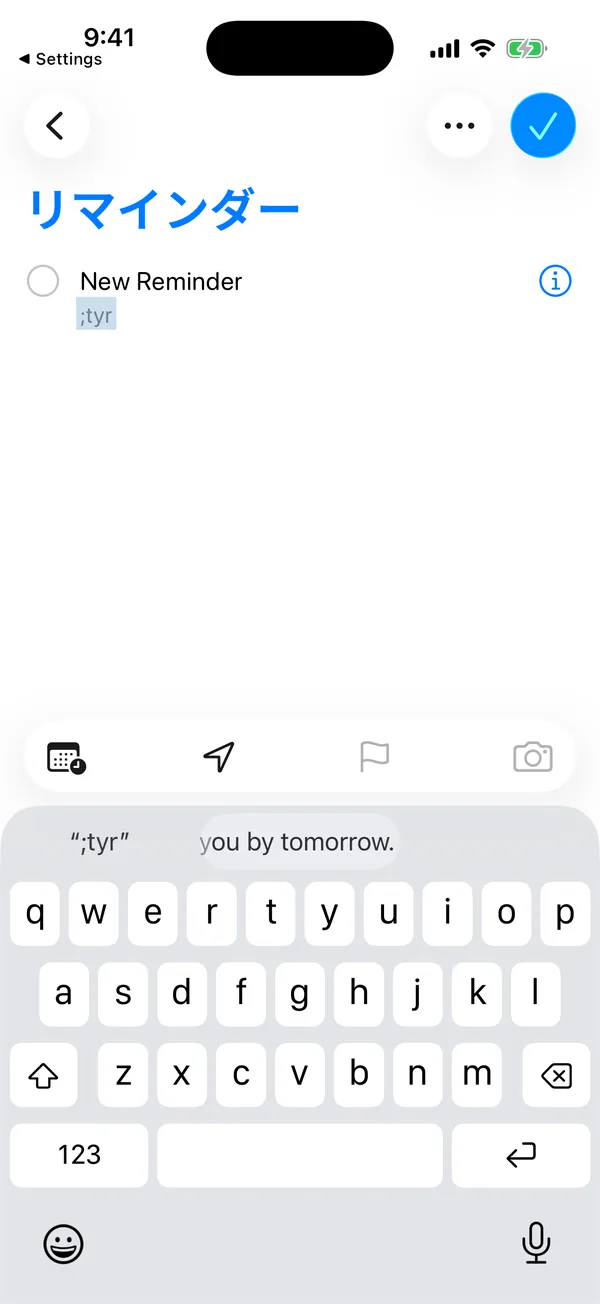
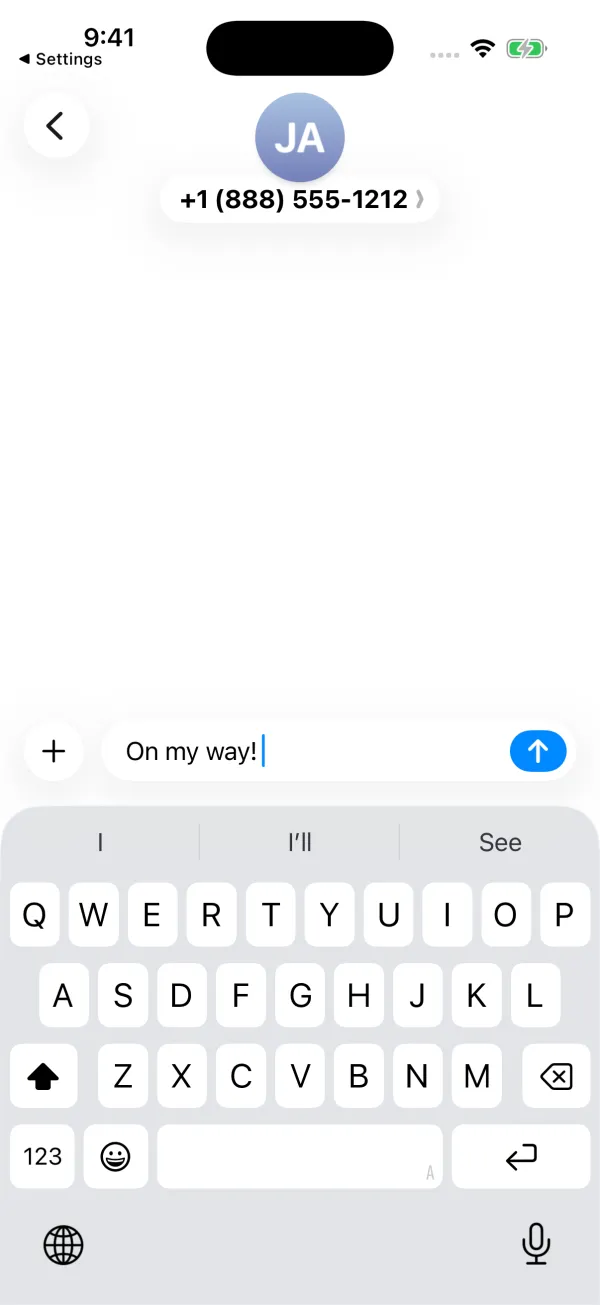
The shortcut field is optional. Without one, the phrase is still useful: iOS learns it as a word, which helps with names and spellings autocorrect keeps “fixing.”
Pick shortcuts that never fire by accident
This is where most setups go wrong. If your shortcut is a real word, it will expand when you do not want it to. I learned this the hard way with addr, which turned into my full address in the middle of a message about an address bar.
The rules I follow:
- Start with a symbol or a doubled letter.
@@,;sig,zzaddr. Nobody types these by accident. - Use one prefix for everything. I use
;for all of mine, so I never have to remember which ones have it. - Keep it short, but not two letters. Two-letter codes collide with real words and abbreviations far more often than you would think.
- Name it after what it is, not what it says.
;addris easier to remember than;123main.
If you want a starter list, I keep 20 Text Replacement ideas worth saving.
Where Text Replacement shows up
Shortcuts work in most places you can type with Apple’s keyboard: Messages, Mail, Notes, Safari, and most third-party apps.
There are two common exceptions:
- Third-party keyboards. Text Replacement belongs to Apple’s keyboard. Other keyboards may or may not read it.
- Some secure fields. Password fields and some login forms do not show suggestions, so shortcuts do not appear there.
How syncing works
If you use iCloud with the same Apple Account, Text Replacement entries sync between your iPhone, iPad, and Mac. On a Mac, the same list lives in System Settings > Keyboard > Text Replacements, and it is much faster to add many entries there with a real keyboard.
Syncing is not instant. A shortcut added on one device can take a while to appear on another.
What Text Replacement cannot do
I tested the limits in the iOS 26.2 Simulator so you do not have to:
| What you want | Does Text Replacement handle it? |
|---|---|
| Short phrases like an email or address | Yes, this is what it is for |
| Long text | Up to about 2,000 characters, then it refuses to save |
| Line breaks | No. They turn into spaces |
| Organizing many phrases | No folders or groups, only one long list |
| Previewing before inserting | Only a short preview in the suggestion bar |
The details are in my character limit test. The line-break issue is the one that surprises people most: a three-line email signature comes out as one long line.
More Text Replacement guides
- Shortcuts not expanding? Text Replacement not working
- Thinking about resetting the dictionary? Read what Reset Keyboard Dictionary deletes first
- Email field not autofilling? Fix email AutoFill on iPhone
- Want to type less overall? How to type faster on iPhone
My take: keep it for the short stuff
Text Replacement is genuinely good at one thing: turning a short code into a short piece of text you type all the time. Use it for your email, phone number, address, and a few phrases. That alone saves real time.
Where it starts to hurt is when your list grows. Past twenty or so entries, you forget the shortcuts, and you end up opening Settings to look them up. Multi-line replies and signatures do not fit at all.
When you reach that point, a text expander app for iPhone is the next step, and I compare the options honestly there.