
How to Paste Without Formatting on iPhone
Pasted text bringing along giant fonts, links, and colors? Here are five ways to paste plain text on iPhone, and why this happens, from a keyboard developer.
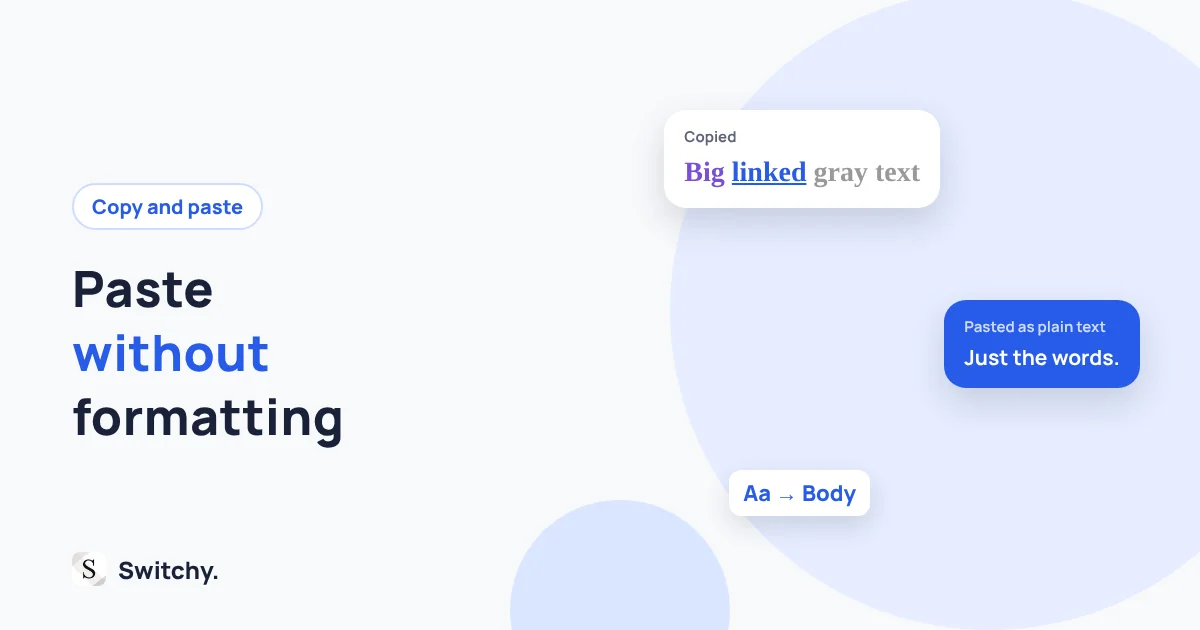
You copy a sentence from a web page, paste it into an email, and it arrives in a different font, a different size, and sometimes a light gray color. Now your email looks like a ransom note.
On a Mac, the fix is a keyboard shortcut. On iPhone, it is less obvious. I build Switchy, a saved-text keyboard, so I spend a lot of time thinking about what actually ends up in a text field. Here are the ways to paste plain text on iPhone, starting with the fastest.
If Paste is not working at all, see copy and paste not working on iPhone instead.

Why pasted text keeps its formatting
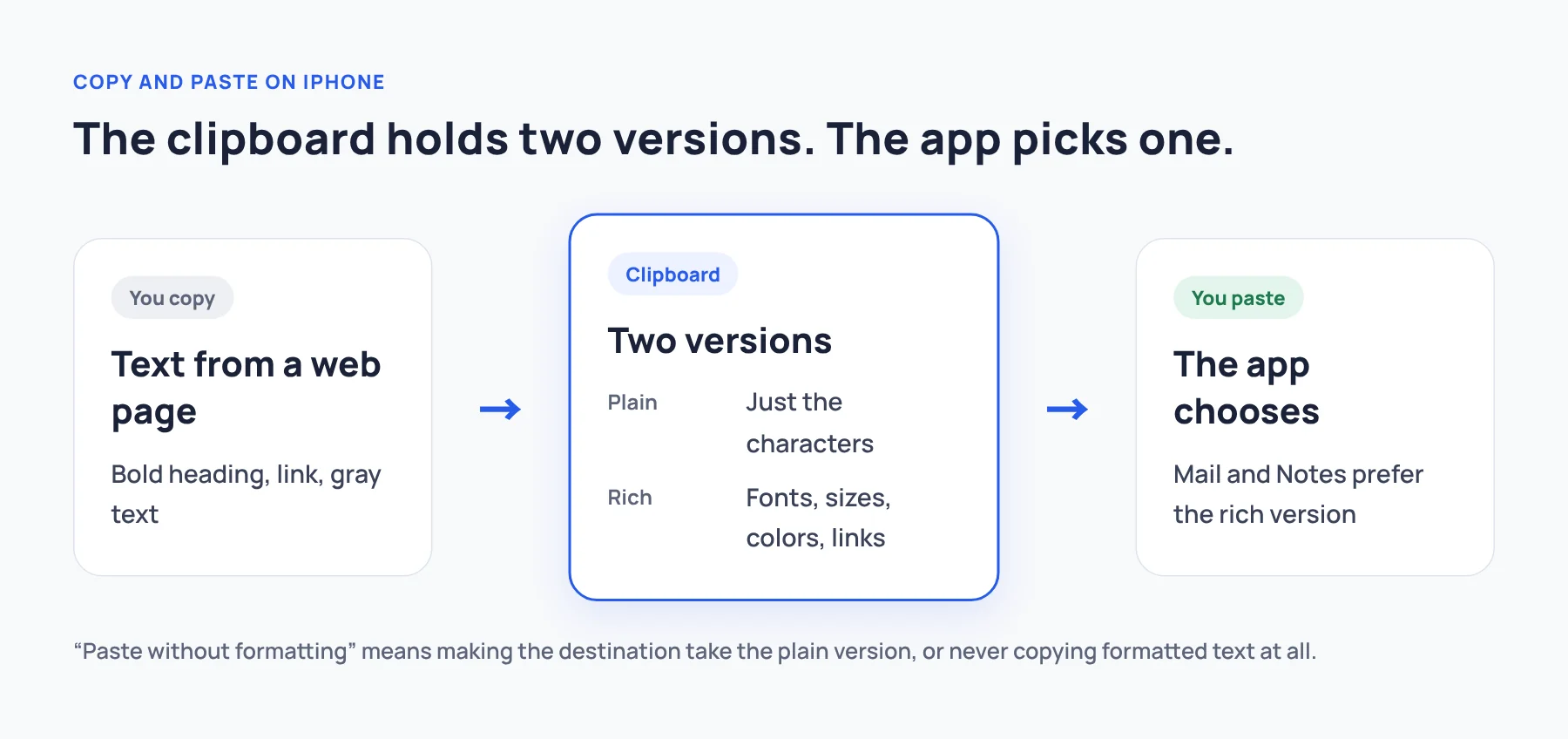
When you copy on iPhone, the app usually puts several versions of the content on the clipboard at once: a plain-text version and a rich version with fonts, sizes, colors, and links. The app you paste into decides which version to use. Rich text editors, like Mail and Notes, prefer the formatted version.
So “paste without formatting” really means “make the receiving app take the plain version.”
Method 1: Use the app’s “paste and match style” option
Some apps offer a paste option that drops the original formatting and matches the text around your cursor. Long-press in the text field and look at the edit menu.
If you see it, it is the fastest method. Not every app offers it, and the label can vary, so check the apps you use most.
Method 2: Clear the formatting after pasting
In Notes, you can select the pasted text and apply the Body style from the formatting menu (the Aa button). It is an extra step, but it works when no plain paste option exists. Other apps have their own formatting controls, so check what yours offers.
Method 3: Launder the text through a plain-text field
A low-tech trick that works almost everywhere: paste into a field that only accepts plain text, then copy it again.
- Paste into a plain-text field, such as a search bar or the address bar in Safari.
- Select all and copy again.
- Paste into your email or document.
The plain field throws away the formatting, so what you copy back out is plain text. One caveat: single-line fields also remove line breaks, so this works best for one paragraph at a time.
Method 4: Build a Shortcut that converts the clipboard
If you do this often, a Shortcut can automate it. Apple’s Shortcuts app has clipboard actions (Shortcuts guide to clipboard actions) and can pass content as text rather than rich text (Shortcuts input types). A simple version:
- Get Clipboard
- Get Text from Input (converts rich content to text)
- Copy to Clipboard
Run it after copying, then paste as usual. You can add it to the Home Screen or run it from the Share Sheet in some apps. Test it with the apps you use, since how apps handle clipboard content varies.
Method 5: Do not copy formatted text in the first place
If you paste the same text again and again, such as a standard reply, a bio, or an address, the cleanest fix is to stop copying it from a formatted source at all. Save it once as plain text and insert it directly:
- Text Replacement stores plain text and types it for you. See 20 Text Replacement ideas.
- A saved-text keyboard inserts plain text directly at your cursor, with no trip through the clipboard.
Here is a bit of keyboard trivia: when a third-party keyboard inserts text, iOS only lets it send plain characters into the field. There is no way for a keyboard to insert bold or colored text. That is a limitation if you want formatting, but it is a feature if you never want formatting to sneak in.
A note on “Allow Paste” prompts
When pasting, you may see a prompt asking whether an app can paste from another app. That is a separate privacy feature that controls access to your clipboard, not formatting. It does not affect what gets pasted once you allow it.
Which method should you use?
- Once in a while: look for a plain paste option in the edit menu, or clear formatting afterwards.
- Often, from different sources: set up the Shortcut.
- The same text over and over: save it as plain text with Text Replacement or a saved-text keyboard, and stop copying it.
Where to go next
If you paste the same text often, saving it once is easier than cleaning it every time. For long saved phrases, see Text Replacement character limit. If you are curious about keyboard permissions, my explainer on iPhone keyboard Full Access covers what to check.