
iPhone Email AutoFill Not Working? How to Fix It
iPhone not suggesting your email address in forms? Check your contact card, Safari AutoFill settings, and the form itself. Plus a reliable fallback for fields where AutoFill never appears, from a keyboard developer.

You tap the email field on a sign-up form, and your iPhone used to suggest your address right above the keyboard. Now it does not. You type it out by hand, letter by letter, and get it wrong once.
Usually, AutoFill stops suggesting your email because your contact card is not set, the AutoFill setting is off, or the website’s form does not tell iOS that the field is for an email. The first two you can fix in a minute. For the third, a Text Replacement shortcut is the reliable backup.
I build Switchy, a keyboard app for iPhone, and email addresses are the single most common thing people save in it. This guide walks through the checks in order. By the end, your email address will be one tap away in almost every form.
New to shortcuts? How to use Text Replacement on iPhone takes a minute to set up.

1. Check your contact card
AutoFill takes your email from your own contact card. If that card is missing or out of date, AutoFill has nothing to suggest.
- Open Contacts and make sure your own card at the top has the correct email address.
- In Safari’s AutoFill settings, make sure that card is selected as My Info.
2. Check the AutoFill setting
Open Settings, find Safari (under Apps on recent iOS versions), then AutoFill. Make sure Use Contact Info is on and My Info points to your card.
If you changed your email recently, update the contact card. AutoFill will keep offering the old one until you do.
3. The form may be the problem
AutoFill relies on the website or app labeling the field as an email field. Many do. Some do not. On those, iOS does not know what to suggest, and nothing appears.
There is nothing to fix on your phone in that case. Try a different browser or the site’s app, or use the fallback below.
4. Third-party keyboards
Some AutoFill suggestions appear in the bar above Apple’s keyboard. If you are using a different keyboard, switch to Apple’s with the globe key and see if the suggestion appears.
The fallback that always works: a shortcut
This is what I use. Save your email address in Settings > General > Keyboard > Text Replacement with a shortcut like ;em. Now, in any field where you can type, ;em plus space gives you your address. It does not depend on the form at all.
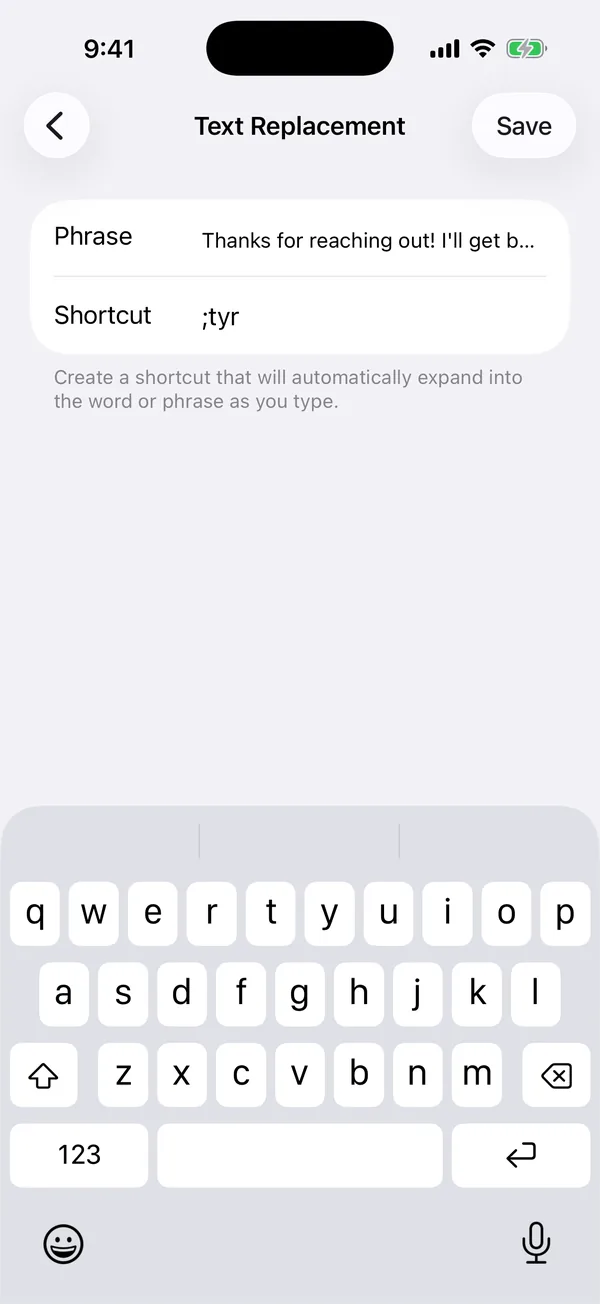
Pick a shortcut you would never type by accident. Email addresses are exactly where an accidental expansion is most embarrassing.
The bottom line
Fix your contact card and the AutoFill setting first. For the forms that still do not cooperate, a Text Replacement shortcut is the dependable way to get your email address in without a typo.
If you also want your email sign-off set up properly, how to change your email signature on iPhone covers it, and my list of Text Replacement ideas has more strings worth saving.