
How to Change Your Email Signature on iPhone
Change or remove “Sent from my iPhone” in Apple Mail, set a different signature per account, and fix the line breaks and formatting that go wrong. Plus Gmail and Outlook, from the developer of an iPhone keyboard.
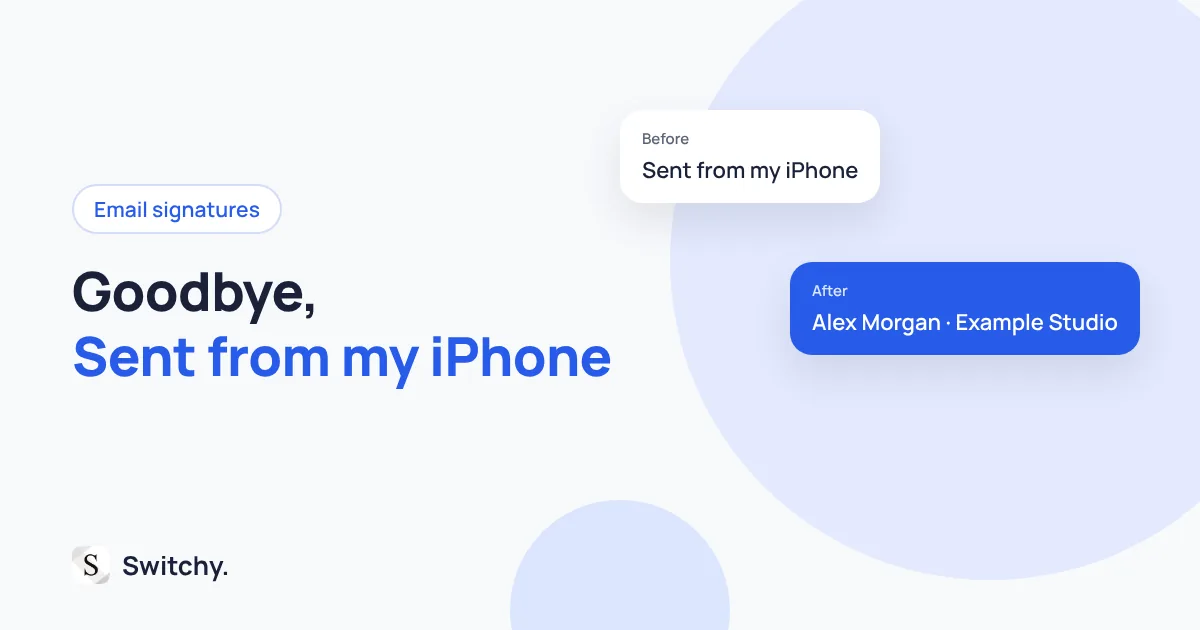
“Sent from my iPhone.” Four words that tell every client you answered from the train. Maybe you are fine with that. Maybe you want your name, title, and phone number there instead, and the setting is not where you expected.
The answer: in Apple Mail, the signature lives in Settings > Apps > Mail > Signature. Each mail app has its own setting, so if you use Gmail or Outlook, you change it inside that app instead.
I build Switchy, a saved-text keyboard for iPhone, and signatures are one of the most common things people save in it. This guide covers the built-in settings first, because for most people they are enough. By the end, every email you send from your phone will end the way you want it to.
If you need several signatures in one account, I cover that in multiple email signatures on iPhone.

Change the signature in Apple Mail
- Open Settings.
- Tap Apps, then Mail.
- Scroll down and tap Signature.
- Choose All Accounts to use one signature everywhere, or Per Account to write a different one for each account.
- Delete “Sent from my iPhone” and type your signature.
- Go back. The signature saves automatically.
On older versions of iOS, Mail is directly in the Settings list instead of under Apps. Apple keeps the current steps in its Mail settings guide.
To remove the signature entirely, clear the field and leave it empty.
What a good mobile signature looks like
Short. People read email on phones, and a seven-line signature with a disclaimer takes up the whole screen.
Alex Morgan Project Manager, Example Studio (555) 010-0199
That is all most people need: name, role, one way to reach you. Your website can go on a fourth line if it matters to the people you write to.
Line breaks and formatting
Apple Mail keeps line breaks in the signature field, so a multi-line signature works fine there.
Formatting is more limited. You can select text in the signature and apply bold, italic, or underline from the edit menu, but colors, fonts, and images are not something the iPhone signature editor is built for. If your company uses a branded HTML signature, set it up on a computer, or accept a plain-text version on mobile. In my experience, a clean plain-text signature looks more professional on a phone anyway.
Gmail and Outlook have their own settings
Changing the Apple Mail signature does nothing in other apps.
- Gmail app: open the menu, tap Settings, choose the account, then Signature settings. Google’s iPhone signature instructions have the details. The mobile signature is separate from the one on the web.
- Outlook app: the signature is in the app’s settings, and you can set it per account. Microsoft keeps the steps in its Outlook mobile signature guide.
If your emails look different depending on where you sent them from, this is usually why: each app and the web version all keep their own copy. Step-by-step guides: Gmail signature on iPhone and Outlook signature on iPhone.
When one signature is not enough
The built-in settings give you one automatic signature per account. That stops working when the same account needs a formal sign-off for clients and a short one for your team.
You have two options:
- Text Replacement works for one-line signatures, but it turns line breaks into spaces. I measured this in my Text Replacement limit test.
- A saved-text keyboard keeps multi-line signatures intact, and you tap the one you want at the end of the email.
The full workaround is in multiple email signatures on iPhone.
The bottom line
Set one short signature in Settings > Apps > Mail > Signature, and repeat the setting in any other mail app you use. That covers most people.
If you also want to reuse the body of your emails, not just the sign-off, my guide to email templates on iPhone compares the ways to do it.