
iPhone Text Replacement Ideas: 20 Shortcuts Worth Saving
Twenty practical iPhone Text Replacement ideas, from email addresses to polite replies, plus the shortcut-naming system a keyboard developer uses so you never forget a trigger.
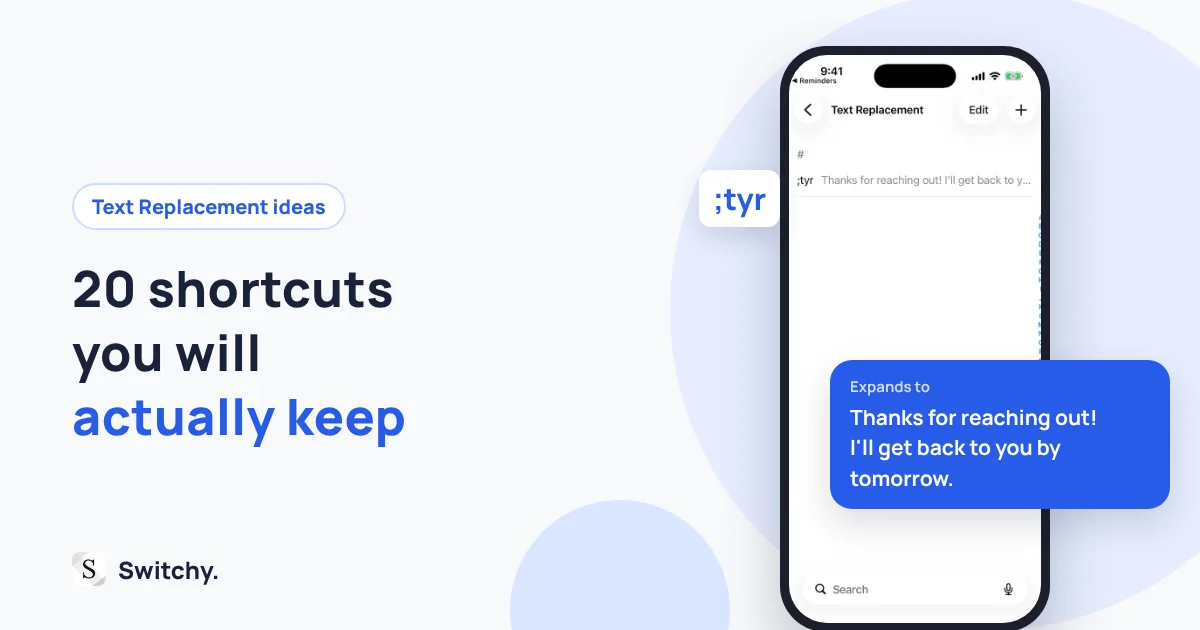
Most people set up exactly one Text Replacement: omw for “On my way!”, because Apple puts it there for you. Then they never touch the feature again.
That is a shame. Text Replacement is one of the most underrated features on the iPhone, and it is free.
I build a saved-text keyboard called Switchy, so you might expect me to tell you to skip Text Replacement. I will not. For short, frequent phrases, it is faster than any app, mine included. What most lists of “text replacement ideas” miss is the part that actually decides whether you keep using it: how you name the shortcuts. So this list comes with a system.
For what it is worth, the things I save myself are boring: email addresses, names, my address, and my phone number. Boring is the point. They are the strings that are most annoying to type and most costly to get wrong.
If you have not set up a shortcut yet, how to use Text Replacement on iPhone walks through it in a minute.
How Text Replacement works, in ten seconds
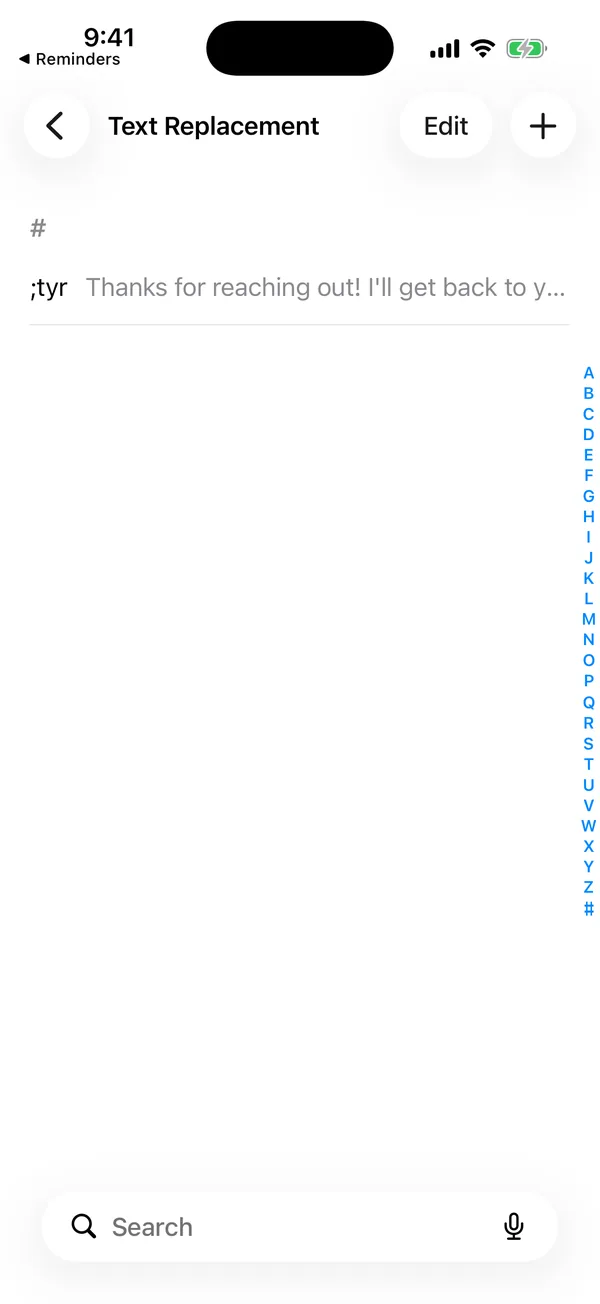
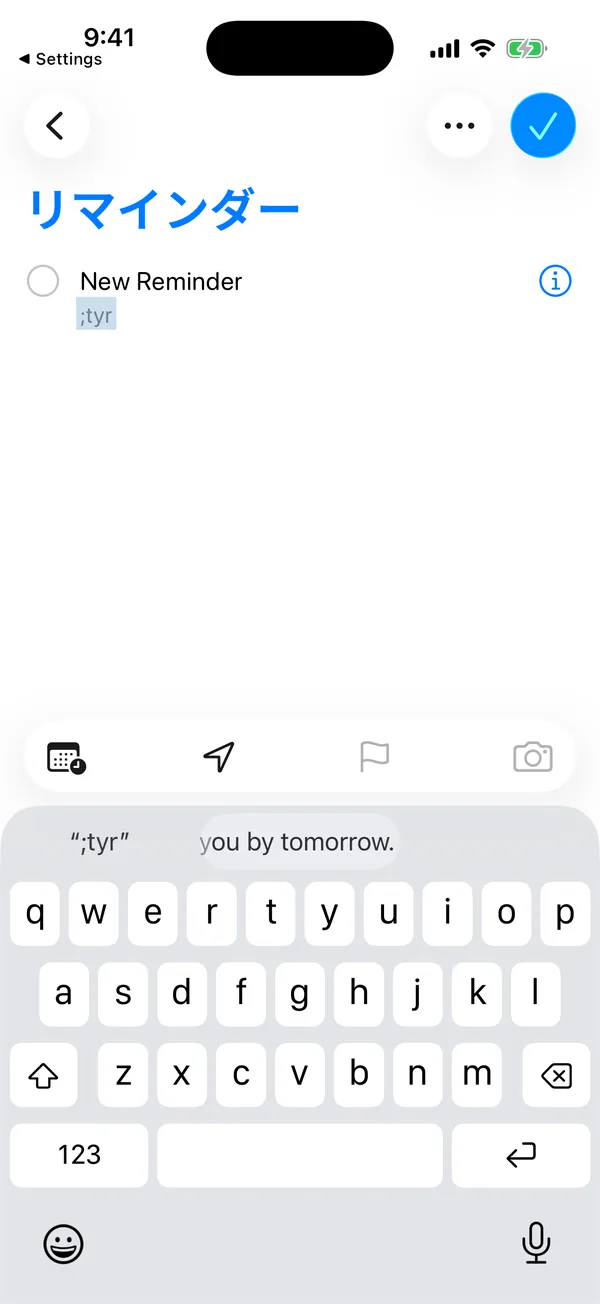
You save a phrase and a shortcut. When you type the shortcut, iOS offers the phrase in the suggestion bar, or replaces it when you press space. Set it up in Settings > General > Keyboard > Text Replacement (Apple’s guide).
The naming system that makes it stick
A typical first attempt uses shortcuts like addr and thx. Soon, thx starts firing in the middle of casual texts where you did not want it. The fix is a simple rule:
Start every shortcut with a character you never type in normal words. A doubled letter or a symbol prefix works well:
| Shortcut style | Example | Verdict |
|---|---|---|
| Plain word | thanks |
Fires in normal sentences |
| Abbreviation | thx |
Still collides sometimes |
| Doubled letter | tthx |
Rarely typed by accident |
| Symbol prefix | @@ |
Easy to remember, never accidental |
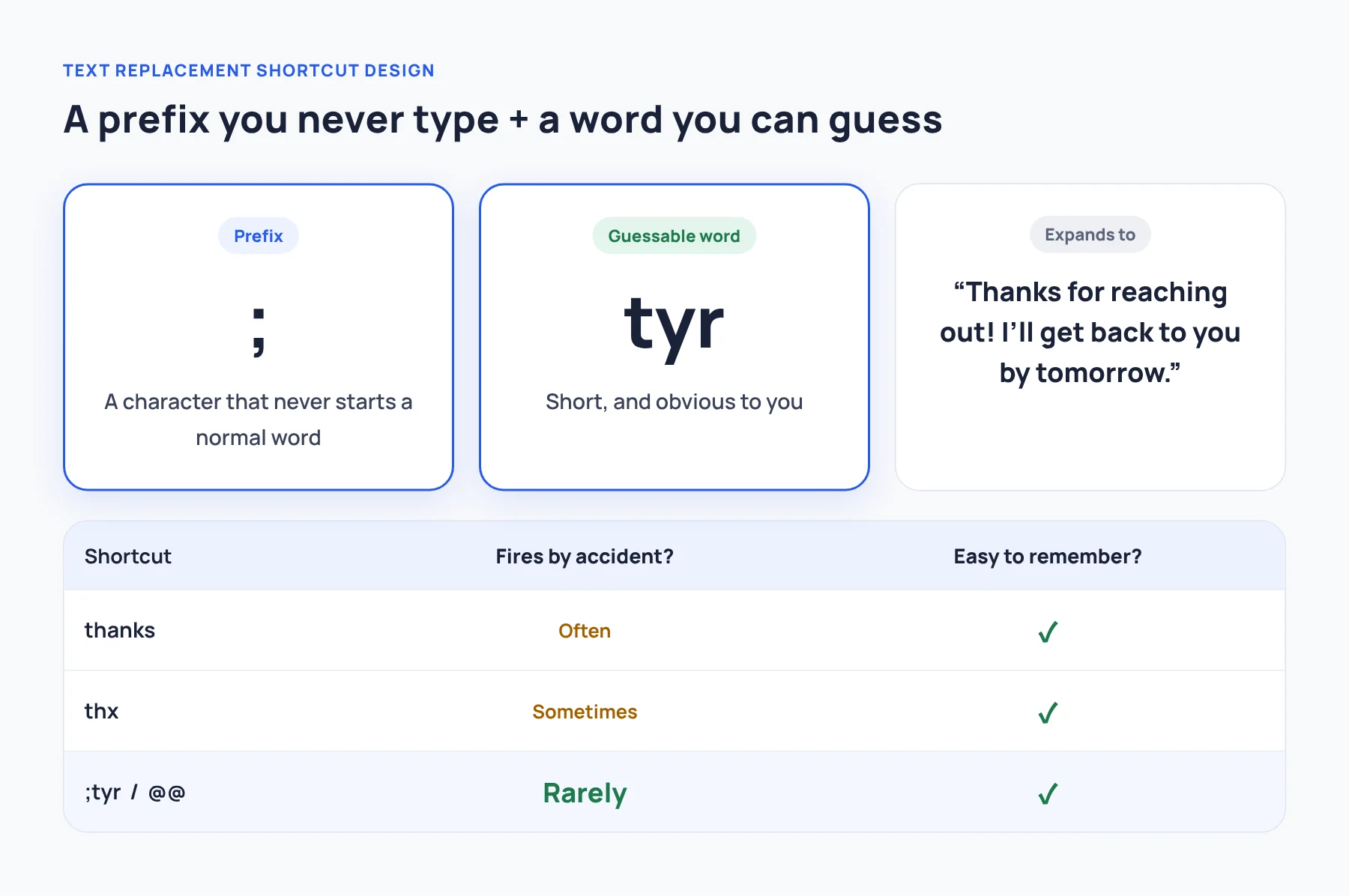
The second rule: use one pattern for everything. If every email address starts with @@ and every reply starts with ;;, you can guess a shortcut even after you forget it.
20 Text Replacement ideas
All examples use made-up details. Replace them with yours.
Contact details (the ones you mistype)
@@→hello@example.com@@w→ your work email##→ your phone number;addr→ your full mailing address;zip→ your ZIP code (surprisingly handy in forms)
These are the highest-value shortcuts on the list. They are the strings where one typo means a lost email or a package sent to the wrong place.
Links you share often
;cal→ your booking or calendar link;web→ your website or portfolio;li→ your LinkedIn profile URL
Polite replies
;tyr→ “Thanks for reaching out! I’ll get back to you by tomorrow.”;rcv→ “Got it, thank you. I’ll take a look and follow up.”;sry→ “Sorry for the slow reply. Things have been busy this week.”;ok→ “Sounds good, thanks for letting me know.”
Scheduling
;avl→ “I’m free Tuesday or Thursday afternoon. Does either work for you?”;late→ “Running about 10 minutes late. Sorry for the wait!”;conf→ “Confirming our call. See you then.”
Work snippets
;sig→ a short sign-off with your name and title;ooo→ a one-line out-of-office note;fyi→ “Sharing this for your reference. No action needed.”
Little things you type every day
;shrug→ ¯\_(ツ)_/¯;date→ not a good idea (see below)
What Text Replacement is bad at
I put number 20 there on purpose. Text Replacement saves fixed text. It cannot insert today’s date, so a ;date shortcut would always type the day you saved it. The same goes for anything that changes: prices, meeting times, delivery dates. If a phrase contains a promise, keep that part out of the shortcut and type it fresh.
A few more limits worth knowing:
- Long phrases. It works best with short text. I tested how far you can push it (about 2,000 characters, no line breaks) in iPhone Text Replacement character limit.
- Forgetting. Past ten or fifteen shortcuts, most people start forgetting them. The naming system helps, but it does not make the problem disappear.
- Choosing. If you have three versions of a reply, you have to remember which shortcut is which. There is no list to look at while typing.
When to move beyond Text Replacement
Text Replacement is perfect for things you can remember. When your library grows past what you can remember, a keyboard that lets you see your saved text starts to make more sense. That is the gap I built Switchy for: you pick a group, such as Work or Selling, and tap the reply instead of recalling a shortcut.
I am obviously biased, so here is my honest advice: keep your contact details in Text Replacement, and only move longer, situational replies to a keyboard if you find yourself forgetting shortcuts. You can compare the options in how to choose an iPhone quick-reply keyboard, or learn to build a small reply library in canned responses on iPhone.
Start with shortcut number 1. Your email address is the one you will thank yourself for.