
iPhone Keyboard Keeps Switching? Language and Layout Fixes
iPhone keyboard keeps switching to another language or back to Apple’s keyboard? Here are the causes, from extra keyboards in your list to secure fields, and how to make your keyboard stay put, from a keyboard developer.
You are typing in English and suddenly the keyboard is Spanish. Or you set up a new keyboard, and every few minutes you find yourself back on Apple’s. You did not touch the globe key. At least, you do not think you did.
In most cases, the keyboard switches because there are more keyboards in your list than you use, or because iOS is switching for you in a secure field. Trim the list, put your main keyboard first, and most of the switching stops.
I build Switchy, a keyboard app for iPhone, and “why did my keyboard change?” is one of the questions I get most. This guide goes through the causes, starting with the most common. By the end, your keyboard should stay where you put it.
If you are new to third-party keyboards, third-party keyboards on iPhone covers the basics first.
When the language keeps changing
1. You have keyboards you do not use
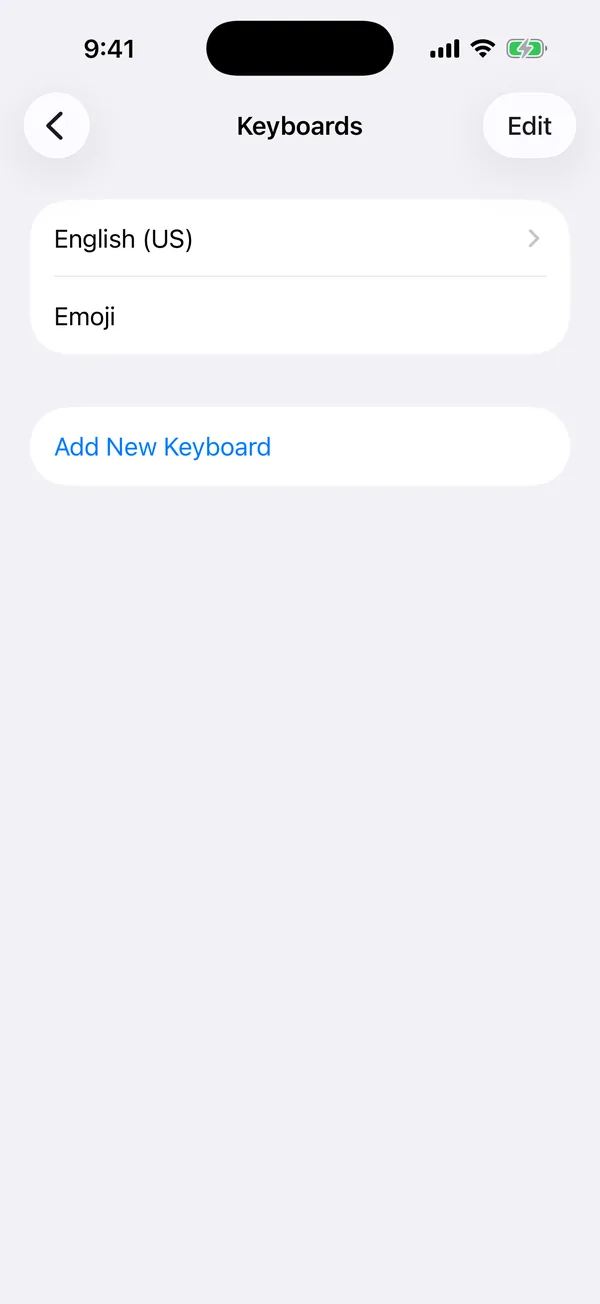
Every keyboard in Settings > General > Keyboard > Keyboards is one tap of the globe key away. If you added a language once and forgot about it, it is easy to land on it by brushing the globe key.
Remove the ones you do not use: tap Edit, then the red minus button.
2. The globe key is right next to the space bar
On many layouts, the globe key sits where your thumb reaches for space. Touching it switches keyboards. If you only need one language, removing the others removes the problem.
3. Autocorrect is following another language
On recent iOS versions, the English keyboard can suggest and correct in more than one language when you have several added. If your suggestions keep switching languages but the layout does not, that is likely why. Removing languages you do not type in makes it more predictable.
When it keeps switching back to Apple’s keyboard
4. You just used a secure field
iOS always uses its own keyboard in password fields and some sign-in forms. After you leave one, you may stay on Apple’s keyboard. Tap the globe key to go back.
5. The app does not allow third-party keyboards
Some apps, often banking apps, block other keyboards entirely. iOS switches to Apple’s keyboard in those apps every time. That is the app’s choice, not a bug.
6. Your keyboard was stopped by iOS
Keyboards have a strict memory limit. If one goes over it, iOS stops it and falls back to Apple’s keyboard. Restarting the app you are typing in usually fixes it. More fixes are in third-party keyboard not working on iPhone.
Put your main keyboard first
In Settings > General > Keyboard > Keyboards, tap Edit and drag your everyday keyboard to the top. When you get bumped onto another keyboard, one tap of the globe key usually takes you back.
My take: fewer keyboards, less switching
The fix that works best is boring: keep only the keyboards you use every week. Two is ideal for most people, maybe three.
That is also why I designed Switchy to switch back to your previous keyboard right after you insert a snippet. A keyboard you use for a moment should not leave you stranded on it. If you are deciding which keyboards deserve a place in your list, iPhone keyboard Full Access, explained is a good place to think about trust as well as features.