
Third-Party Keyboards on iPhone: Add, Switch, and Trust
How to add a third-party keyboard on iPhone, switch between keyboards, and decide whether to allow Full Access. Plus the places iOS never lets other keyboards work, explained by the developer of an iPhone keyboard.
You installed a new keyboard app, opened Messages, and nothing changed. Or the keyboard showed up once, then vanished in a password field and never came back. Third-party keyboards on iPhone have a few rules that nobody explains up front.
Here is the summary: installing a keyboard app is not enough. You also add it in Settings > General > Keyboard > Keyboards, then switch to it with the globe key. iOS will still swap it out for Apple’s keyboard in password fields and in some apps, and that is by design.
I build Switchy, a keyboard app for iPhone, so I deal with these rules from the developer side every day. This guide walks through adding and switching keyboards, what Full Access really means, and where third-party keyboards can never appear. By the end, you will know how to set one up and how much to trust it.
If a keyboard you already added keeps disappearing, see third-party keyboard not working on iPhone.
How to add a third-party keyboard
- Install the keyboard app from the App Store.
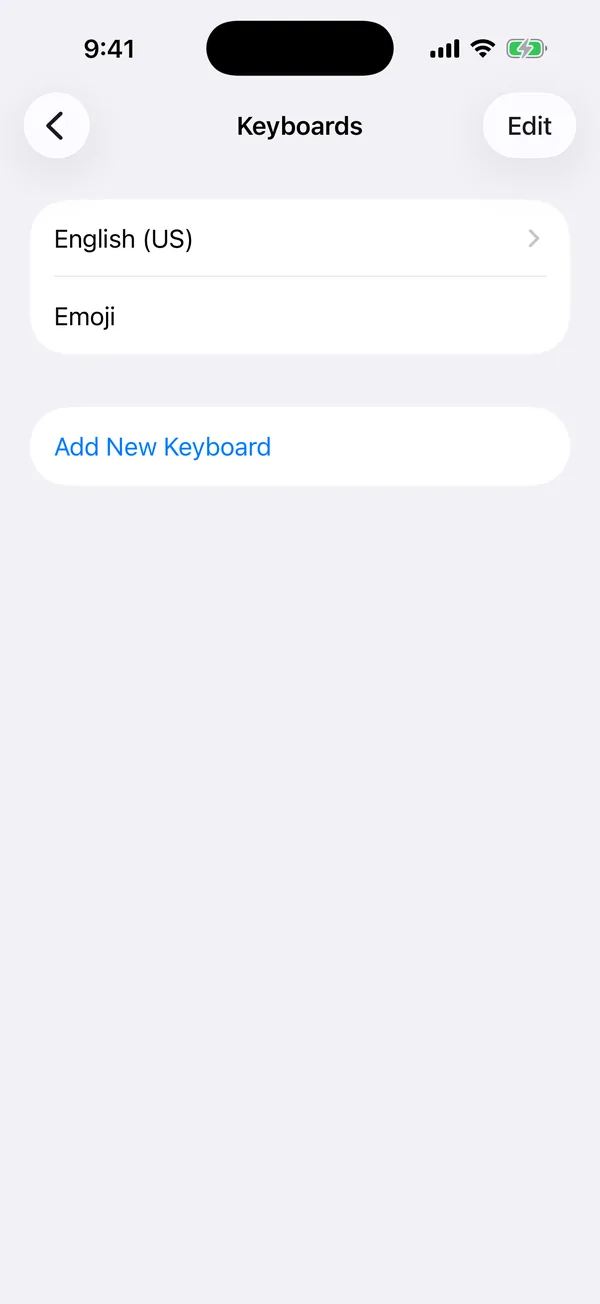
- Open Settings > General > Keyboard > Keyboards.
- Tap Add New Keyboard.
- Under Third-Party Keyboards, tap the keyboard you installed.
Some apps also ask you to allow Full Access. You can turn that on or off by tapping the keyboard in this same list. More on that below.
How to switch between keyboards
When you type, tap the globe key at the bottom of the keyboard to move to the next keyboard in your list. To jump straight to a specific one, touch and hold the globe key and pick from the menu.
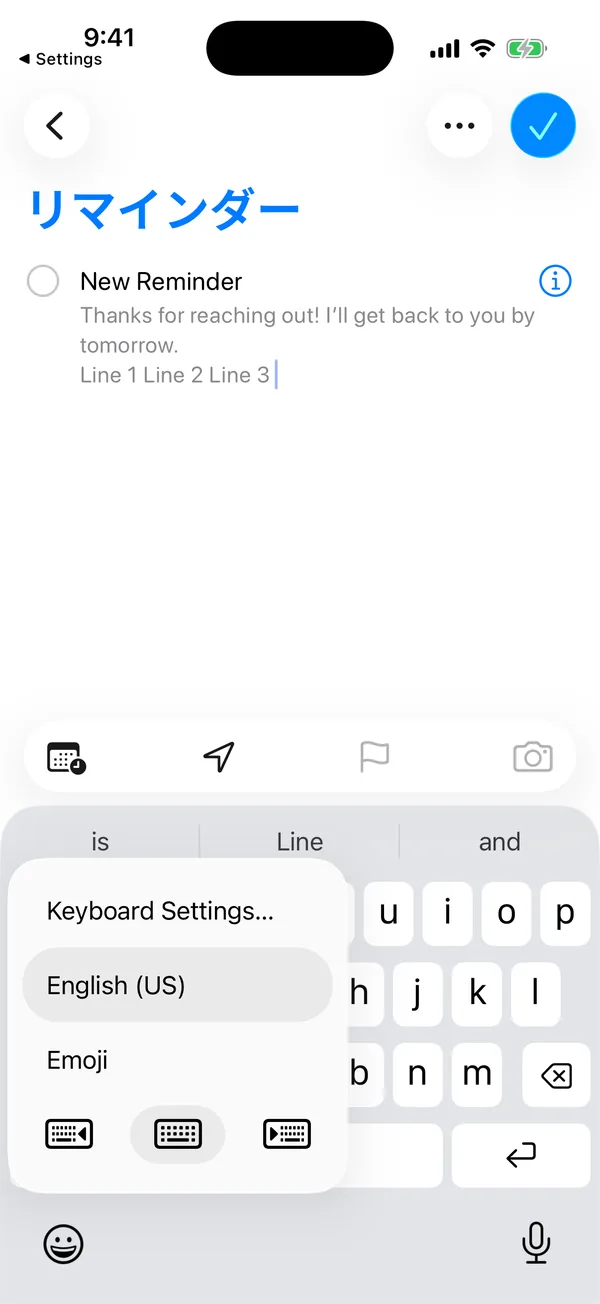
To change the order, go back to Settings > General > Keyboard > Keyboards, tap Edit, and drag. I keep my everyday keyboard first, so a single tap of the globe key always takes me back to it.
What Full Access really means
When a keyboard asks for Full Access, iOS shows a warning that sounds alarming, and it should make you think. Without Full Access, a keyboard runs in a sealed box: it cannot reach the network and it cannot share data with other apps. With Full Access, that box opens.
Full Access is what lets a keyboard sync with an account, read your clipboard, or talk to its own app. Plenty of honest keyboards need it for those features. But a keyboard sees everything you type, so I think the burden is on the app to explain why it needs it.
That is why I designed Switchy to work with Full Access off. My full explanation, including what a keyboard can and cannot do in each mode, is in iPhone keyboard Full Access, explained.
Where third-party keyboards never appear
This is the part that confuses people most. iOS switches back to Apple’s keyboard automatically in some places, and no keyboard developer can change it:
- Password and secure text fields. iOS always uses its own keyboard there.
- Phone number pads. When an app asks for a phone number with the dial-style pad, iOS uses its own keyboard.
- Apps that block third-party keyboards. An app is allowed to refuse them. Banking apps often do.
When you leave one of those fields, your keyboard may or may not come back on its own. Tap the globe key to return to it.
How to choose one
There are hundreds of keyboards. I would judge them on three things, in this order:
- What problem it solves for you. A different layout, a different language, GIFs, or saved text. Do not install one “just in case.”
- Whether it needs Full Access, and why. If the reason is not clear, skip it.
- How it handles switching. You will press the globe key a lot. A keyboard that makes it easy to get back to your main one is worth more than one more feature.
If your reason for a third-party keyboard is reusing the same replies, I compare the options in how to choose an iPhone quick-reply keyboard.
The bottom line
Add the keyboard in Settings, switch with the globe key, and be stingy with Full Access. Expect Apple’s keyboard to take over in password fields and a few apps, because that is iOS protecting you, not your keyboard breaking.
When a keyboard keeps vanishing outside those cases, the fixes in third-party keyboard not working on iPhone usually sort it out.