
iPhone Keyboard Full Access, Explained
What does “Allow Full Access” actually unlock for an iPhone keyboard? A developer who built a keyboard that works without it explains what changes, what the warning means, and what to check before you turn it on.
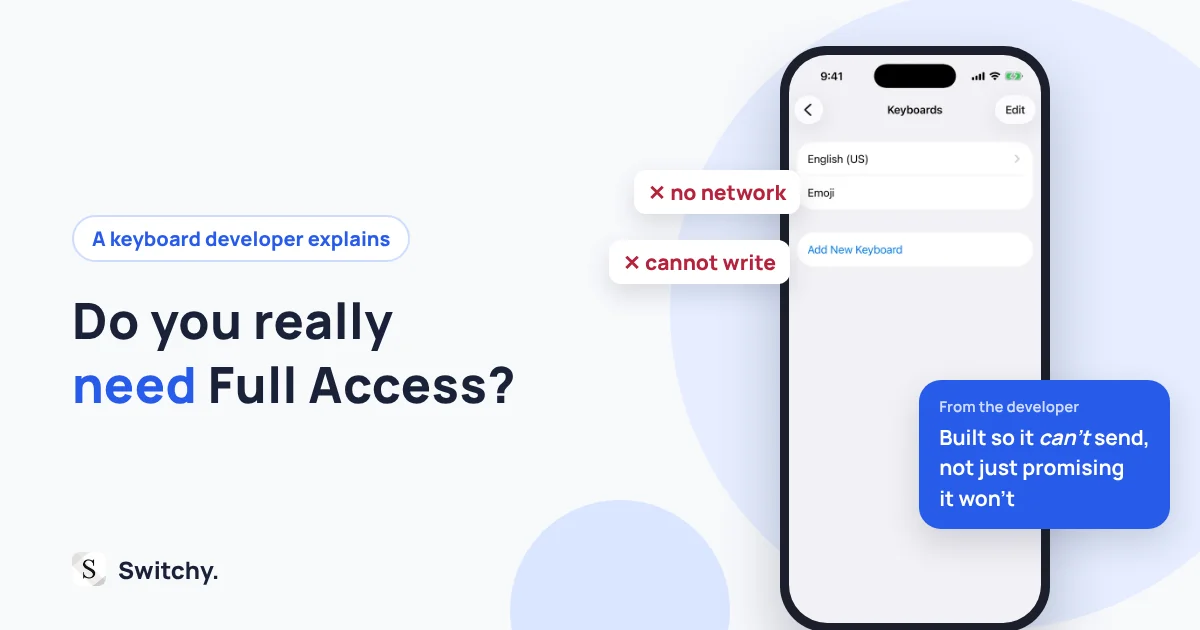
You install a new keyboard, open its settings, and there it is: a switch labeled Allow Full Access. Tap it, and iOS warns you that the developer will be able to transmit anything you type.
That is a scary sentence. Before I started building keyboards, I did not really understand it either.
I am the developer of Switchy, a saved-text keyboard for iPhone. I decided early on that Switchy would work without Full Access, and building it that way taught me exactly what the permission does and what life looks like without it. This article is the explanation I wish I had read back then.
If you are new to adding keyboards at all, third-party keyboards on iPhone covers the basics first.
Full Access opens a door between the keyboard and the outside world
Every third-party keyboard on iPhone runs inside a sandbox. Without Full Access, it can put text into the field you are typing in, but it cannot talk to the internet. Turning Full Access on opens a door in that sandbox.
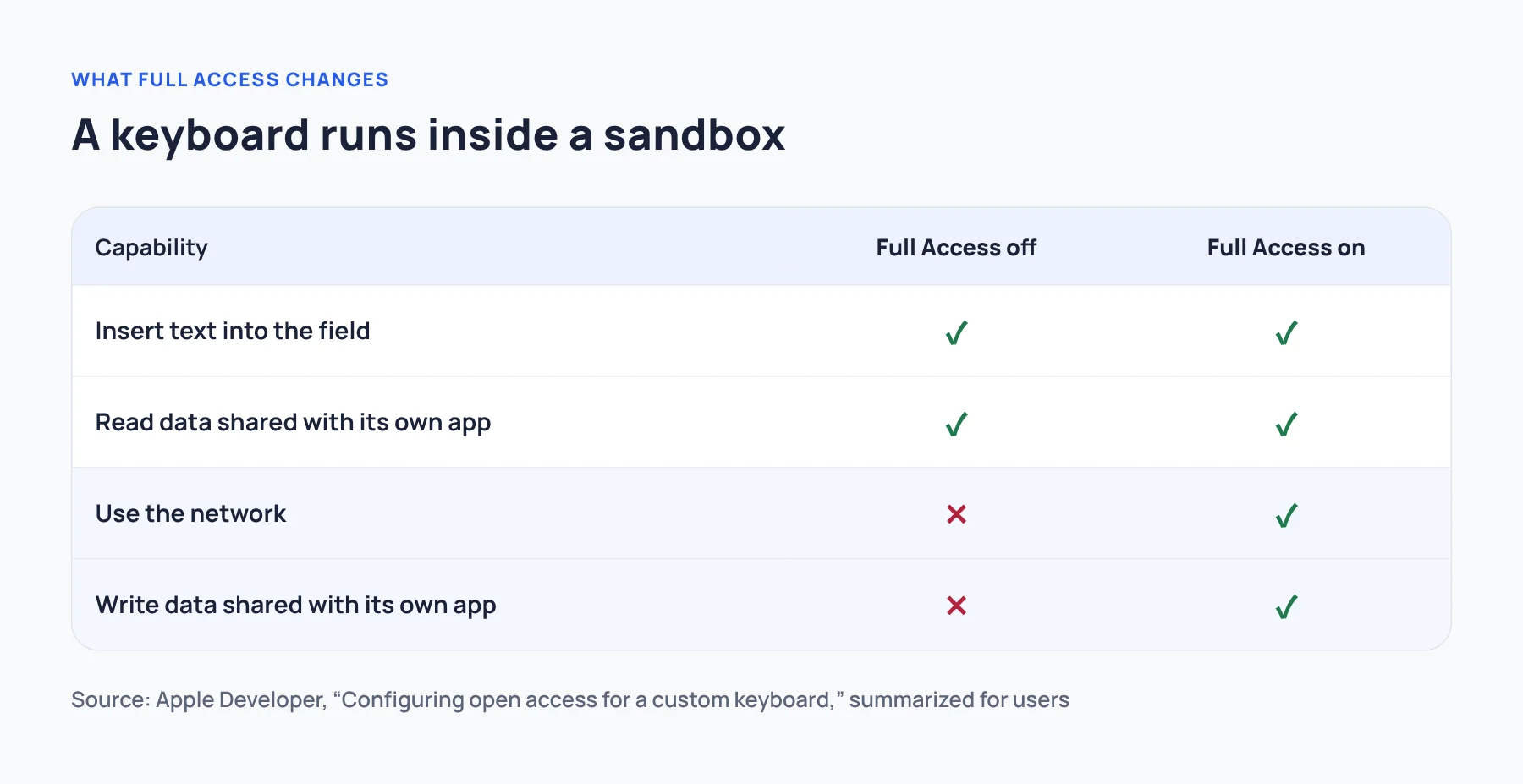
Here is Apple’s developer documentation, translated into plain language:
| Full Access off | Full Access on | |
|---|---|---|
| Insert text into the field you are typing in | Yes | Yes |
| Use the network | No | Yes |
| Read data shared with its own app | Yes | Yes |
| Write data shared with its own app | No | Yes |
The two rows that matter are network access and writing shared data. Everything else about typing works either way.
Why the warning says “everything you type”
Once a keyboard has Full Access, it is technically able to send keystrokes off your device. iOS cannot check whether a particular keyboard actually does that, so the warning describes the worst case.
That does not make every keyboard that asks for Full Access suspicious. Cloud-powered predictions, syncing a dictionary between devices, and searching GIFs all need the network. The useful question is not “does it ask?” but “what is it for, and what does the developer say it sends?”
A developer’s confession: building without Full Access is hard
Here is the part you rarely hear from the people who make keyboards.
I wanted Switchy to work without Full Access because people store email addresses, home addresses, and signatures in it. I wanted people to feel safe using it.
There is a deeper reason, too. A keyboard can ask for Full Access and promise not to read your data. But a promise is all it is: with Full Access on, sending data out becomes technically possible. I would rather not open that door at all. Instead of promising not to send anything, I built Switchy so it cannot.
The constraints turned out to be bigger than I expected.
The keyboard cannot tell its own app anything
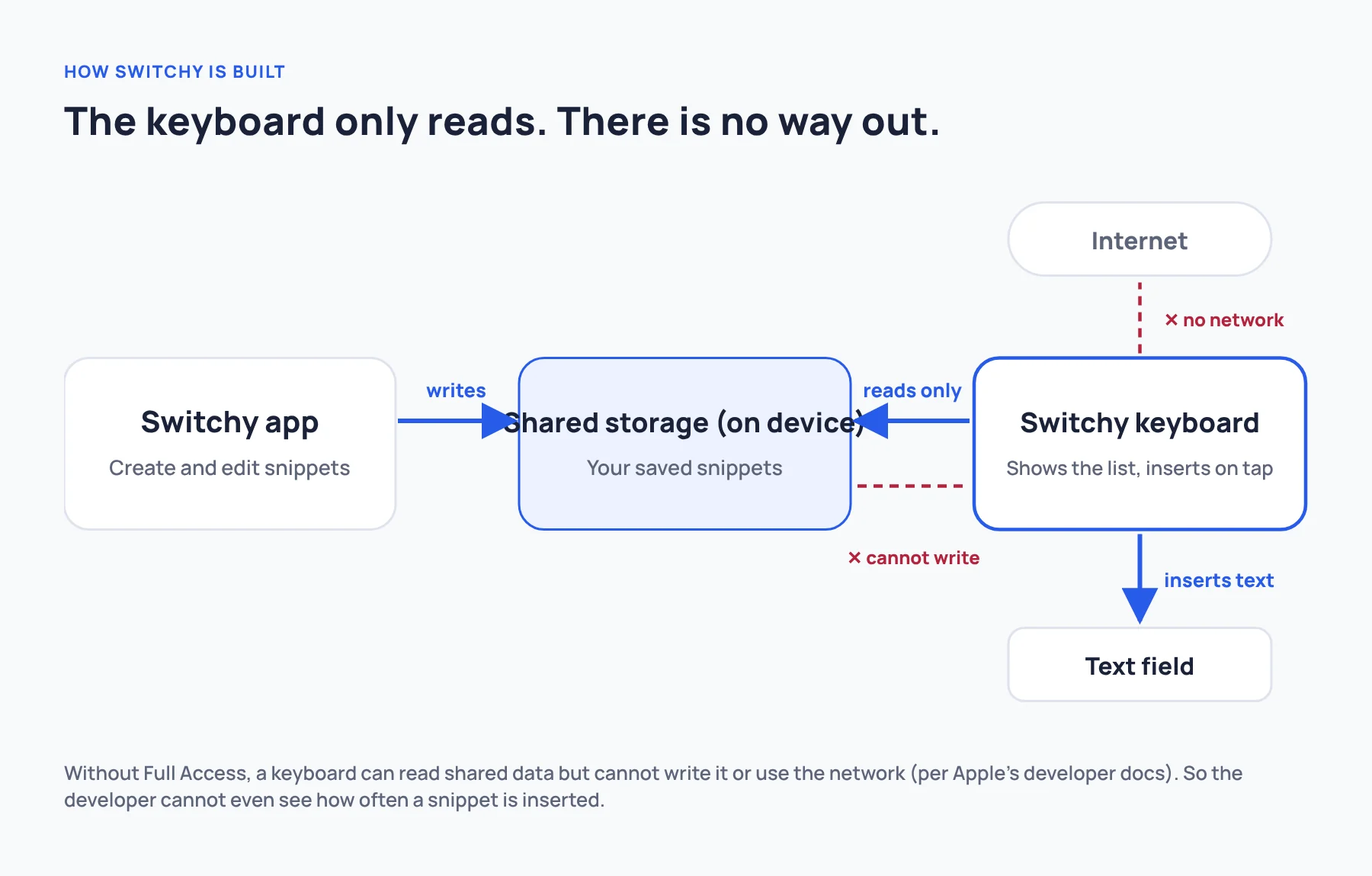
Without Full Access, a keyboard can read the data it shares with its main app, but it cannot write to it. In Switchy, you create snippets in the app, and the keyboard reads them to draw the list. That direction works.
The other direction does not. If I wanted to sort snippets by how often you use them, the keyboard would need to tell the app which ones you tapped. It cannot. In fact, I have no way to know how many times anyone has inserted a snippet with Switchy’s keyboard. As a developer, that is inconvenient. As a user, I think it is exactly what you would want.
App Review protects you here
Apple’s App Review Guidelines say keyboard extensions must remain functional without full network access and without requiring Full Access. In other words, a keyboard that refuses to work at all until you flip the switch should not pass review.
So if you are unsure, try the keyboard with Full Access off first. Basic typing should still work, and you can see which features actually depend on the permission.
Four things to check before you allow it
- What feature needs it? The app description should name a reason, such as sync or cloud suggestions.
- Does it send what you type? The privacy policy should say whether typed text or saved text leaves the device.
- The main app is a separate question. Even if the keyboard sends nothing, the main app may collect crash reports or usage data.
- What breaks without it? Use the keyboard with Full Access off for a day before deciding.
How to check the setting
- Open Settings > General > Keyboard > Keyboards.
- Tap the third-party keyboard.
- Look at the Allow Full Access switch.
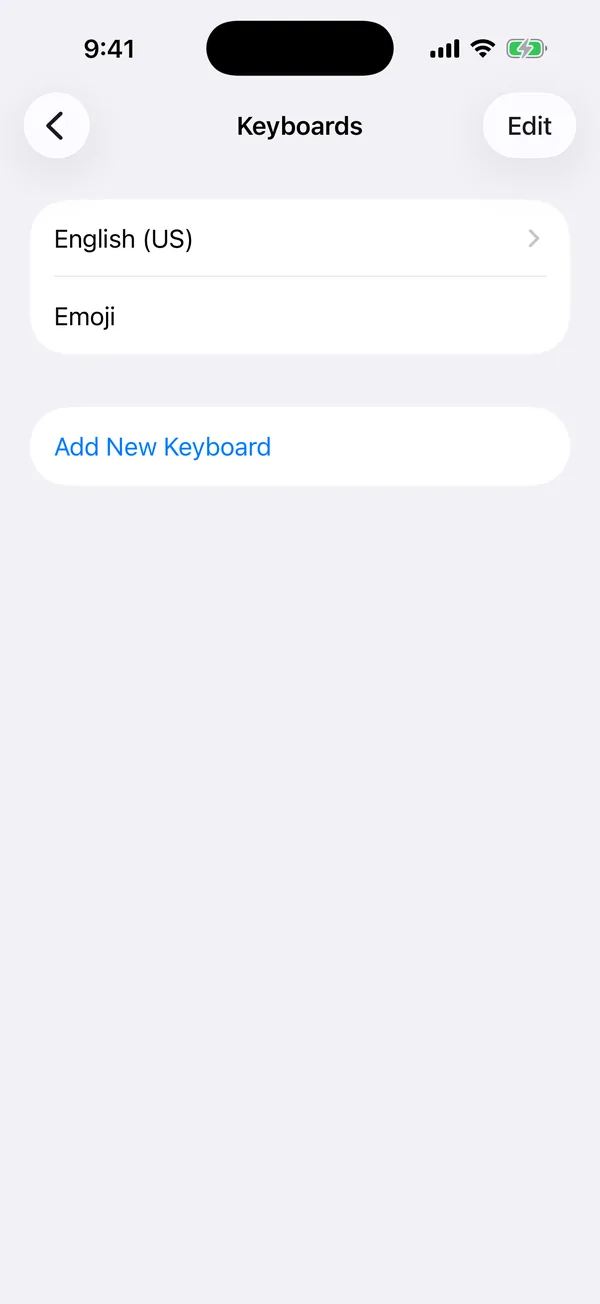
If there is no switch at all, the keyboard does not request Full Access. Switchy is one of those: its settings screen has no switch to flip.
Full Access is not Full Keyboard Access
The names are confusingly close. Full Keyboard Access is an accessibility feature that lets you control your iPhone with a hardware keyboard. It has nothing to do with the Full Access permission for third-party keyboards. Apple explains it in its guide to controlling iPhone with an external keyboard.
Why your keyboard disappears in password fields
If your custom keyboard suddenly switches back to Apple’s keyboard when you tap a password field, nothing is broken. iOS does not allow third-party keyboards in secure text fields, regardless of Full Access. Some apps also choose to block third-party keyboards entirely. As someone who builds one, I think this is a good rule, even though it annoys me too. I use Switchy most on sign-up and login screens, where I type the same details again and again, and every so often I hit a field where my own keyboard cannot appear. It is irritating. But it is iOS drawing a line around sensitive input, and no keyboard can cross it.
Where Switchy stands
Since I make Switchy, treat this as the developer’s own disclosure, not an independent audit:
- The keyboard does not request Full Access, so there is no switch to turn on.
- Saved snippets stay on your device.
- Typed text, clipboard contents, and snippet text are excluded from analytics and diagnostics.
- The main app does send limited usage, diagnostic, and performance data to Firebase and Sentry to improve quality.
I will not claim that “nothing is ever sent.” The details are in the privacy policy, and the US App Store listing carries the same disclosures.
The Full Access warning is not there to scare you. It is there so you can decide. Look at what the permission is for, and turn it on only when that reason makes sense to you.
If you are choosing a keyboard for saved replies, see how to choose an iPhone quick-reply keyboard. For more about how Switchy works, read the developer’s guide to Switchy.