
iPhone Text Replacement Not Working? 8 Fixes
iPhone Text Replacement not expanding, not syncing, or not saving? Here are the causes in the order to check them, including the keyboard settings that change how shortcuts behave and the misleading save error, from a keyboard developer.
You saved a shortcut, typed it, pressed space, and nothing happened. Or it works on your iPhone but not on your iPad. Or Settings refuses to save it with an error that makes no sense.
Most of the time, the cause is one of three things: the shortcut is typed slightly differently, you are not using Apple’s keyboard, or a keyboard setting is changing how suggestions appear. Work through the list below in order, and you will usually find it in a couple of minutes.
I build Switchy, a keyboard app for iPhone, and I tested Text Replacement’s behavior in the iOS Simulator while building it. This guide lists the causes from most to least common, with what I saw in my own tests.
If you are setting it up for the first time, start with how to use Text Replacement on iPhone.
First, a 30-second check
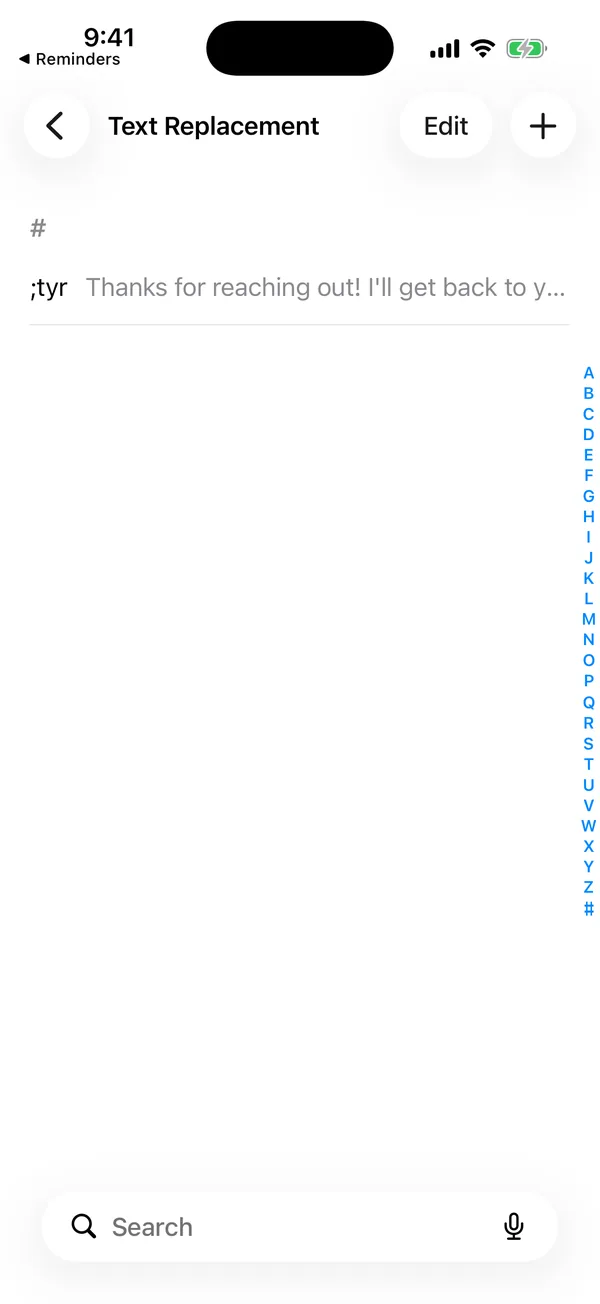
- Open Settings > General > Keyboard > Text Replacement and look at the exact shortcut you saved.
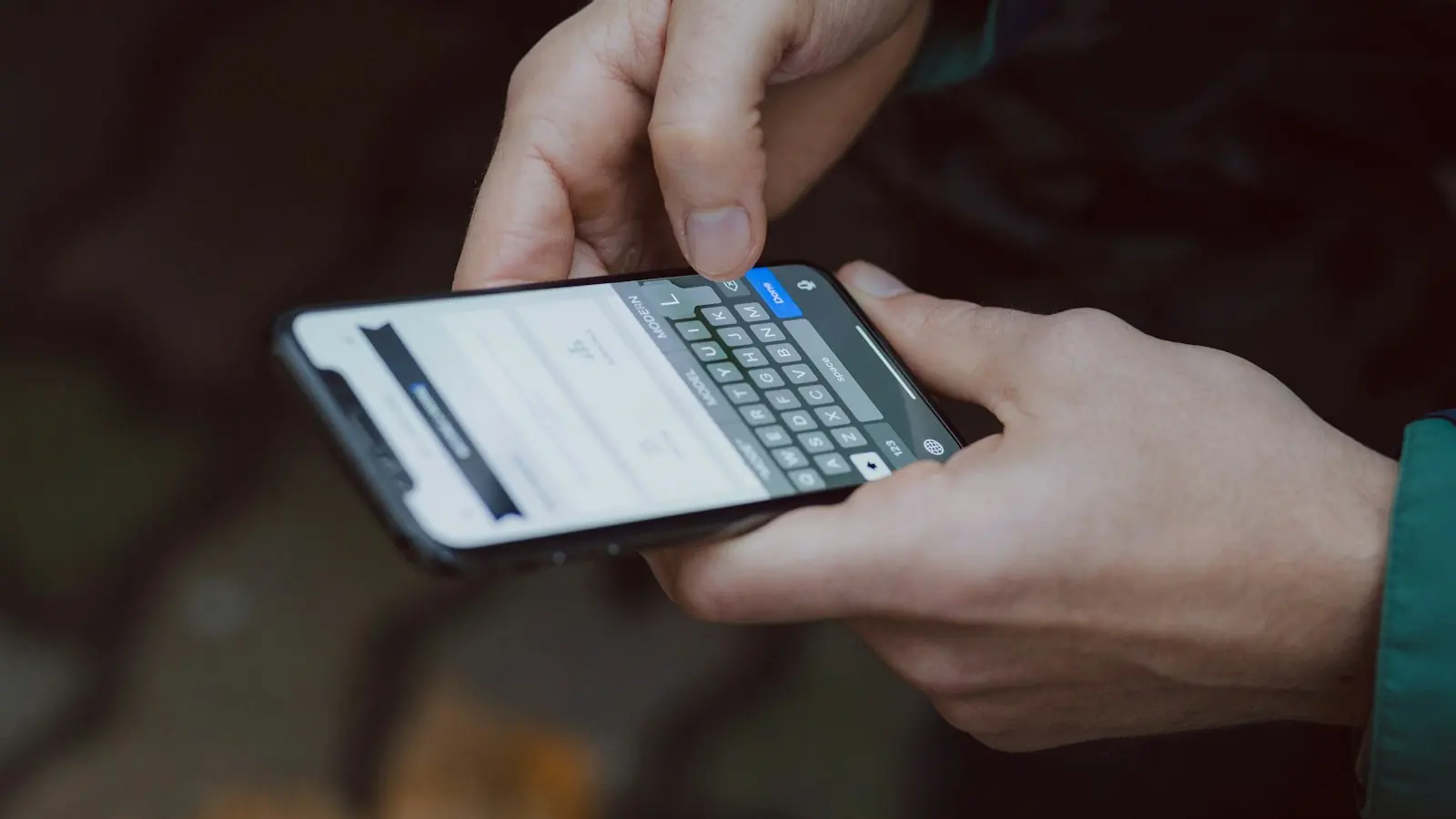
- Open Messages or Reminders, make sure Apple’s keyboard is active, and type that shortcut followed by a space.
If it expands there, the problem is where you were typing, or which keyboard you were using. If it does not, keep reading.
When the shortcut does not expand
1. The shortcut is not exactly what you typed
This is the most common one. A capital letter iOS added automatically, a space you did not notice at the end, or a similar-looking symbol. Compare what you saved with what you type, character by character.
2. You are using a third-party keyboard
Text Replacement belongs to Apple’s keyboard. Gboard, SwiftKey, and other keyboards may handle it differently or not at all. Tap the globe key, switch to Apple’s keyboard, and try again.
3. Keyboard settings change how the suggestion appears
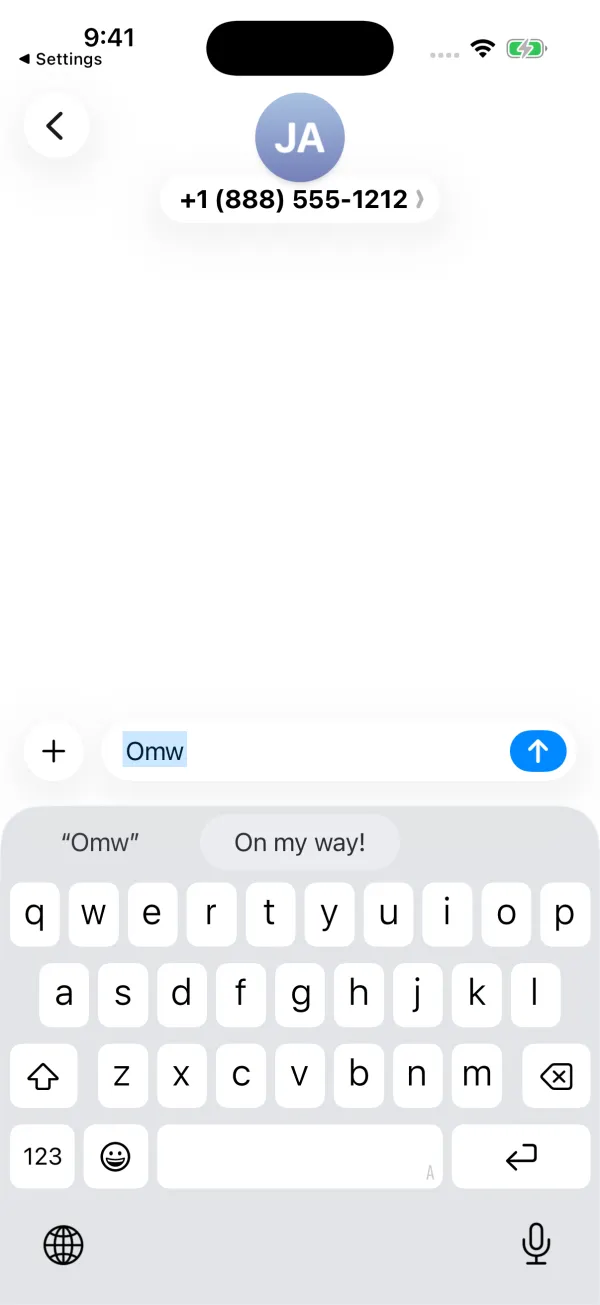
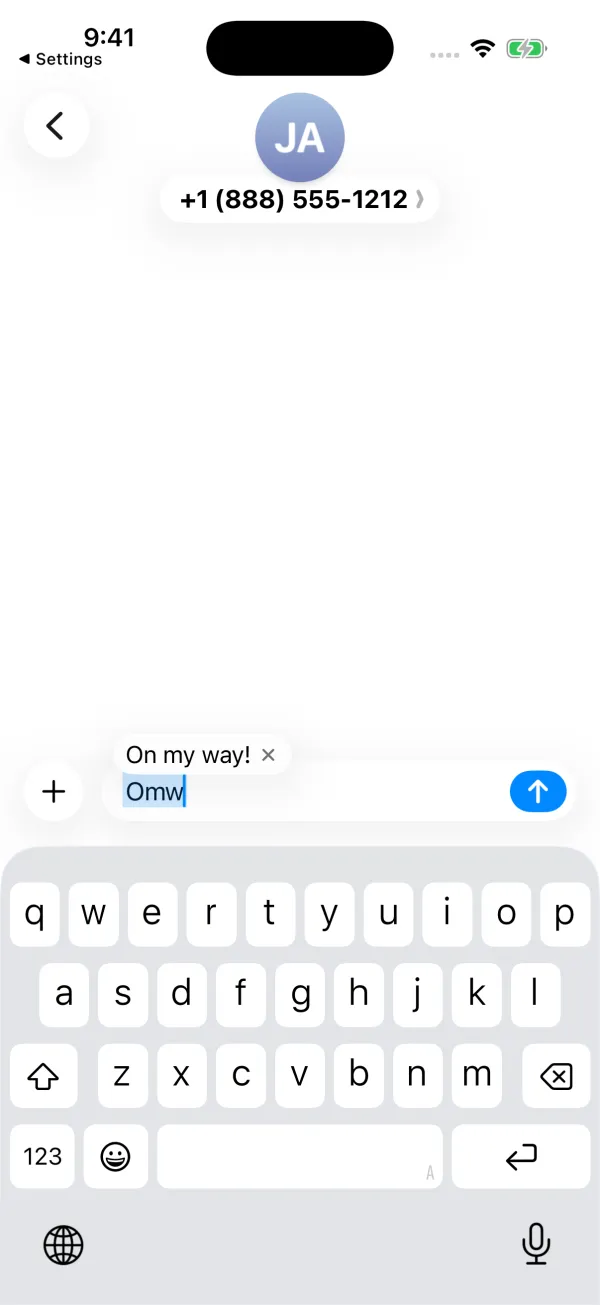
The settings in Settings > General > Keyboard, especially Predictive and Auto-Correction, change how a shortcut looks, but not whether it works. In the iOS 26.2 Simulator, the shortcut expanded with the space bar in all four on/off combinations. With Predictive on, the phrase appears in the suggestion bar; with Predictive off, it appears in a small bubble above the word. If you only ever look at the suggestion bar, a bubble is easy to miss, so check both places before assuming it is broken.
4. The shortcut is a real word
If your shortcut is a real word or a common abbreviation, autocorrect and predictive suggestions compete with it, and the result is unpredictable. Use a shortcut with a symbol or doubled letter, such as ;addr or zzmail.
5. You are typing in a secure field
Password fields and some sign-in forms do not show suggestions at all, so shortcuts do not appear there. This is expected.
When it does not sync between devices
6. iCloud has not caught up yet
Text Replacement syncs through iCloud between devices on the same Apple Account. It is not instant. Give it some time, and make sure you are signed in with the same account on both devices.
If a shortcut never shows up on the other device, delete it and add it again on the device you use most. That has fixed stuck entries for me more than once.
When it will not save
7. The phrase is too long, and the error lies
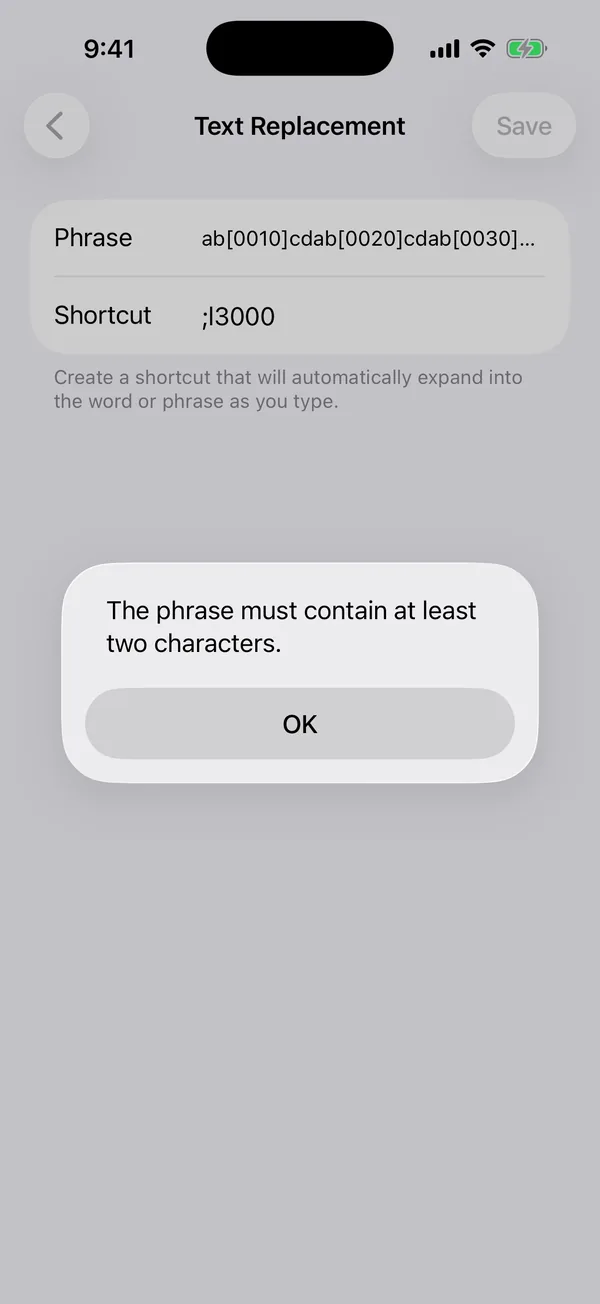
In my iOS 26.2 Simulator test, phrases up to about 2,000 characters saved. Anything longer did not, and the error said “The phrase must contain at least two characters.” It sounds like the phrase is too short. It means it is too long. The full test is in iPhone Text Replacement character limit.
8. The shortcut is already in use
Two entries cannot share the same shortcut. Search your list for it and rename one.
If nothing works
Try these, in this order:
- Restart your iPhone.
- Delete the shortcut and add it again.
- Update iOS.
- Reset the keyboard dictionary in Settings > General > Transfer or Reset iPhone > Reset > Reset Keyboard Dictionary. Read this before you tap it: Apple says this deletes all custom words and shortcuts, which includes every Text Replacement you saved (Apple’s Text Replacement guide). Screenshot your Text Replacement list first, and treat this as a true last resort.
Be careful in that Reset menu. The options next to it reset much more than the keyboard.
Why this keeps happening
Here is my opinion as someone who builds keyboards. Text Replacement shares the suggestion bar with autocorrect and predictive text, so it is always competing with them. That is why it feels unreliable: it is not one feature, it is three features sharing one space.
The fix that works best long term is choosing shortcuts nothing else will ever suggest. And if you are fighting it every day, or your phrases have line breaks, it may be time to look at a text expander app for iPhone, where you pick snippets instead of typing codes.