
Text Expander Apps for iPhone: What Actually Works
Looking for a text expander on iPhone? iOS does not allow Mac-style expansion everywhere, so here is what does work: Text Replacement, snippet keyboards, and Shortcuts, compared honestly by the developer of an iPhone keyboard.
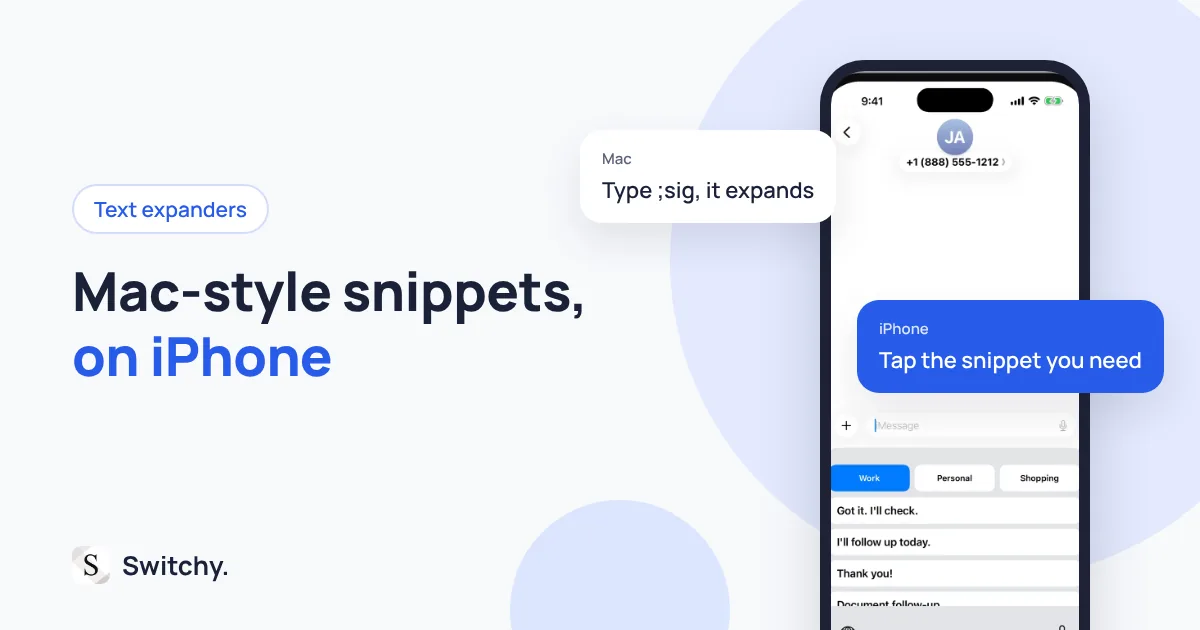
On your Mac, you type ;addr and your full address appears. It works in every app, with no extra steps. Then you pick up your iPhone, search the App Store for “text expander,” and nothing behaves quite the same way.
I will save you the trial and error. On iPhone, only Apple’s own keyboard can expand an abbreviation as you type in every app, through Text Replacement. Every third-party “text expander” is really a keyboard you switch to. So the real choice is between typing a shortcut and picking from a list.
I build Switchy, a saved-text keyboard for iPhone. On my Mac I use Clipy every day, and I went looking for the same feeling on my phone before deciding to build it myself. This guide explains why iPhone expanders work differently, compares the options, and tells you which one I would pick in your situation. By the end you will know what to install, or whether you need to install anything at all.
If you only need a few short shortcuts, start with the free built-in option in how to use Text Replacement on iPhone.

Why iPhone text expanders work differently
A Mac text expander runs in the background and watches what you type in every app. When it sees ;addr, it deletes those characters and types your address.
iOS does not allow that. An app cannot watch your typing in other apps. The only place that sees your keystrokes is the keyboard you are using at that moment. So a third-party expander on iPhone has to be the keyboard.
That leaves three real options:
| Option | How you insert text | Long or multi-line text | Works in |
|---|---|---|---|
| Text Replacement (built in) | Type a shortcut, press space | Up to about 2,000 characters, line breaks become spaces | Apple’s keyboard |
| Snippet keyboard (third-party) | Switch keyboards, tap the snippet | Depends on the app. Switchy keeps line breaks | Most text fields, except secure ones |
| Shortcuts app | Run a shortcut that copies text | Yes | Anywhere you can paste |
My recommendation by situation
- You have under 20 short phrases and remember shortcuts: use Text Replacement. It is free, already there, and closest to the Mac experience.
- You have many snippets, multi-line replies, or forget your shortcuts: use a snippet keyboard. Picking from a list beats remembering codes once your library grows.
- You want snippets with dynamic content, like today’s date: Shortcuts can build text, but you paste it yourself afterward.
Reason 1: Shortcuts you have to remember stop scaling
The Mac expanders trained us to think in codes. That works when you have ten. Past twenty, most people forget half of them, and you end up opening Settings to look them up. At that point you are not saving time anymore.
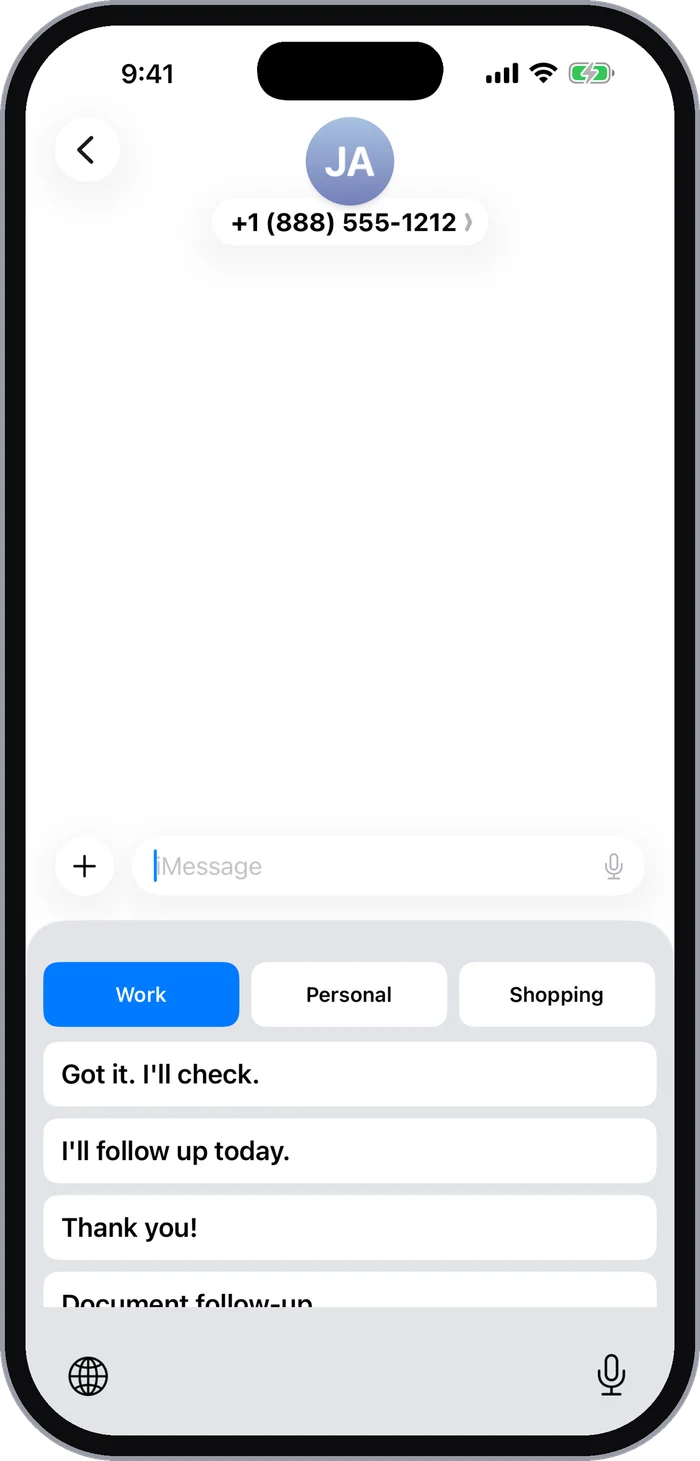
A snippet keyboard flips it around: you see your snippets and tap one. You do not need to remember anything. This is the main reason I built Switchy as a keyboard and not as another shortcut system.
Reason 2: Line breaks matter more than you think
Email sign-offs, addresses, and longer replies all have line breaks. Text Replacement turns them into spaces. I tested this in the iOS 26.2 Simulator, and a three-line phrase came out as one line every time. The details are in my Text Replacement character limit test.
A snippet keyboard inserts the text the way you saved it, so multi-line snippets come out intact.
Reason 3: You can organize by situation
A single long list works for a handful of entries. For more, you want them grouped: work, personal, selling, support. In Switchy those groups are called Contexts. Pick the Context, and only the snippets for that situation are on screen.
The honest downsides of snippet keyboards
Since I make one, I want to be clear about what is worse than the Mac experience.
- You switch keyboards. It is one extra tap with the globe key. Switchy returns to your previous keyboard right after you insert a snippet, so you only switch once, but it is still not as invisible as typing
;addr. - Secure fields are off-limits. iOS always uses Apple’s keyboard in password fields, and some apps block third-party keyboards entirely. No developer can work around this.
- Permissions vary. Some snippet keyboards ask for Full Access to sync snippets or read the clipboard. Check before you install. My Full Access explainer covers what that permission allows.
My own setup uses both: Text Replacement for my email and phone number, Switchy for everything longer.
Where Switchy fits
Switchy is a snippet keyboard for people whose list has outgrown Text Replacement. Snippets are grouped into Contexts, you can long-press to preview the full text before inserting it, and line breaks stay intact. It does not need Full Access, and it is free to try.
If you came from a Mac expander, save the three snippets you use most and try them in Mail and Messages for a day. You will know quickly whether picking beats typing for you. The developer’s guide to Switchy explains the details.