
iPhone Text Replacement Character Limit: What We Found
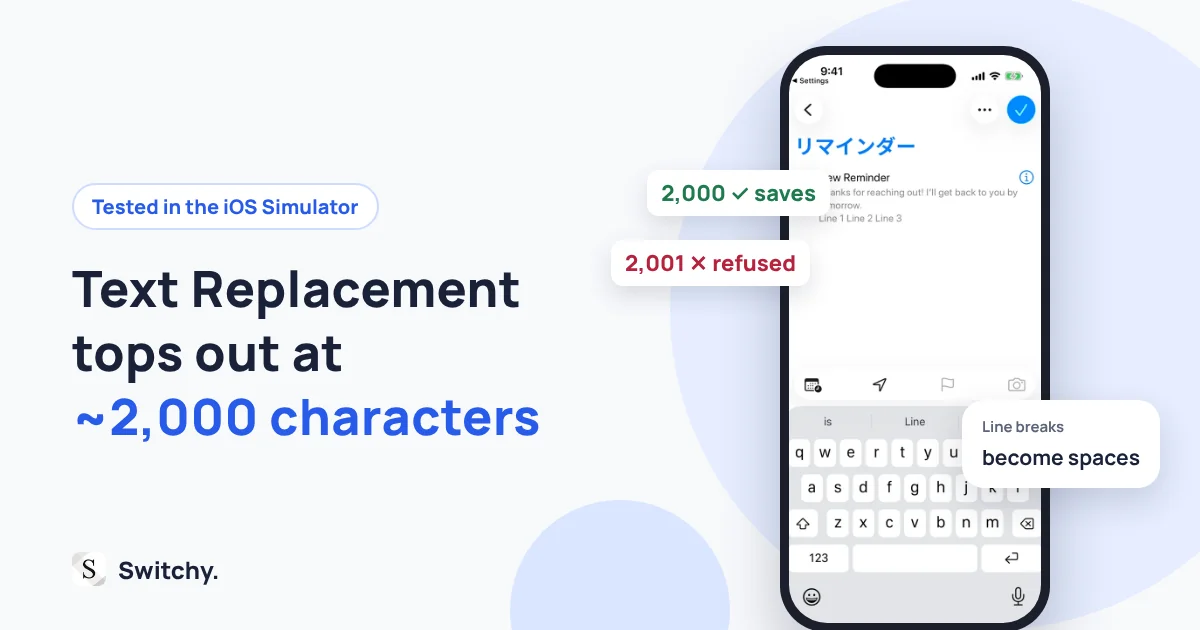
Is there a character limit for iPhone Text Replacement? Apple does not publish one, so a keyboard developer tested long phrases and line breaks in the iOS Simulator. The answer: about 2,000 characters, and line breaks become spaces.
Search for the iPhone Text Replacement character limit and you will find confident numbers: 128 characters, 2,000 characters, “no limit at all.” Most of them do not say where the number came from, or which iOS version they were measured on.
Apple’s Text Replacement guide does not publish a maximum. So I did what any keyboard developer would do: I tested it.
I build Switchy, a saved-text keyboard for iPhone, and long text is a problem I think about a lot. This article shares what I found, how I tested it so you can repeat it, and what to do when Text Replacement is not the right tool.
New to the feature? How to use Text Replacement on iPhone covers the setup.
The short answer
- The limit is about 2,000 characters. In my test on iOS 26.2, a 2,000-character phrase saved, and anything longer was refused.
- Nothing gets cut off. A phrase either saves in full or does not save at all. Phrases that saved expanded completely.
- The error message is misleading. Over the limit, iOS says “The phrase must contain at least two characters.” If you see that on a long phrase, it is too long, not too short.
- Line breaks are not kept. They are turned into spaces, so a three-line signature comes out as one line.
How I tested it
Setup
- iOS Simulator, iPhone 17 Pro, iOS 26.2, English (US)
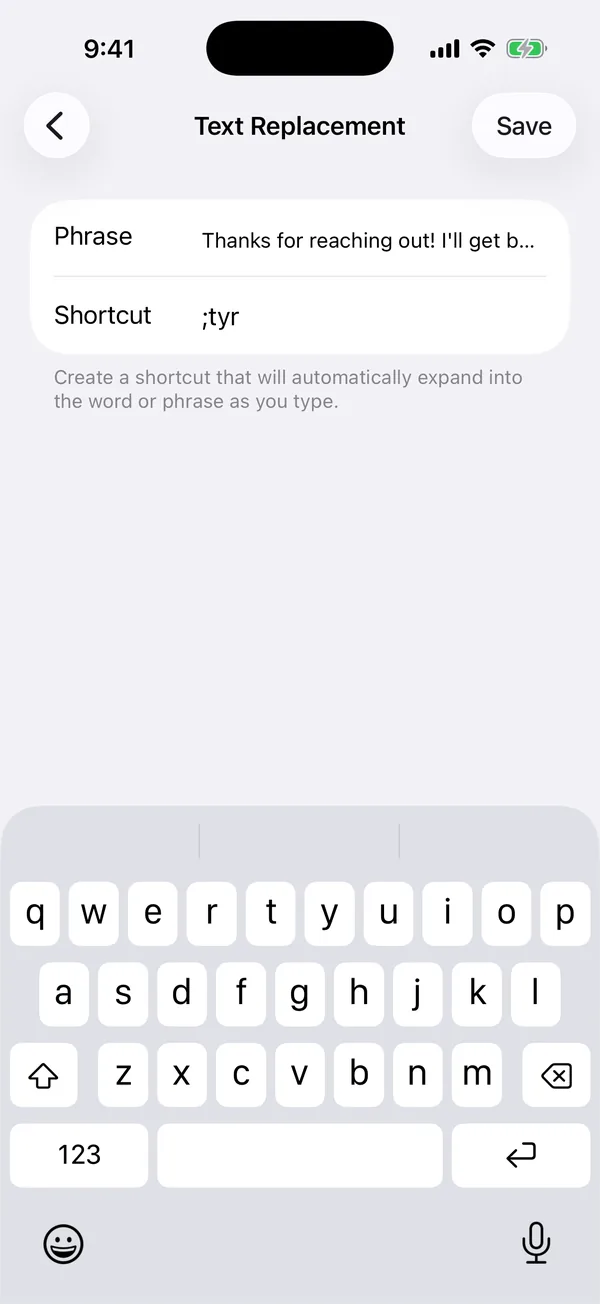
- Settings > General > Keyboard > Text Replacement > +
- Phrases with numbered markers like
[010] … [100]were pasted into the Phrase field and saved, then expanded by typing the shortcut in a multi-line text field. - The Simulator does not include the Notes app, so I used the notes field in Reminders.
I checked two things separately, because they can fail independently:
- Saving: does Settings accept the phrase?
- Expanding: does the full phrase come out when you type the shortcut?
Results
| Phrase length | Saves? | Expands in full? |
|---|---|---|
| 100 characters | Yes | Yes |
| 300 characters | Yes | Yes |
| 1,000 characters | Yes | Yes |
| 2,000 characters | Yes | Yes |
| 2,001 characters and up | No | — |
One honest caveat: the same test on the Japanese-language side (the Japanese “User Dictionary”) stopped at 1,999 characters, one short of the English result. I ran each case once, so treat the limit as “about 2,000 characters” rather than an exact number, and expect it may move between iOS versions.
There is also a third, quieter problem: choosing. When you type a shortcut for a long phrase, the suggestion bar shows only the last few words of it, not the beginning. Long replies tend to end the same way (“…Best regards.”), so two of them are hard to tell apart there.
What about line breaks?
Line breaks are the other half of the “long text” question. A three-line signature is only useful if it stays three lines.
I pasted three lines (Line 1, Line 2, Line 3) into the Phrase field. It saved without any warning, but each line break was replaced with a space. Typing the shortcut produced Line 1 Line 2 Line 3 on a single line.
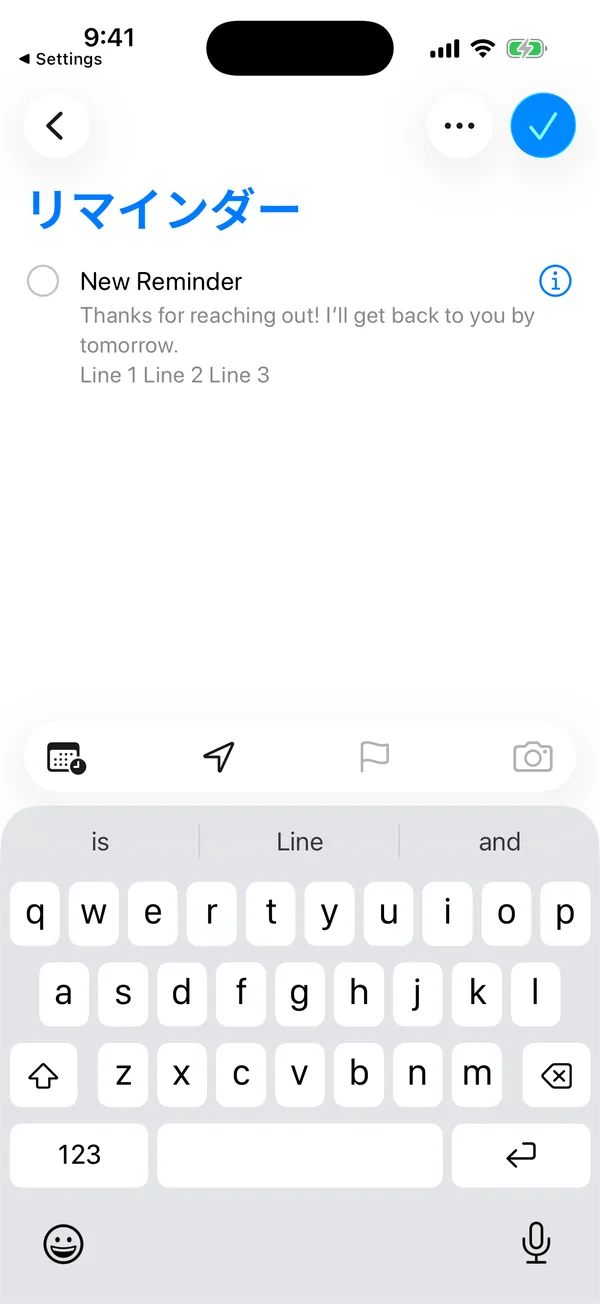
The lack of a warning is the trap. You only find out when the signature arrives as one long line.
Why Text Replacement struggles with long text (a keyboard developer’s view)
Text Replacement was designed for short substitutions: omw becomes “On my way!” It lives inside Apple’s keyboard and suggestion system, which is built around words and short phrases. That is a reasonable design, and it is why the feature feels so fast for small things.
Long, structured text is a different job. When a third-party keyboard inserts text, it uses a system call that passes a whole string, line breaks included, into the field. That is why saved-text keyboards tend to handle paragraphs better.
Even then, the text field has the final say. A single-line field, such as a search box or a name field, will not accept line breaks no matter which method you use. If something looks wrong, test in a multi-line field such as a new note first.
How to test it on your own iPhone
Results can change between iOS versions, so if you depend on long phrases, run your own check:
- Write a test phrase with numbered markers so you can see what was cut, for example
[001] … [050] … [100]. - Paste it into a new Text Replacement entry and save.
- Type the shortcut in a new note and accept the suggestion.
- Compare the last marker you see with the original.
- Repeat in the app where you actually plan to use it.
Write down your iOS version with the result. A number without a version is how myths start.
Better options for long text
If your phrase is long or multi-line, consider these instead:
- Split it. Save each paragraph as its own shortcut and insert them in order.
- Notes + copy/paste. Slower, but you see the whole text and can edit it.
- A saved-text keyboard. You browse and tap instead of remembering shortcuts, and multi-line text is inserted as saved.
Text Replacement is still my top recommendation for short things like email addresses and sign-offs. My 20 Text Replacement ideas are all deliberately short for that reason.
Where to go next
If you are deciding between tools, how to choose an iPhone quick-reply keyboard compares them side by side. To build a library of longer replies, see canned responses on iPhone.