
Choose an iPhone Keyboard for Quick Replies
Text Replacement, Notes, a saved-reply keyboard, or an app’s own quick replies? A keyboard developer compares the four ways to send the same reply on iPhone, including the trade-offs most reviews skip.
“Thanks for reaching out! I’ll get back to you by tomorrow.”
If you have typed some version of that sentence five times this week, you already know the problem. It is not that typing is slow. It is that you keep writing the same thing, slightly differently each time, and occasionally with a typo.
I build Switchy, a saved-text keyboard for iPhone. I am a freelance engineer with four years in the field, and Switchy is my own project. It started because I use Clipy, a clipboard and snippet tool, on my Mac every day, and I wanted something that felt that easy on my iPhone. Apple’s Text Replacement was close, but its suggestions share a row with predictive text, so I kept tapping the wrong word.
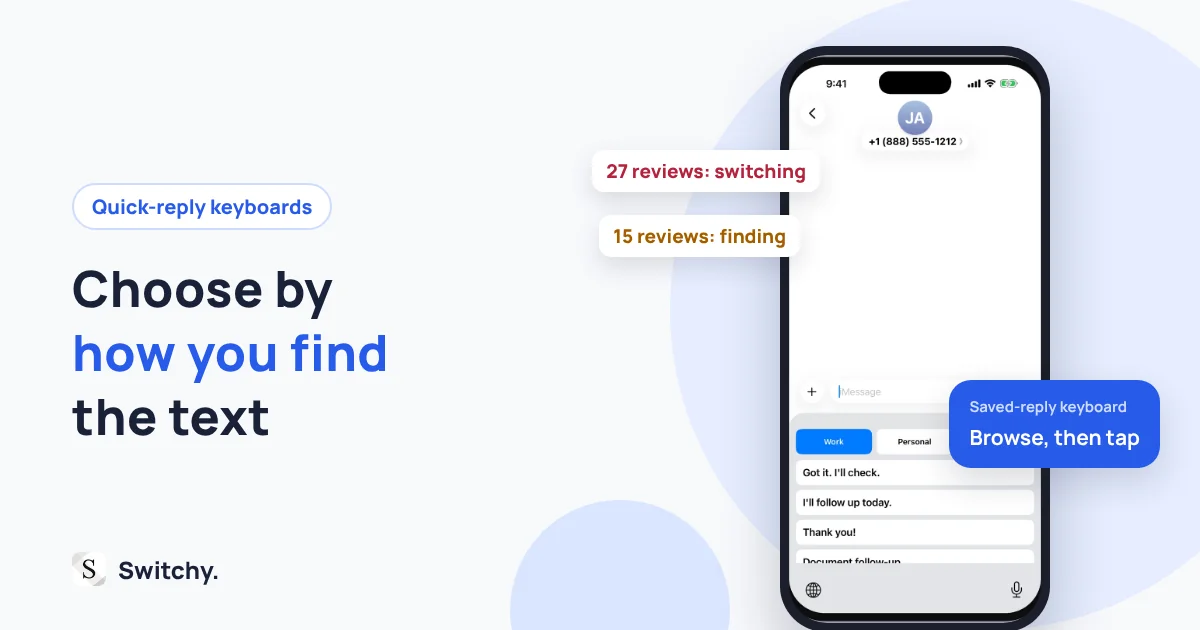
So I have spent an unreasonable amount of time thinking about this exact moment. While planning Switchy’s next features, I read and categorized 266 App Store reviews of seven other snippet keyboards. The single most common usability complaint was not missing features. It was switching keyboards (27 reviews), followed by not finding the right snippet (15).
That changed how I compare quick-reply tools, and it is the lens I will use here.
If you have never set up Text Replacement, how to use Text Replacement on iPhone is the free place to start.

The short answer
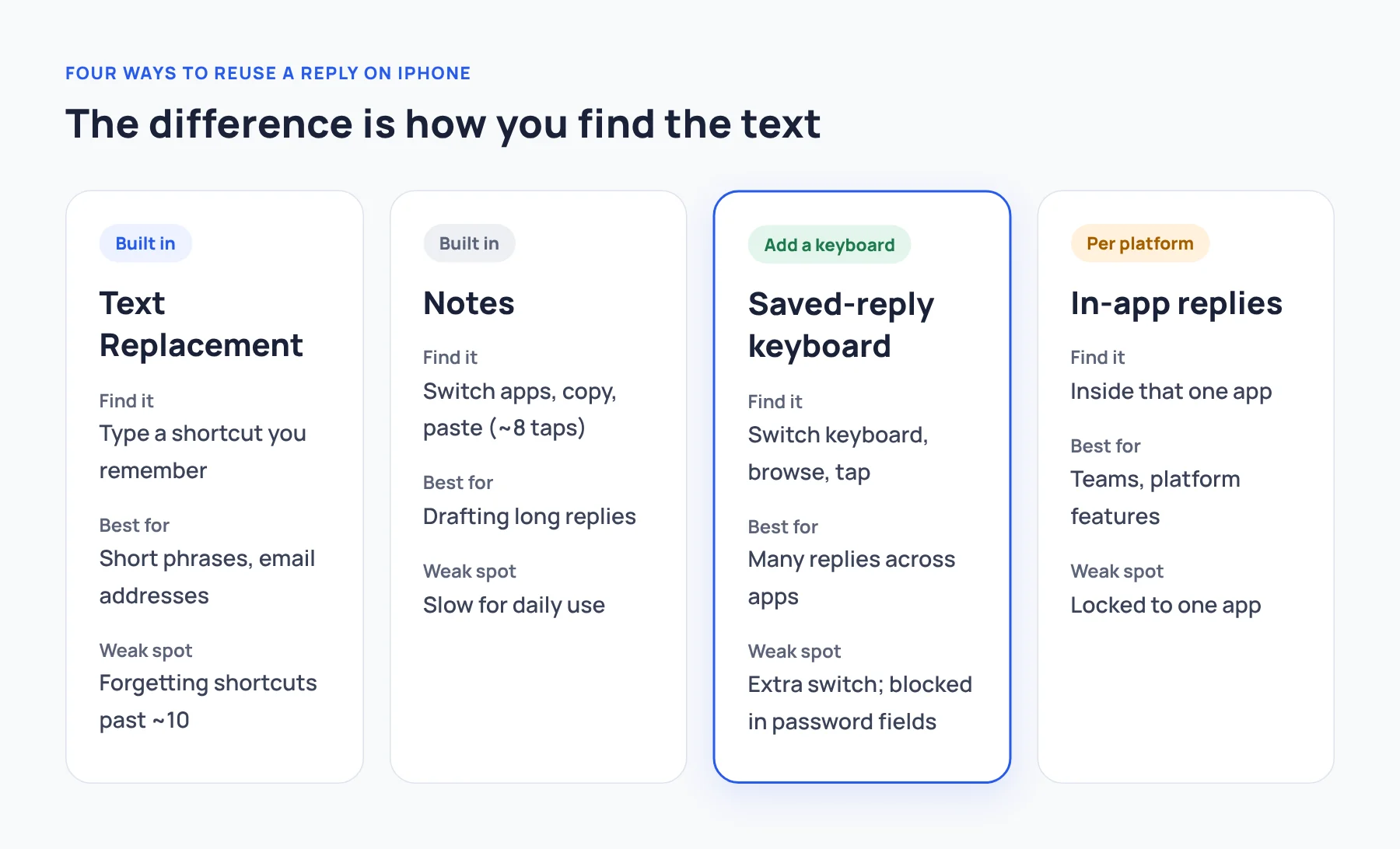
| If you… | Use | Why |
|---|---|---|
| Reuse a handful of short phrases and remember shortcuts | Text Replacement | Built in, free, no keyboard switching |
| Write long replies that you edit every time | Notes + copy/paste | Best place to draft and revise |
| Pick from many replies across different apps | A saved-reply keyboard | Browse and tap without leaving the text field |
| Answer inside one platform all day | That app’s own quick replies | It can do things a keyboard cannot |
Option 1: Text Replacement is unbeatable for short phrases
iOS has a built-in feature called Text Replacement. You type a short shortcut, such as tyr, and iOS offers the full phrase. Apple’s Text Replacement guide covers the setup under Settings > General > Keyboard > Text Replacement.
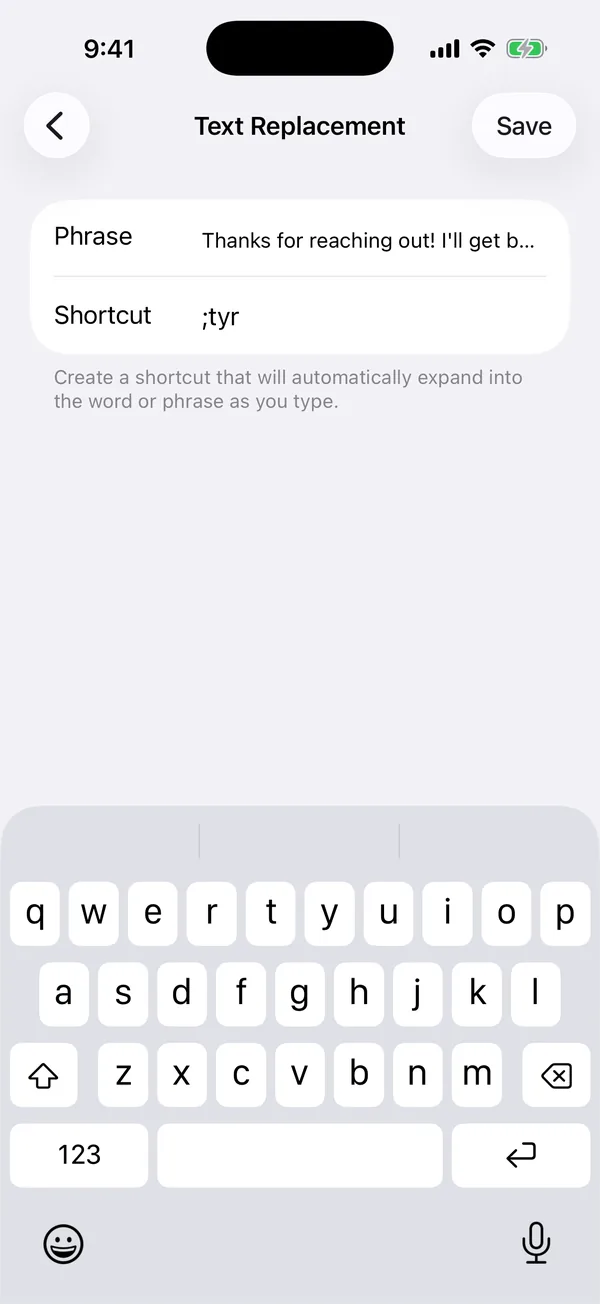
There is no extra app, no keyboard switching, and no permission to think about. For an email address or a two-word sign-off, nothing is faster.
Where it breaks down: you have to remember every shortcut. Past ten or so, most people start forgetting them. And because shortcuts only work when you remember them, Text Replacement quietly punishes you for having more replies.
Option 2: Notes is a great archive and a slow input method
Keeping replies in a note is the zero-setup option, and you can see and edit the full text. But count the steps: switch apps, open the note, find the reply, select it, copy, switch back, tap the field, paste. That is roughly eight actions for one reply.
Notes is a great place to write long replies. It is a clumsy place to fetch them twenty times a day.
Option 3: A saved-reply keyboard keeps you in the conversation
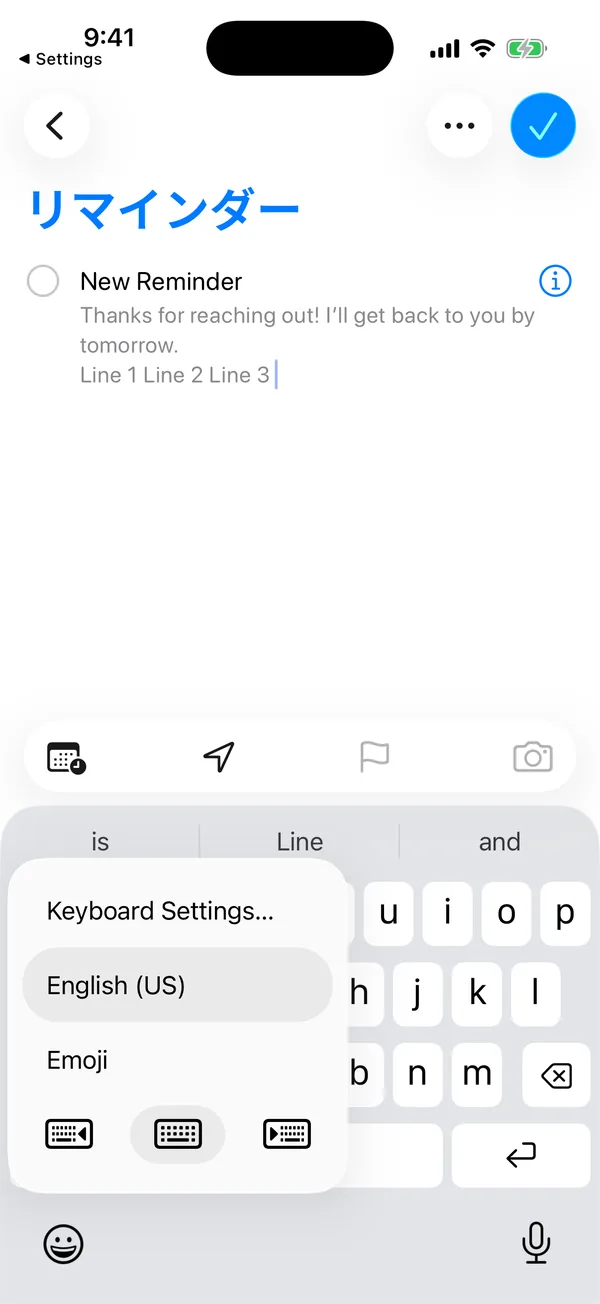
A saved-reply keyboard is an app you add under Settings > General > Keyboard > Keyboards. While typing, you switch to it with the globe key, tap a saved reply, and it lands in the text field. No app switching, no shortcuts to memorize.
The honest downsides
Since I make one, let me be upfront about what is not great:
- Switching keyboards is an extra step. It is the most common complaint in this whole category, as those reviews showed.
- Some fields block it. iOS always uses Apple’s keyboard in password fields, and some apps (often banking apps) refuse third-party keyboards. No keyboard developer can work around this.
- It is one more app to trust. Check permissions and the privacy policy before you install.
The switching complaint is why Switchy jumps back to your previous keyboard right after you insert a reply. You tap the reply and keep typing as usual. Of all the details in the app, that is the one I am most stubborn about.
Option 4: An app’s built-in quick replies
Many platforms have their own saved replies: WhatsApp Business, Instagram for professional accounts, and most customer-support inboxes. If you answer inside one platform all day, start there. Built-in tools can do things a keyboard never will, such as sharing replies with teammates or triggering automations.
The trade-off is that the replies live inside that one app. If you answer the same question on Instagram, in email, and in text messages, you end up maintaining three libraries.
What to compare before installing a keyboard
Feature lists are long and mostly irrelevant. These are the things that decide whether a keyboard survives past the first week:
- Finding: Can you tell replies apart at a glance? Labels, groups, or colors matter more than how many you can store.
- Previewing: Can you read the full text before inserting it? Long replies with the same first line are easy to confuse.
- Permissions: Does it require Full Access? What does it say it collects? My explainer on iPhone keyboard Full Access covers what that permission really unlocks.
- Storage: Are replies stored on the device, in an account, or synced through a server?
- Compatibility: Try it in the three apps you use most before you commit.
For reference, TextExpander’s mobile guide describes a signed-in snippet library, while the Typelet listing describes folders and searchable templates. Two apps can both be called “quick reply keyboards” and work very differently.
A quick reply is a draft, not a finished message
Whatever tool you choose, review before you send. Replace placeholders such as [name] or [date], and never save a sentence that promises something that changes, such as a price, a delivery date, or an appointment time. If you want help building a small library, see canned responses on iPhone. For marketplace sellers, replies to “Is this still available?” is a good place to start.
Where Switchy fits
I built Switchy for one job: inserting your own saved text from the iPhone keyboard, without hunting for it. As the developer, I am obviously not neutral, so here are the facts rather than adjectives:
- Replies are organized into groups (Switchy calls them Contexts), such as Work or Selling.
- Long-press a snippet to preview the full text before inserting it.
- After you insert, the keyboard switches back to your previous keyboard.
- It does not require Full Access, and snippets stay on your device.
- It does not read your conversations, connect to any platform, or send anything automatically.
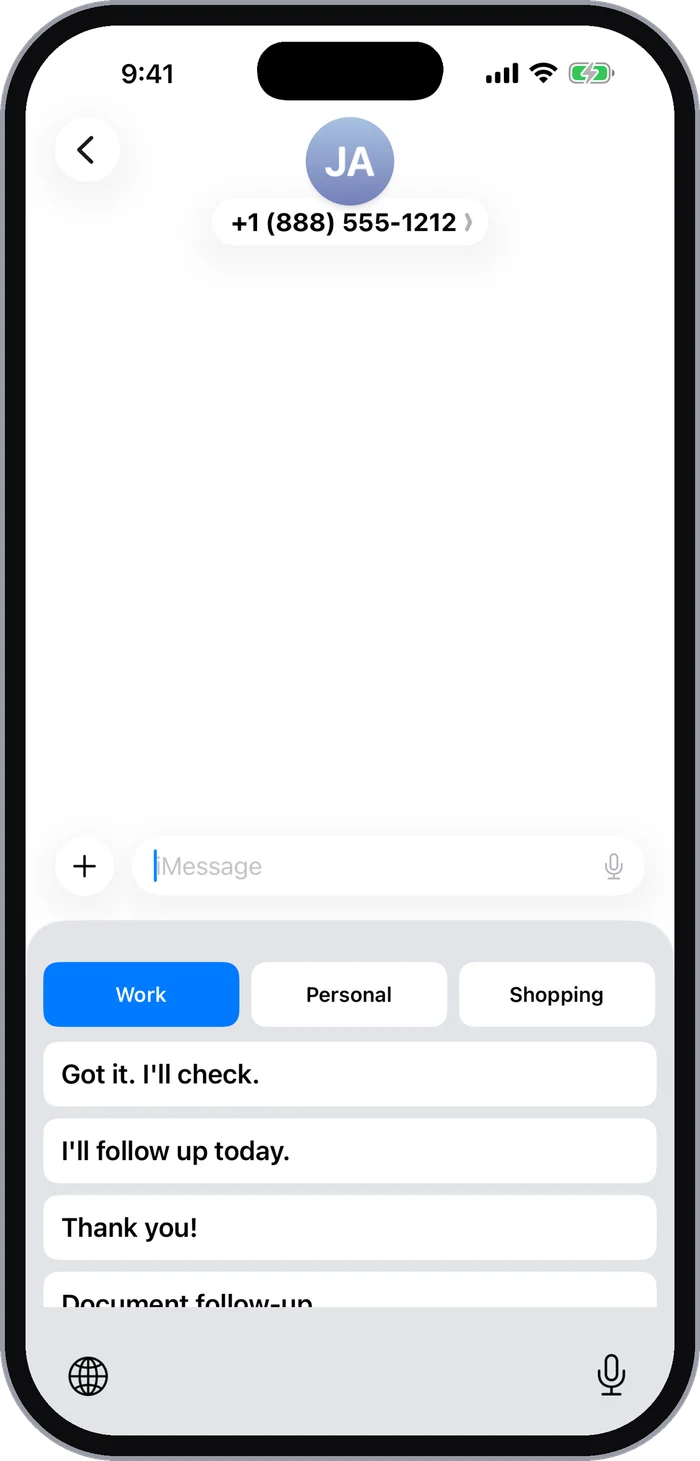
If your replies are already easy to find, you do not need another keyboard. If you are tired of hunting for them, the developer’s guide to Switchy explains how it works in more detail.