
How to Undo Typing on iPhone: 4 Ways That Work
Deleted a paragraph or pasted the wrong thing? Here are four ways to undo typing on iPhone: three-finger swipe, three-finger double-tap, shake to undo, and the edit menu, from a keyboard developer.

You selected a paragraph to fix one word, typed a letter, and the whole paragraph vanished. On a computer you would press Command-Z. On an iPhone, there is no Z key, and the undo button is nowhere to be seen.
Here is the answer: the fastest way to undo typing on iPhone is a three-finger swipe to the left. Swipe right to redo. Shaking the phone works too, and is the one most people stumble into by accident.
I build Switchy, a keyboard app for iPhone, and I make and undo a lot of typing mistakes while testing it. This guide covers every undo method I use and when each one is handy. By the end, a lost paragraph will be a two-second fix.
If what you lost was something you paste often, it is worth saving it properly. I explain how in how to use Text Replacement on iPhone.
1. Three-finger swipe (fastest)
- Undo: swipe left with three fingers anywhere on the screen.
- Redo: swipe right with three fingers.
A small banner at the top of the screen confirms what happened. This is the one I use most, because it works without moving the phone.
2. Three-finger double-tap
Double-tap with three fingers to undo. It is easy to remember if swiping feels awkward.
3. Shake to undo
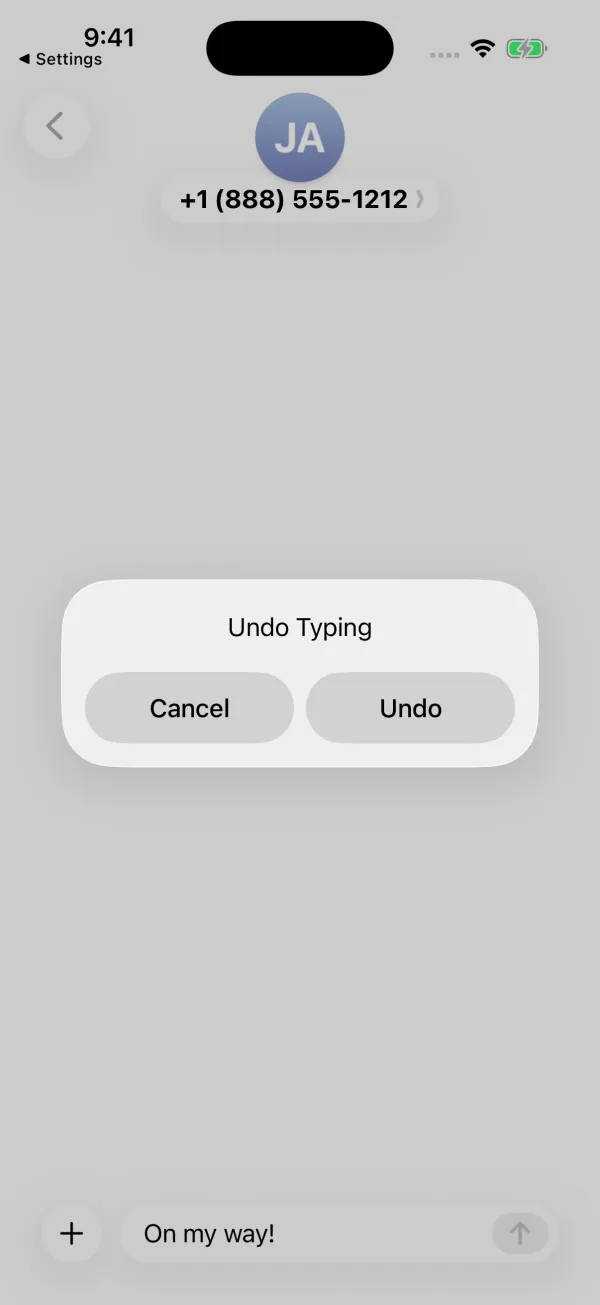
Shake your iPhone, and iOS asks whether you want to Undo Typing. Tap Undo.
It works, but it is also the method people trigger by mistake while walking. If that keeps happening, turn it off in Settings > Accessibility > Touch > Shake to Undo. The gestures above still work.
4. The edit menu
Tap and hold in a text field. Some apps show an Undo option in the menu that appears, next to Cut, Copy, and Paste. Not every app does, so I treat this as a backup.
Undo vs. a paste you did not mean
If you pasted the wrong thing, undo removes it just like typed text. If paste itself is behaving strangely, for example pasting something from your Mac, see copy and paste not working on iPhone.
Why undo sometimes does nothing
- You already left the app. Undo history usually lives with the text field you were typing in.
- The app has its own editor. Some apps handle undo themselves, and gestures may not reach them.
- Too many steps back. Undo goes back step by step. Swipe a few more times.
My take: undo is a safety net, not a workflow
Undo is great for the occasional slip. But if you are undoing because you keep retyping the same long text and getting it wrong, the real fix is to stop retyping it. Save it once, insert it every time.
For more ways to cut down on typing, I collected the habits that save me the most time in how to type faster on iPhone.