
How to Type Faster on iPhone: 9 Habits That Work
Type faster on iPhone with nine habits a keyboard developer actually uses: shortcuts for repeated text, the space-bar cursor, double-space periods, dictation, and saving the things you type every day.

You know the feeling. You are halfway through a reply, you notice a typo three words back, and getting the cursor there takes longer than retyping the sentence.
Here is my honest take after years of building keyboards: the biggest speedup is not typing faster. It is typing less. Saving the text you type every day beats any finger technique. After that, a few built-in tricks remove most of the friction.
I build Switchy, a keyboard app for iPhone. These are the habits I actually use, ordered by how much time they save me. By the end, you will have at least three you can start using today.
The first habit relies on Text Replacement, so if you have not set it up, start with how to use Text Replacement on iPhone.
Habits that save the most time
1. Stop typing your email, phone, and address
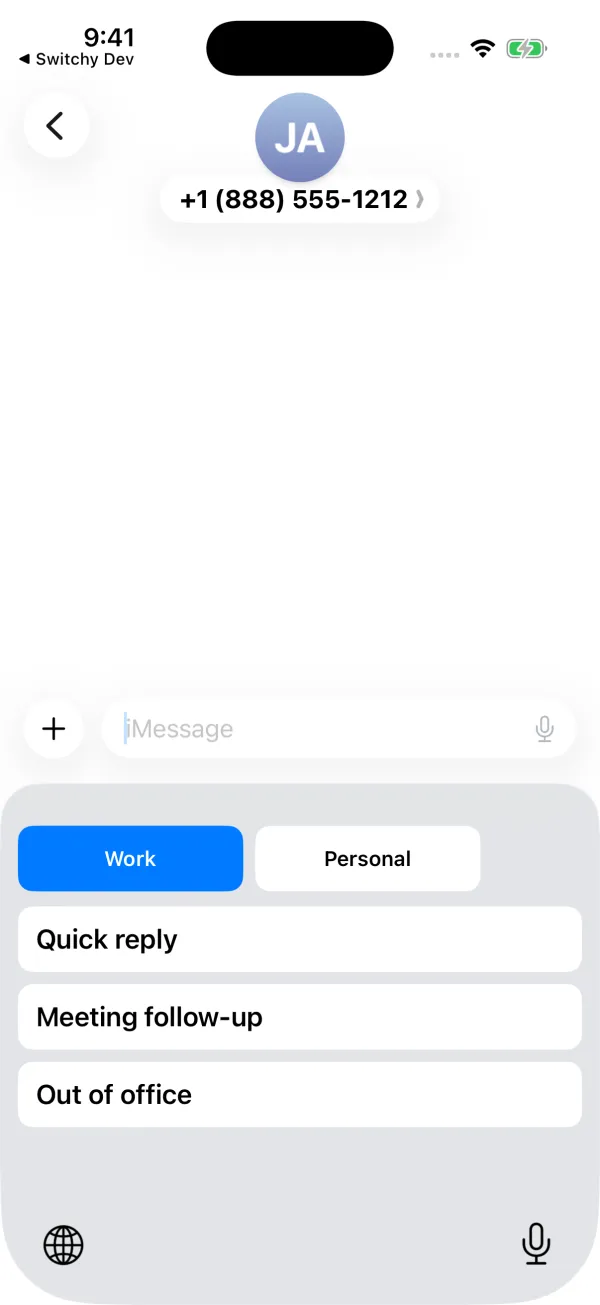
These are the strings you type most and make the most mistakes in. Save each one with a short shortcut in Text Replacement, such as ;em for your email. That alone saves me more time than everything else on this list.
2. Save the replies you send every week
“Thanks, I’ll get back to you by Friday.” “Running 10 minutes late.” If you send it every week, save it. Short ones fit in Text Replacement. Longer ones with line breaks need a text expander app, because Text Replacement turns line breaks into spaces.
3. Use the space bar as a trackpad
Touch and hold the space bar until the keys go blank, then slide your finger to move the cursor. Fixing a typo three words back takes a second instead of ten.
4. Double-tap space for a period
Tap the space bar twice at the end of a sentence to add a period and a space. It is on by default. If not, look for the “.” Shortcut setting in Settings > General > Keyboard.
Habits that help in specific moments
5. Dictate long messages
Tap the microphone key and speak. For long replies, dictation is faster than any thumb. I use it for first drafts and then fix the details by typing.
6. Swipe to type
Apple’s keyboard lets you slide your finger from letter to letter instead of tapping. Some people love it, some never get used to it. Try it for a day.
7. Use undo gestures instead of retyping
Swipe left with three fingers to undo. It is faster than deleting by hand. More options are in how to undo typing on iPhone.
8. Keep one-handed mode for walking
Touch and hold the emoji or globe key and pick a one-handed layout. On a big phone, this saves a lot of stretching.
9. Let predictive text finish common words
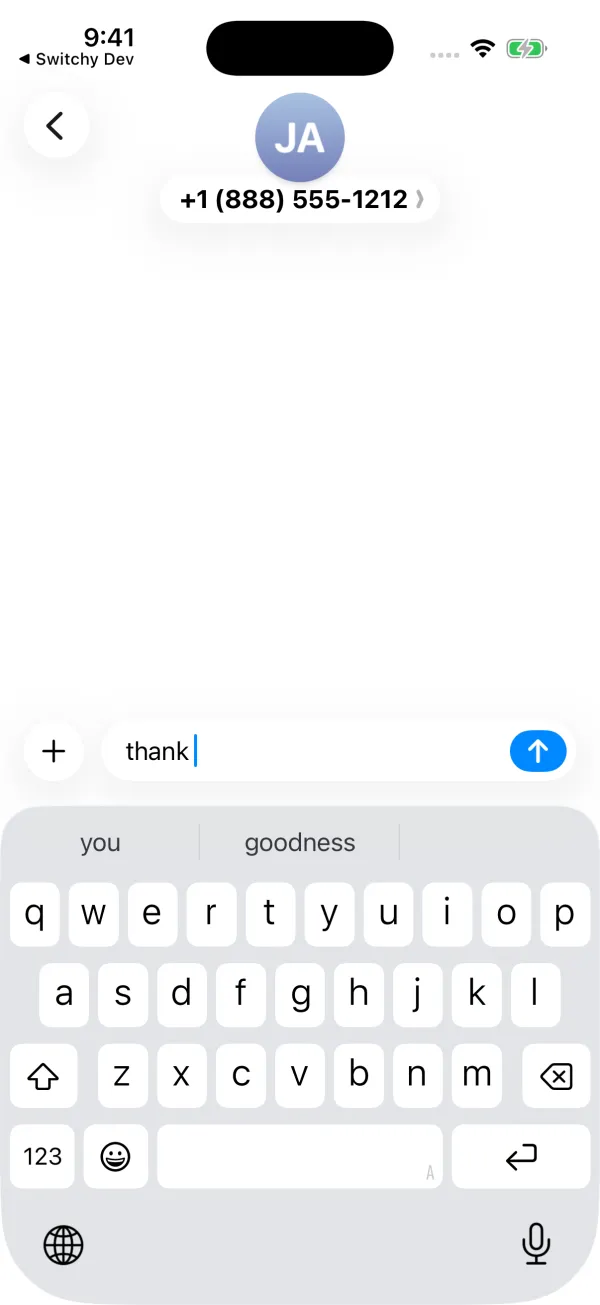
The suggestion bar above the keys is faster than finishing long words yourself. Tap the suggestion as soon as it is right.
What I would skip
Practicing typing speed. You will get a little faster, but the time you save is tiny compared with not typing the same twenty sentences every week.
Start with three
If you only do three things today, make them these: save your email address as a shortcut, learn the space-bar cursor, and save the one reply you send most. For ideas on what else to save, my list of Text Replacement ideas is a good next step.