
How to Change Your Outlook Signature on iPhone
Change the signature in the Outlook app on iPhone, remove “Get Outlook for iOS,” and set a different signature per account. Plus what to do when you need more than one, from the developer of an iPhone keyboard.
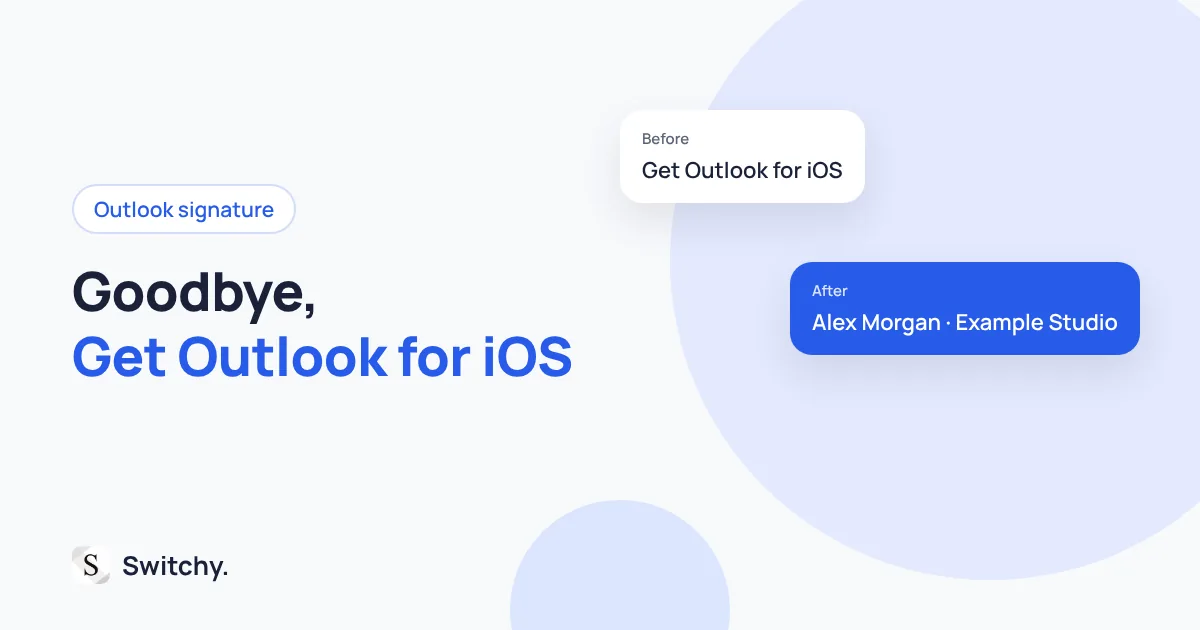
Every email you send from your phone ends with “Get Outlook for iOS.” It is a small thing, but in a reply to a client it looks like an ad you did not agree to run.
Good news: the Outlook app has its own signature setting, and you can replace that line with your real signature in under a minute. You can also set a different signature for each account.
I build Switchy, a saved-text keyboard for iPhone, so signatures are something I think about a lot. This guide shows the setting, explains how it differs from your desktop signature, and covers what to do when one signature is not enough.
If you use Apple Mail, see how to change your email signature on iPhone instead.

Change the signature in Outlook for iPhone
- Open the Outlook app.
- Tap your profile picture or the account icon in the top-left corner.
- Tap the Settings gear.
- Find Signature in the mail settings.
- Replace “Get Outlook for iOS” with your signature.
- If you have several accounts, turn on the per-account option to write one for each.
Microsoft updates the Outlook app often and the menu moves around. Its Outlook mobile signature guide has the current steps.
Why it does not match your desktop signature
The signature in Outlook for iPhone is separate from the one in Outlook on your computer or on the web. Changing one does not change the others. If your colleagues see different signatures from you, check each place you send from.
Keep the mobile version short
A mobile signature should fit on a phone screen without scrolling:
Alex Morgan Project Manager, Example Studio (555) 010-0199
Branded HTML signatures with logos are better set on the desktop. On mobile, plain text is safer and usually looks cleaner.
When you need more than one signature
The app gives you one signature per account. If the same account needs a formal sign-off for clients and a short one for your team, keep the automatic one minimal and add the right version by hand.
For one-line versions, Text Replacement works. For multi-line signatures, a saved-text keyboard keeps the line breaks intact. The full workaround is in multiple email signatures on iPhone.
The bottom line
Open Outlook’s settings, find Signature, and replace the default line with a short signature of your own. Do it once per account and you will never send “Get Outlook for iOS” to a client again.
If you also reuse the body of emails, email templates for iPhone compares the options.