
How to Use Multiple Email Signatures on iPhone
Set a different signature for each email account in Apple Mail, Gmail, and Outlook on iPhone, and what to do when one account needs several sign-offs. A keyboard developer’s practical guide.
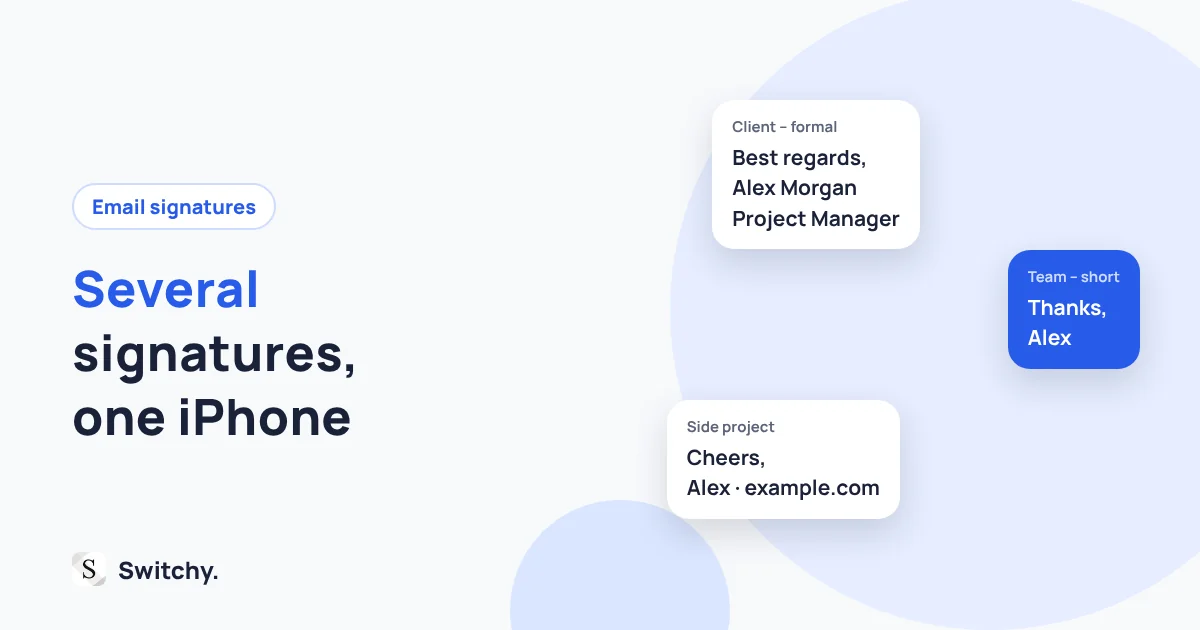
Here is a small but real embarrassment: replying to a client from your phone and signing off with “Sent from my iPhone,” or worse, with the signature from your side business.
Most iPhone mail apps let you set one automatic signature per account. That covers a lot. The trouble starts when one account needs several sign-offs: a formal one for clients, a short one for colleagues, a different one for a project.
I build Switchy, a saved-text keyboard for iPhone. Honestly, I rarely need to juggle signatures myself: Gmail lets me set one per address, and that covers me. So this guide starts with the built-in settings, because for many people they are enough, and then covers the workaround for when they are not: “several signatures, one account.”
If you only need to change your one signature, how to change your email signature on iPhone is quicker.

Two different problems
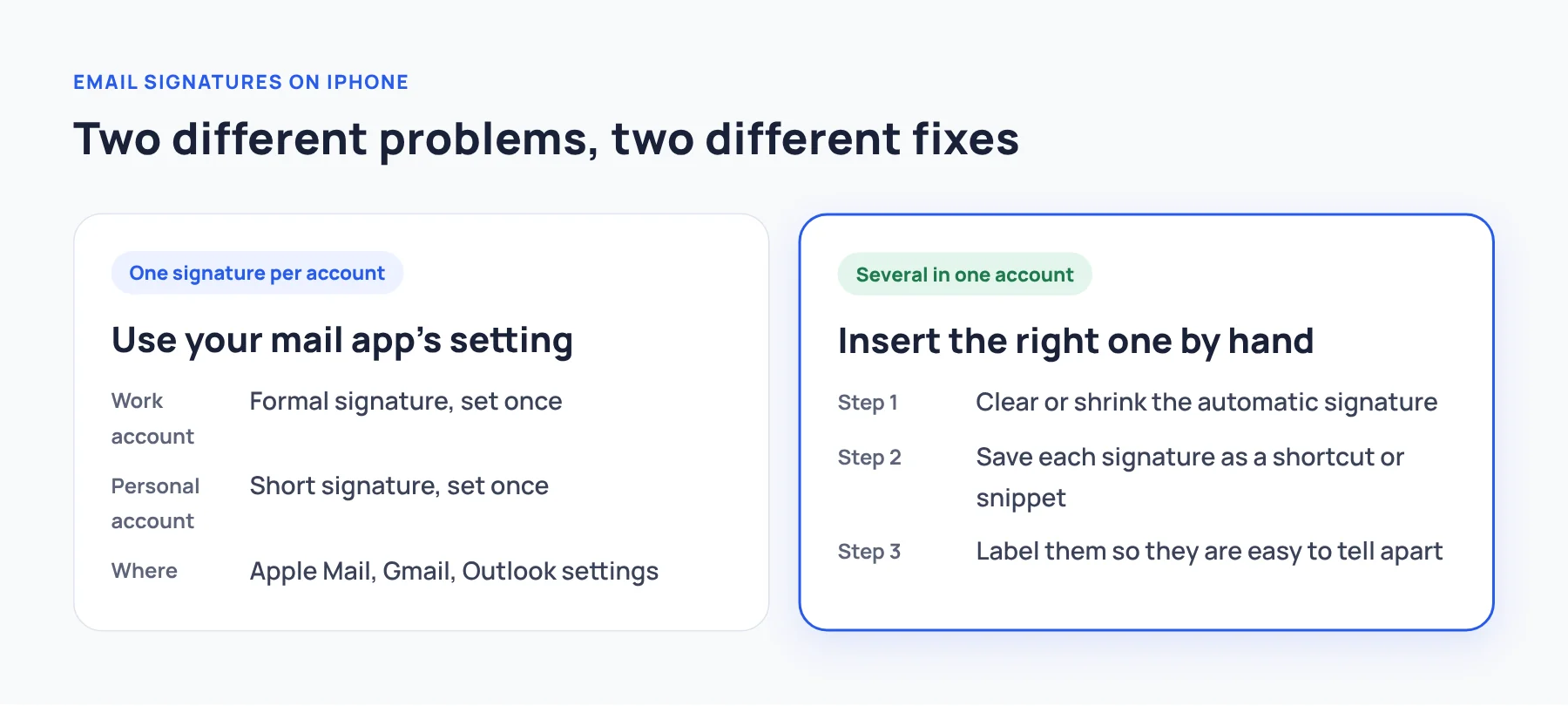
| Your situation | Solution |
|---|---|
| Different signature per account (work vs. personal) | Per-account signature in your mail app |
| Several signatures inside the same account | Manual signatures inserted from Text Replacement or a keyboard |
Figure out which one you have before changing anything.
Apple Mail: one signature per account
In Apple Mail, go to Settings > Apps > Mail > Signature. You can use the same signature for all accounts or choose Per Account and write a different signature for each (Apple’s Mail settings guide).
Tip: delete “Sent from my iPhone” while you are there, unless you like it.
Gmail app: set a mobile signature per account
In the Gmail app, open the menu, tap Settings, choose the account, then Signature settings (Google’s iPhone and iPad instructions). The mobile signature is separate from the one you set on a computer, so check both if your messages look inconsistent.
Outlook app: set a signature per account
Outlook for iOS also lets you edit the signature in its settings, and you can set it per account. Microsoft’s Outlook mobile signature guide has the current steps, which change from time to time.
When one account needs several signatures
Most mail apps do not let you choose between several automatic signatures in one account. The practical workaround is to stop relying on the automatic signature for that account and insert the right one by hand.
Step 1: Shrink or clear the automatic signature
If the app adds a signature automatically and you add another by hand, you get two. Either clear the automatic one for that account, or keep it to something that works everywhere (just your name).
Step 2: Save each signature somewhere you can reach from the keyboard
Text Replacement works for one-line signatures. Save each one with a shortcut, such as ;sigc for clients and ;sigt for your team. Line breaks are the catch: in my test, Text Replacement turned them into spaces, so a multi-line signature comes out as one line. Details in iPhone Text Replacement character limit.
A saved-text keyboard works better for multi-line signatures. You switch keyboards at the end of the email and tap the signature you want. In Switchy, for example, you can group them in a Context called Signatures so they never mix with other replies.
Step 3: Make the signatures easy to tell apart
The risk with manual signatures is picking the wrong one. Give each a clear label (“Client – formal,” “Team – short”) and make the first line different, so you can tell them apart at a glance.
Example signatures
Formal, for clients:
Best regards, Alex Morgan Project Manager, Example Studio (555) 010-0199
Short, for colleagues:
Thanks, Alex
Side project:
Cheers, Alex · example.com
Keep phone numbers and titles current. An outdated signature is worse than none.
A note on rich signatures
Logos, colors, and links styled with HTML are a different story. Mobile mail apps and keyboards handle formatting differently, and a keyboard can only insert plain text. If your company requires a branded signature, set it in the mail app’s own signature settings, or on the desktop, and keep manual signatures for plain-text variations.
Where to go next
For other email reuse tricks, see Gmail templates on mobile and email templates for iPhone. If you are comparing keyboards, start with how to choose an iPhone quick-reply keyboard.