
Email Templates for iPhone: Choose the Right Method
Five ways to reuse email text on iPhone, from mail app templates to Notes, Text Replacement, and saved-text keyboards. A keyboard developer explains what each can and cannot fill in, and which to use when.
An email has four parts you might want to reuse: the recipients, the subject, the body, and the signature. Most frustration with “email templates on iPhone” comes from using a tool built for one part and expecting it to fill in the others.
I build Switchy, a saved-text keyboard for iPhone, which handles exactly one of those four parts. That makes me pretty honest about what each method can and cannot do. Here is the map I wish more people had.
If all you need is a better sign-off, start with how to change your email signature on iPhone.
The map: which method fills in which part
| Method | Recipients | Subject | Body | Signature | Works in other apps |
|---|---|---|---|---|---|
| Gmail templates (computer) | — | ✓ | ✓ | — | — |
| Mail app signature | — | — | — | ✓ | — |
| Notes + copy/paste | manual | manual | ✓ | ✓ | ✓ |
| Text Replacement | — | — | short text | short text | ✓ |
| Saved-text keyboard | — | — | ✓ | ✓ | ✓ |
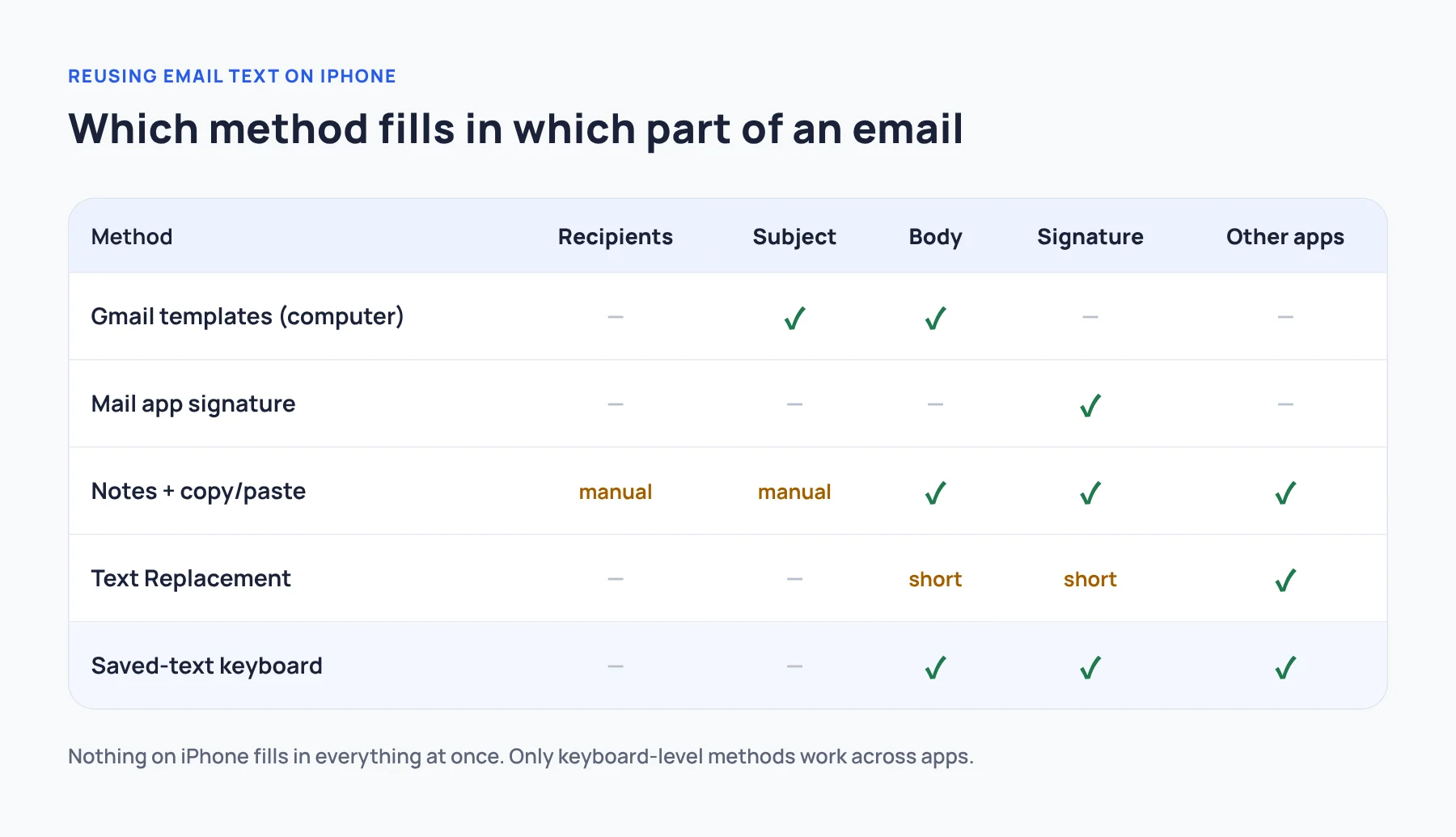
Two takeaways:
- Nothing on the iPhone fills in everything at once. Plan to type recipients yourself.
- Only the keyboard-level methods work across apps. If you use Gmail, Apple Mail, and Outlook, that matters.
Gmail’s own templates are turned on and used from Gmail on a computer, according to Google’s Gmail Templates help. For the mobile side of Gmail, see Gmail templates on mobile.
Method 1: Mail app signatures
If the only thing you reuse is the sign-off, you are done. Set a per-account signature in Apple Mail, Gmail, or Outlook. Gmail’s mobile signature is set per account in the app’s settings. For several signatures in one account, see multiple email signatures on iPhone.
Method 2: Notes + copy/paste
Keep templates in a note and copy them into the email. It is free, flexible, and shows the full text. The cost is time: roughly eight taps every time (switch apps, find the note, select, copy, switch back, paste). Fine for occasional emails, tiring for daily ones.
Tip: if you go this route, put each template in its own note with a clear title. One giant “templates” note turns into a scrolling hunt.
Method 3: Text Replacement
Built into iOS. Type a shortcut, get the phrase. Perfect for an email address, a greeting, or a one-line reply. Less suited to multi-paragraph bodies: you have to remember the shortcut, and long or multi-line phrases have quirks I tested in Text Replacement character limit.
Method 4: A saved-text keyboard
You add a keyboard app, switch to it in the email body, and tap the saved text. It inserts the body or signature at your cursor, line breaks included. It works in any mail app, plus Slack, Messages, and web forms.
What it cannot do, from the person who builds one:
- Fill in recipients or the subject line by itself.
- Attach files.
- Send the email.
- Type into password fields (iOS always uses its own keyboard there).
Method 5: An email add-on
Third-party add-ons can bring templates into a specific mail app, including Gmail on iPhone. They are tied to that app and usually need access to your mailbox. Read the permissions and privacy terms carefully, especially on a work account.
Which should you use?
My honest recommendation, by situation:
- You email from one app and mostly reuse a sign-off → mail app signature.
- You reuse two or three short phrases → Text Replacement.
- You write the same few replies every day, in more than one app → a saved-text keyboard for bodies, the mail app for the signature.
- You need complete prefilled emails with recipients and subjects → a computer, or an add-on for that specific app.
Combining methods is normal. Let the mail app handle the signature, and let the keyboard handle the body. Just do not let them both add a signature, or you will send two.
How to write an email template that ages well
Templates break in predictable ways. A few rules:
- Leave blanks for anything that changes.
[name],[date],[order number]. - Never save a promise. “I’ll reply within 24 hours” becomes a lie the week you are on vacation.
- One template per job. Acknowledge, request details, status update, follow up. Not all four in one.
- Re-read before sending. Templates are drafts. You are still the author.
Example acknowledgement body:
Hi [name],
Thanks for your email. I’ve received it and will get back to you by [day].
Best,
Pick by the part you repeat
Pick the method that matches the part of the email you actually repeat. That one decision removes most of the friction.
If you are weighing a keyboard for this, my Full Access explainer covers what keyboard permissions mean, and the developer’s guide to Switchy shows the one I build.