
Reset Keyboard Dictionary on iPhone: What It Deletes
How to reset the keyboard dictionary on iPhone, and what it really deletes: learned words and every Text Replacement shortcut you saved. Read this before you tap Reset, from the developer of an iPhone keyboard.
Autocorrect keeps “fixing” a word into something embarrassing. Predictive text suggests a name you typed once, months ago. The internet says to reset your keyboard dictionary, and you are one tap away from doing it.
Stop for ten seconds first. Resetting the keyboard dictionary does not only clear learned words. Apple says it deletes all custom words and shortcuts, which includes every Text Replacement you saved. If you have shortcuts you care about, save a copy of your list before you reset.
I build Switchy, a keyboard app for iPhone, and the iOS dictionary is something I deal with constantly. This guide shows how to reset, exactly what goes away, and gentler fixes to try first. By the end, you will know whether a reset is really what you need.
If you rely on Text Replacement, it helps to know how it works first: how to use Text Replacement on iPhone.
What the reset deletes
According to Apple’s Text Replacement guide, resetting the keyboard dictionary deletes all custom words and shortcuts, and returns the keyboard dictionary to its default state.
In practice, that means:
| Goes away | Stays |
|---|---|
| Words iPhone learned from your typing | Your photos, messages, apps, and other data |
| Words you taught it by rejecting autocorrect | Your other settings |
| Your Text Replacement shortcuts | Your keyboards and their order |
The third row is the one people miss. And because Text Replacement syncs through iCloud, losing it on one device can mean losing it on your other devices too.
Before you reset: save your shortcuts
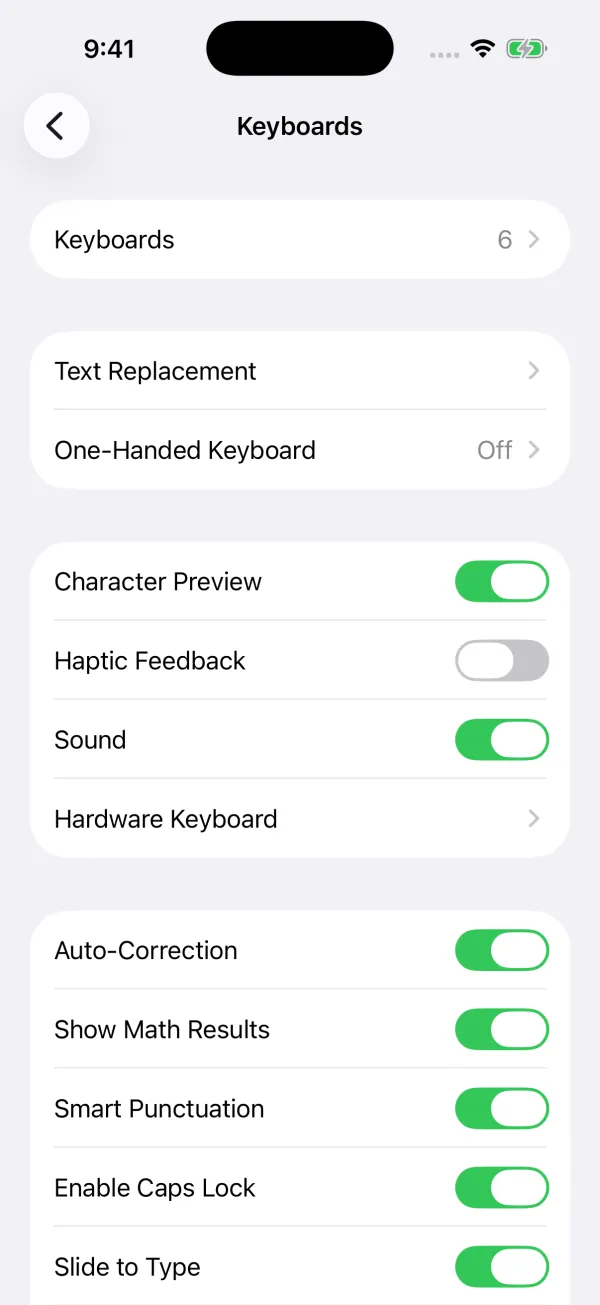
- Open Settings > General > Keyboard > Text Replacement.
- Take screenshots of the whole list.
- If you have a Mac, you can also open the Text Replacements list there and drag the entries out to save them as a file.
That five-minute step is the difference between an annoying afternoon and losing years of shortcuts.
How to reset the keyboard dictionary
- Open Settings > General.
- Scroll down and tap Transfer or Reset iPhone.
- Tap Reset.
- Tap Reset Keyboard Dictionary.
- Enter your passcode and confirm.
Read the menu carefully. Reset All Settings and the other options sit right next to it and reset far more.
Try these first
A full reset is a big hammer. These fix most annoying suggestions with less damage:
- Teach it the right word. Add the word you want as a Text Replacement with no shortcut, or a shortcut of its own. That helps it win over the wrong suggestion.
- Undo the autocorrect. When autocorrect changes a word, tapping the original in the suggestion bar or undoing the change teaches iOS not to do it again over time. I explain the undo options in how to undo typing on iPhone.
- Turn off Predictive for a while. In Settings > General > Keyboard, turning off Predictive hides the suggestion bar.
My take
There is no way to delete a single learned word on iPhone, which is why people reach for the reset. I understand. But as someone who builds keyboards, I would treat it as a last resort, not routine maintenance.
The words that cause the most grief are often names and email addresses that iOS learned slightly wrong. Saving the correct version as a Text Replacement usually solves it without wiping anything. And if you do reset, rebuilding your shortcuts from screenshots is a good moment to keep only the ones you actually use. My list of Text Replacement ideas can help you rebuild.