
Canned Responses on iPhone: Build a Small, Useful Library
How to build a personal library of canned responses on iPhone that you actually use: what to save, how to label it, and why the best libraries are small. From the developer of a saved-text keyboard.
Most canned-response libraries die the same way. You save forty replies in a burst of productivity. Two weeks later you are typing everything by hand again, because finding the right one takes longer than writing it.
I build Switchy, a saved-text keyboard for iPhone, and I made a decision early on that people sometimes find strange: Switchy limits how many snippets you can save. The free plan holds 15. The paid plan holds 35. That is on purpose.
This article explains why a small library beats a big one, and how to build yours on iPhone with whatever tool you prefer.
If you are starting from zero, how to use Text Replacement on iPhone covers the free built-in option first.

Why fewer canned responses work better
A canned response is only useful if you can find it faster than you can type it. Every reply you add makes every other reply a little harder to find.
You do not need a study to feel this. If you have fifty notes titled “reply,” “reply 2,” and “reply new,” you already know. When I studied 266 App Store reviews of other snippet keyboards while planning Switchy’s features, not finding the right snippet was one of the most common frustrations.
So the goal is not to save every reply you have ever written. It is to save the eight to twelve replies you actually reuse every week.
Step 1: Find your real repeat replies
Do not start from a list of “useful templates” on the internet. Start from your own outbox.
Look at the last two weeks of messages and email you sent from your phone. Mark anything you wrote more than twice. For most people, the list looks something like this:
- Acknowledging a message (“Got it, thanks. I’ll take a look.”)
- Asking for missing details
- Giving a status update
- Sharing a link (booking page, website, payment info)
- A polite “not right now”
- A closing line or sign-off
That is your library. Everything else can be typed fresh.
Step 2: Write each reply as a draft, not a finished message
A good canned response has fixed parts and blanks. The fixed parts are the polite framing you never want to rewrite. The blanks are the facts that change every time.
Thanks for your message! I’ve received your request and will reply by [day]. If anything changes before then, I’ll let you know.
The [day] blank is deliberate. Never bake a date, a price, or a promise into a canned response. The day you forget to update it is the day you tell a customer the wrong thing.
Some rules I recommend:
- One reply, one job. “Thanks + question + next steps” in one block means you will delete half of it every time.
- Use visible blanks. Square brackets are hard to miss before you hit send.
- Keep personal data out. No passwords, verification codes, or anything you would not want on a lock screen.
- Write it in your own voice. A canned response that sounds canned defeats the purpose.
Step 3: Label replies so you can find them in a second
Labels matter more than the text itself. “Reply 3” tells you nothing. “Ack + ETA” tells you everything.
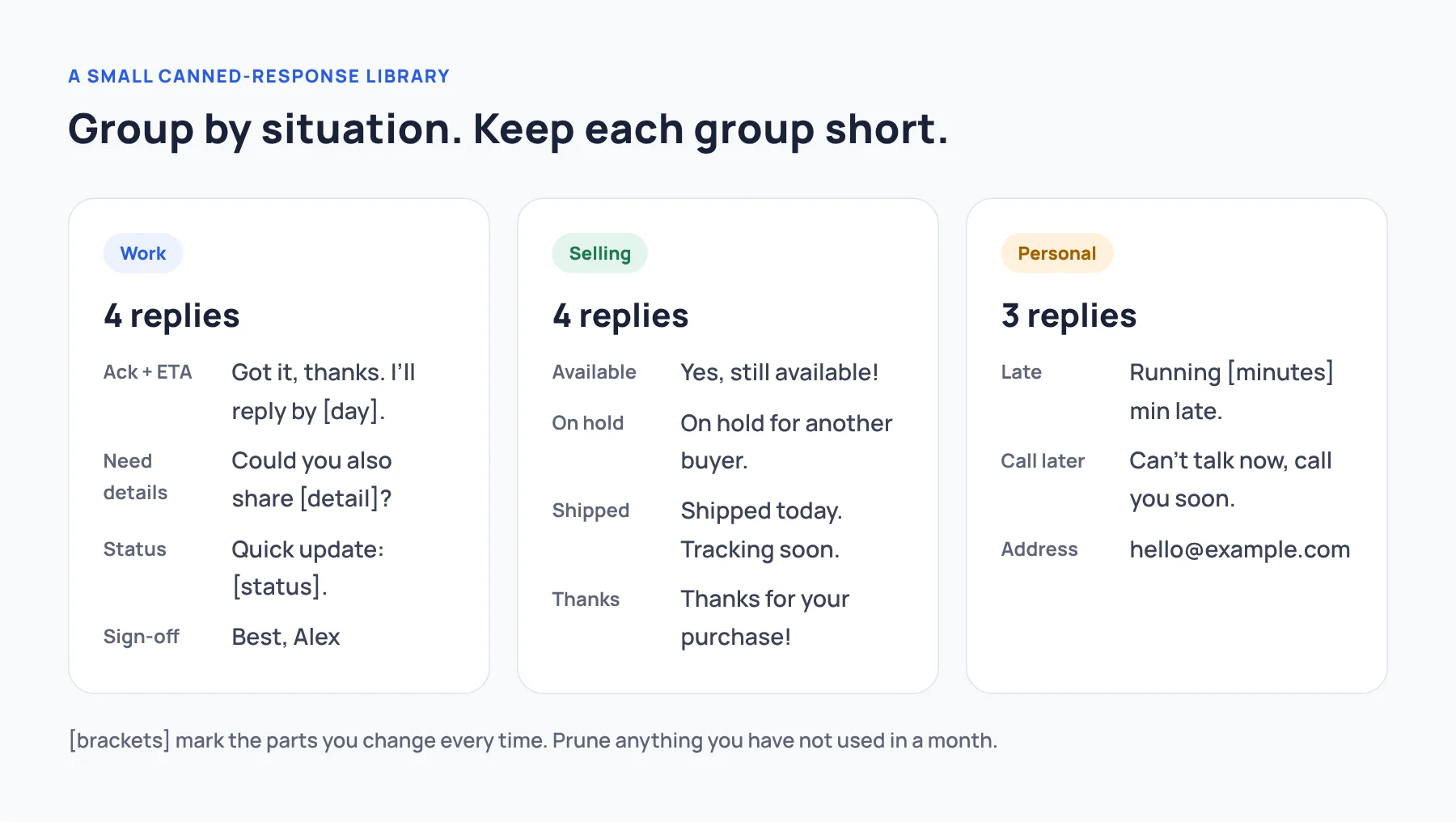
Group replies by the situation you are in, not by topic:
| Group | Example labels |
|---|---|
| Work | Ack + ETA, Need details, Status update, Sign-off |
| Selling | Still available, On hold, Shipped, Thanks |
| Personal | Running late, Can’t make it, Call you later |
When you are in a work email, you only want to see work replies. Grouping by situation is the whole idea behind Switchy’s Contexts, and it works just as well in Notes or any other tool.
Step 4: Pick where the library lives
| Tool | Good for | Watch out for |
|---|---|---|
| Text Replacement | Short replies you can remember a shortcut for | Shortcuts are easy to forget; no list to browse |
| Notes | Drafting and editing longer replies | About eight taps to copy and paste each time |
| An app’s own saved replies | Replies used inside one platform | Locked to that app |
| A saved-text keyboard | Browsing replies from any text field | Extra keyboard switch; some fields block third-party keyboards |
Apple’s Text Replacement feature is free and built in, so start there if your replies are short. If you need help choosing a keyboard, see how to choose an iPhone quick-reply keyboard.
Step 5: Prune every month
A library that never shrinks becomes the problem you were trying to solve. Once a month, delete any reply you have not used. If you are not sure, delete it anyway. You can always write it again.
Example starter library
Here is a small library you can adapt. Rewrite them in your own voice.
Work
Got it, thank you. I’ll review this and get back to you by [day].
Thanks for sending this. Could you also share [missing detail]? Then I can move forward.
Quick update: [status]. Next step is [next step], and I’ll follow up by [day].
Selling
Yes, it’s still available! Let me know if you have any questions.
Thanks for your purchase! I’ll ship it by [day] and send tracking once it’s on the way.
For marketplace messages in particular, see how to reply to “Is this still available?”.
Personal
Running about [minutes] minutes late. Sorry about that!
Can’t talk right now. I’ll call you back in a bit.
Start small
Ten good replies you can find instantly beat a hundred you cannot.
If you use Gmail on your phone, Gmail templates on mobile explains how canned text and Gmail’s own features fit together. I ended up building my own keyboard for grouped replies; the developer’s guide to Switchy explains why.