
Gmail Templates on Mobile: What Works on iPhone
Gmail’s built-in templates are a computer-only feature. A keyboard developer breaks down what you actually wanted from a template and the iPhone alternatives that work: mobile signatures, add-ons, and inserting text from the keyboard.
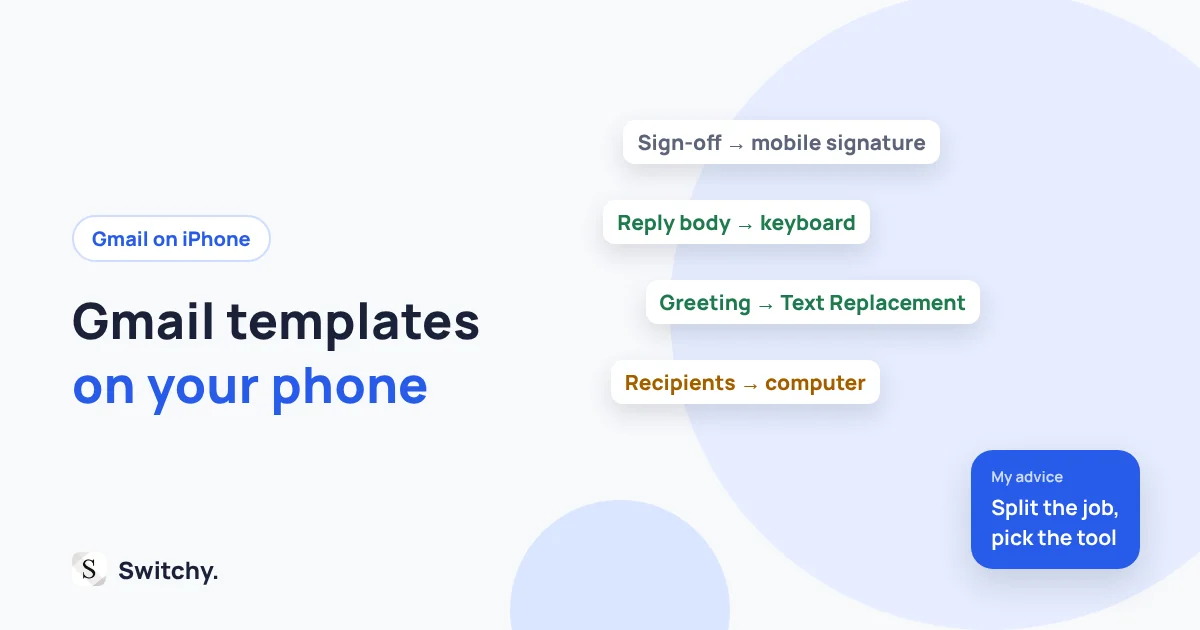
You rely on Gmail templates at your desk. Then you are on your phone, someone asks the same question for the tenth time, and you cannot find the Templates menu anywhere in the Gmail app.
You are not missing it. According to Google’s help page, Gmail’s built-in templates are turned on and used from Gmail on a computer. The iPhone app does not have the same menu.
That does not mean you are stuck. I build Switchy, a saved-text keyboard for iPhone, and the most useful thing I can tell you is this: “template” usually means one of four different jobs. Once you know which one you need, the mobile answer is easy.
For the sign-off part of your emails, see how to change your email signature on iPhone.

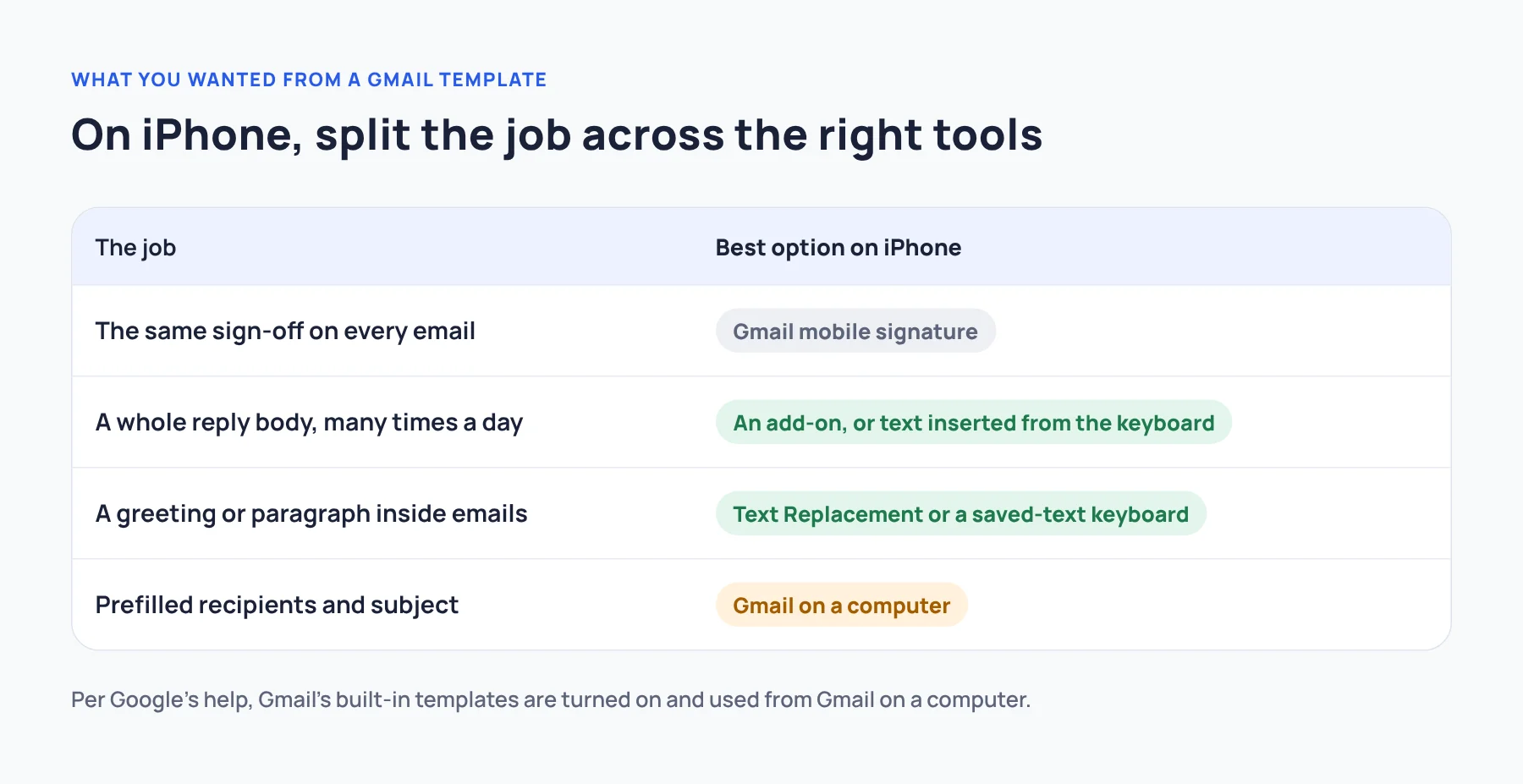
What did you want the template to do?
| The job | Best option on iPhone |
|---|---|
| Add the same sign-off to every email | Gmail’s mobile signature |
| Reuse a whole reply body, many times a day | A Gmail add-on or text inserted from the keyboard |
| Reuse a paragraph or greeting inside different emails | Text Replacement or a saved-text keyboard |
| Prefill recipients and subject lines too | Use Gmail on a computer |
A surprising number of people discover that what they really wanted was a signature.
Option 1: Just need a sign-off? Use the mobile signature
If you want your name, title, and phone number at the end of every message, set a mobile signature in the Gmail app. Open the menu, go to Settings, choose the account, and tap Signature settings (Google’s iPhone and iPad instructions).
Signatures are per account, so work and personal can be different. If you need several signatures for one account, see how to use multiple email signatures on iPhone.
Option 2: A Gmail add-on for full templates
If you want to pick a template from inside the Gmail app, a third-party add-on can do it. cloudHQ, for example, publishes mobile setup instructions for its “Email Templates by cloudHQ” add-on, which you choose from the compose screen.
This is not Google’s own feature. Before installing, read the Google Workspace Marketplace listing for pricing, the permissions it asks for, and its privacy terms. You are granting access to your mailbox, so if it is a work account, check your company’s policy too.
Option 3: Insert the body text from the keyboard
The third approach skips Gmail entirely and keeps your text in the keyboard layer. You do not grant anything access to your mailbox, and the same text works in Apple Mail, Outlook, Slack, or a text message.
Short phrases: Text Replacement
For a greeting or a one-line answer, iPhone’s built-in Text Replacement is enough. Type a shortcut, and iOS offers the full phrase. These Text Replacement ideas include a naming system that keeps shortcuts memorable.
Whole replies: a saved-text keyboard
For multi-paragraph replies you choose between, a saved-text keyboard works better than shortcuts. In the Gmail body field, switch keyboards, tap the reply, and it is inserted with its line breaks.
What the keyboard approach cannot do
I make one of these keyboards, so let me be clear about the limits. A keyboard can only type into the field your cursor is in:
- It cannot fill in recipients or the subject line for you.
- It cannot attach files.
- It does not send the email.
If you need a complete draft with recipients and subject, that is what Gmail on a computer is for. If you only need the same body text, the keyboard is the lightest option.
My recommended setup
After thinking about this problem far more than is healthy, here is the combination I recommend:
- Let Gmail handle the signature. Set it once and forget it.
- Insert reusable body text from the keyboard. It works in every app, not just Gmail.
- Keep fully prefilled templates on the computer. Do not fight the phone for that.
Trying to make one tool do everything is what makes mobile email feel clumsy. Split the jobs, and each tool does what it is best at.
Before you hit send
- Replace placeholders like
[name]or[date]. - Check the recipient and subject. With the keyboard approach, you type those yourself.
- Attach files if the message needs them.
- Watch for double signatures. If your saved reply ends with a sign-off and Gmail adds a mobile signature, you get two. Keep signatures out of saved replies.
Where to go next
To compare every option, from Mail templates to Notes, see email templates for iPhone. If you are wary of keyboard permissions, my explainer on iPhone keyboard Full Access covers what to check. The keyboard I build for this job is described in the developer’s guide to Switchy.